What’s new in the Technology Suite
See what's possible with the latest enhancements to IT Asset Manager and IT Help Desk.
The following enhancements incorporate many of your suggestions as we continue to improve Destiny for today’s students and educators. Click a month to expand it, and then click a title for more information on each feature. To expand all entries, click  at the top-right of this page.
 August
Follett Software Ops app updates
August
Follett Software Ops app updates| IT Asset Manager | Date: 8/30/2026 |
The following updates are available in the Follett Software Ops app:
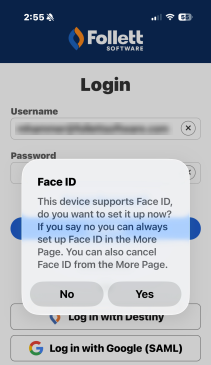
- Sign in with Face ID or fingerprint
You can now sign in to the Follett Software Ops app using Face ID on iOS devices or fingerprint authentication on Android devices.
- Assign requests
In addition to using the up arrow at the bottom of a request's details, you can now tap
 on the request details screen to assign a request or change its assignment.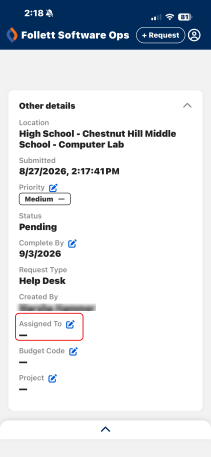
- Apply circulation rules
The mobile app now applies the circulation rules configured by your district. Circulation activity completed in the app is evaluated against those rules to prevent unauthorized actions.
Learn more about the Follett Software Ops app and circulation rules.
Introducing the Technology AI Assistant| IT Asset Manager | Date: 8/23/2026 | Release: 26.4 |
The new Technology AI Assistant answers product-focused questions, such as how many requests are open or how many assets are checked out. It cannot create, edit, or delete records.
When you start a conversation, the assistant suggests prompts based on where you are in the product.
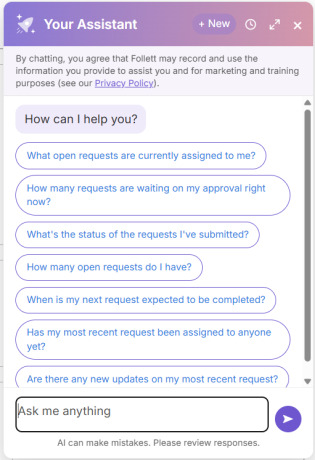
You can also enter your own question and continue the conversation with follow-up prompts.
To give users access, administrators must grant them the new AI Assistant Access permission. The assistant honors each user’s existing permissions. For example, one user might have access to assets at the high school, while another has access to requests at the middle school. If either user asks about the elementary school, the assistant does not provide an answer.
Learn more about the Technology AI Assistant.
Import users| IT Asset Manager | Date: 8/23/2026 | Release: 26.4 |
Administrators can now create and update users by uploading a completed Excel spreadsheet in IT Asset Manager. This makes it easier to add and maintain user information without entering each record manually.
A downloadable template includes all available user fields. IT Asset Manager matches existing user records by primary email address.
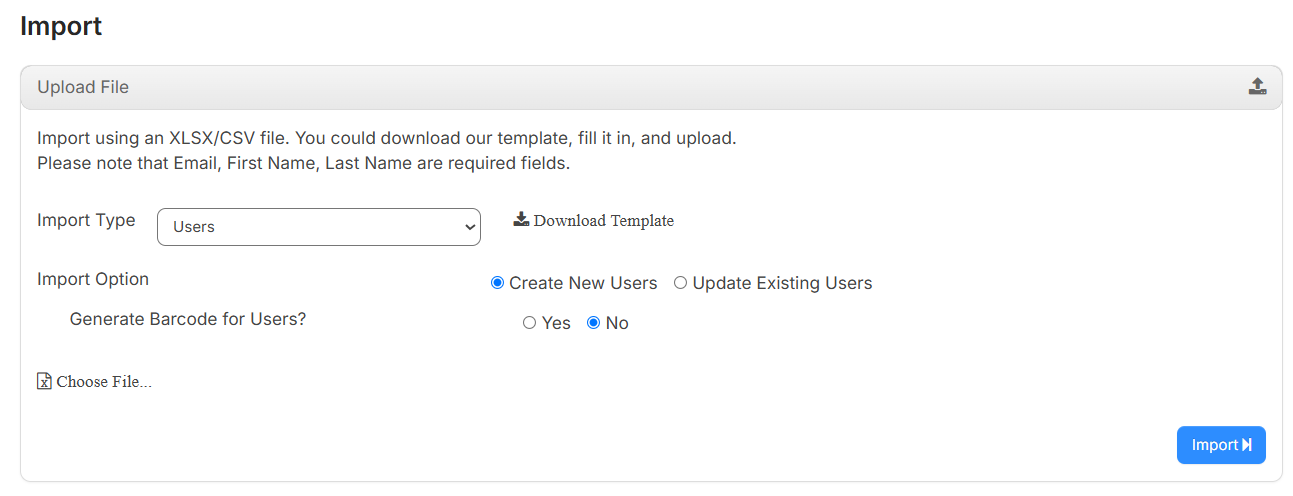
The import supports multiple roles per user. To assign more than one role, use a separate row for each role. You can include related role information – such as assigned location, type, systems, and inventory categories – when applicable.
Before processing, the import validates the file and reports issues such as missing required fields, users, roles, or buildings, as well as invalid email, date, number, or phone formats. After processing, the results show how many rows were imported, updated, or skipped, and how many produced errors. You can download an error log for the rows that need attention.
Learn more about importing users.
Mass update users| IT Asset Manager | Date: 8/23/2026 | Release: 26.4 |
Administrators can now update information for multiple users at once. This makes it easier to maintain user records without opening and editing each user individually.
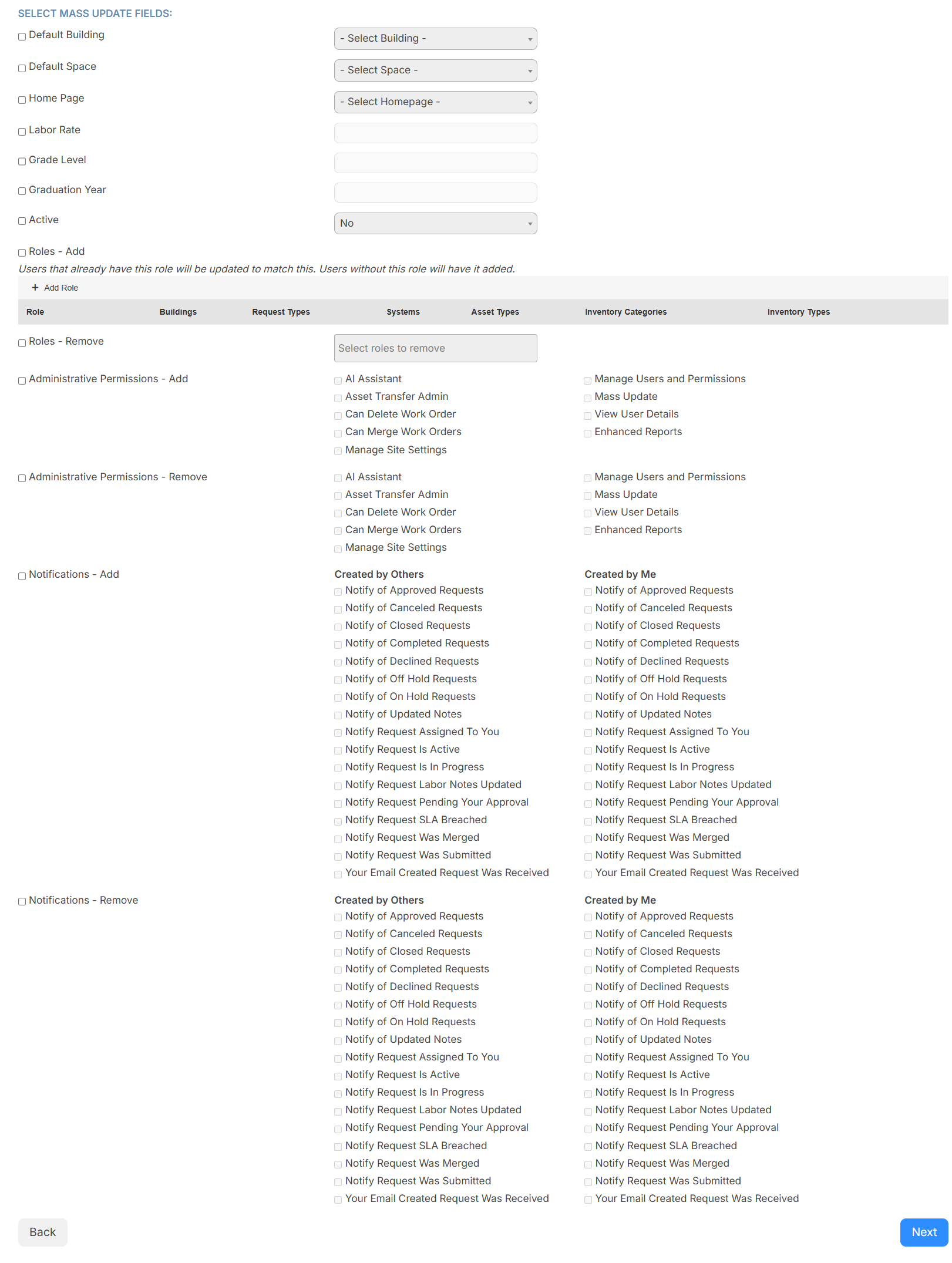
Changes are recorded in each user’s activity history. If some selected users cannot be updated, they are identified after the eligible users are updated. You can download a log of the results.
Learn more about mass updating users.
Simplified asset imports| IT Asset Manager | Date: 8/23/2026 | Release: 26.4 |
The Asset Import process has been redesigned to make it more easier and more efficient to create and update assets in bulk. The new workflow guides you through more import customization options, including whether to update existing assets or create new ones.
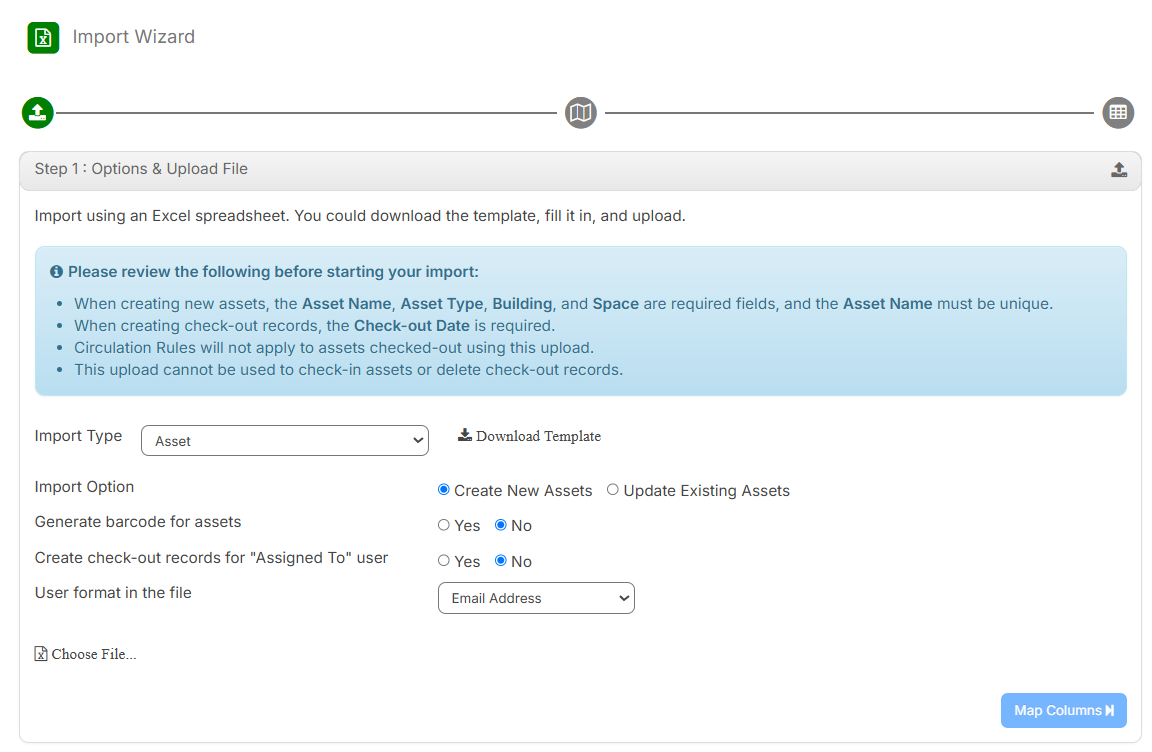
The import template has also been updated to include Check-out Ddate and Due Date columns.
Learn more about importing assets
Scanning sounds during circulation| IT Asset Manager | Date: 8/23/2026 | Release: 26.4 |
You can now turn on circulation sounds when circulating assets in the web app. Audio cues help you recognize successful scans, errors that need attention, and overdue items.
Enable audio feedback on the Quick Circulation and Audit Assets pages using the toggle at the top. The setting is off by default and is saved for each user on each page.

The web app provides different audio cues for:
- Successful checkout, check-in, or audit confirmation
- Errors and conditions that require attention, such as unavailable items, an unrecognized barcode, or items that cannot be checked in or out
- Items identified as overdue during check-in
Audio feedback plays as soon as the scan result is available and does not delay scan processing.
Learn more about quick circulation and auditing assets.
Persistent Quick Circulation settings| IT Asset Manager | Date: 8/23/2026 | Release: 26.4 |
Your Quick Circulation selections are now saved when you leave and return to the page. You no longer need to reselect your options each time you navigate away, and your settings remain available even after you log out and back in.
The following settings are saved:
- Check in vs. Check out
- Due Date, when populated
- Send Confirmation Email
- Include Component Assets
- Update Asset Space and the associated selection
Learn more about Quick Circulation.
Check in assets for inactive users| IT Asset Manager | Date: 8/23/2026 | Release: 26.4 |
Managing assets assigned to inactive user accounts is now easier. You can configure a new circulation rule setting by asset type, user's role, or building to Automatically check in this equipment if the assigned person’s account is inactivated.
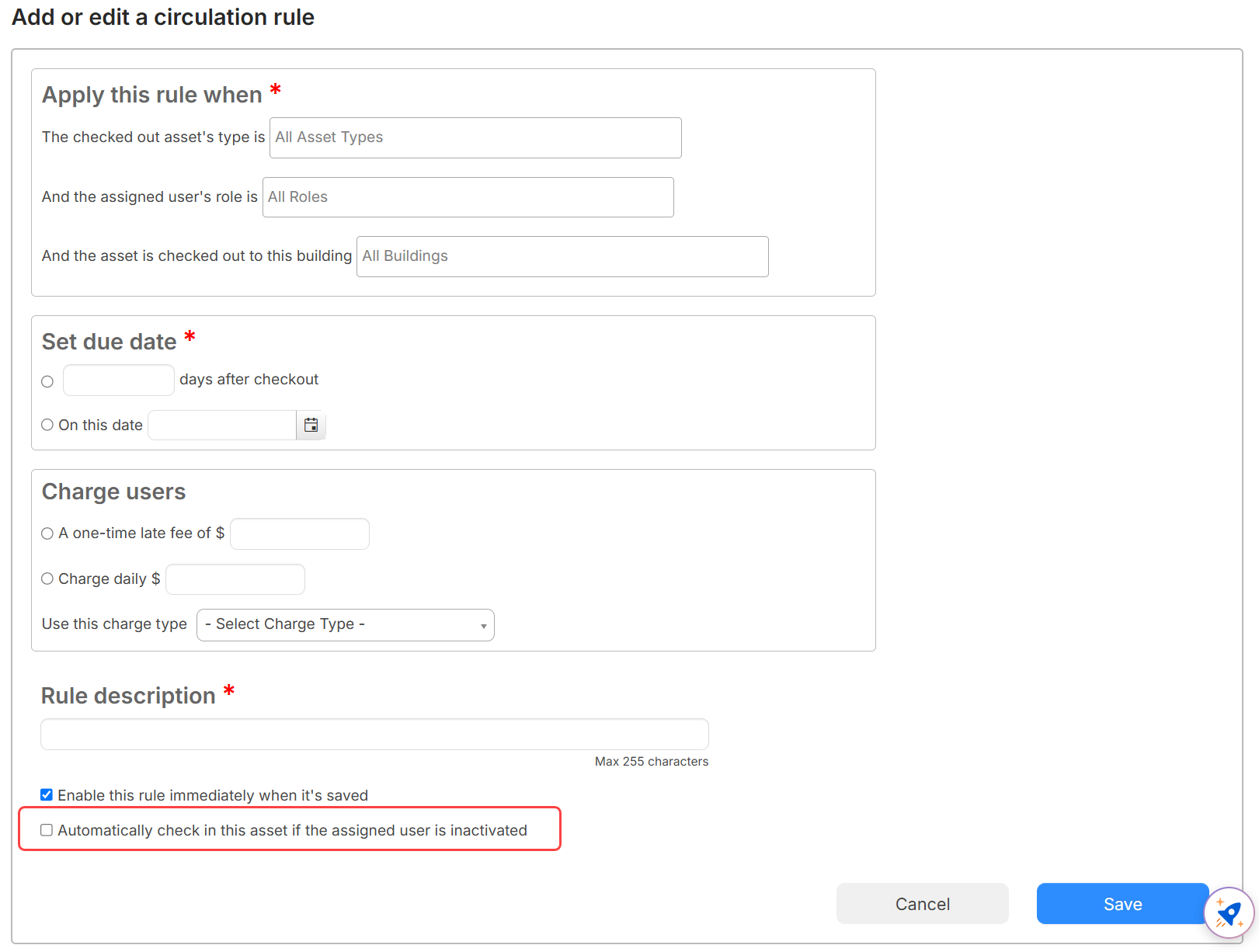
When enabled:
- Matching checked-out assets change to Available and are unlinked from the user.
- The automatic check-in is recorded in the asset’s checkout history.
- Existing check-in safeguards remain in place. For example, equipment with a status such as Lost is not overridden.
- The setting applies whether the account is inactivated manually, through a bulk update or import, or by an automated roster sync.
Learn more about configuring circulation rules.
Enable charge notification emails| IT Asset Manager | Date: 8/23/2026 | Release: 26.4 |
You can now send automatic email notifications when a charge is created or updated for a user.
- When the new Charge Notification Emails setting is enabled in General Settings, an email is sent to the user associated with the charge, with a copy to any additional addresses listed on the user’s profile.
- Notifications apply to charges created manually, during asset check-in, from request inventory, and from circulation-rule late fees.
- Charges imported through CSV or Excel do not trigger charge notification emails.
Learn more about enabling the Charge Notification Emails setting.
New Charges Report column| IT Asset Manager | Date: 8/23/2026 | Release: 26.4 |
You can now add a User Building column to the Charges Report. This column displays the default building for the user associated with each charge, making it easier to review charges by location.
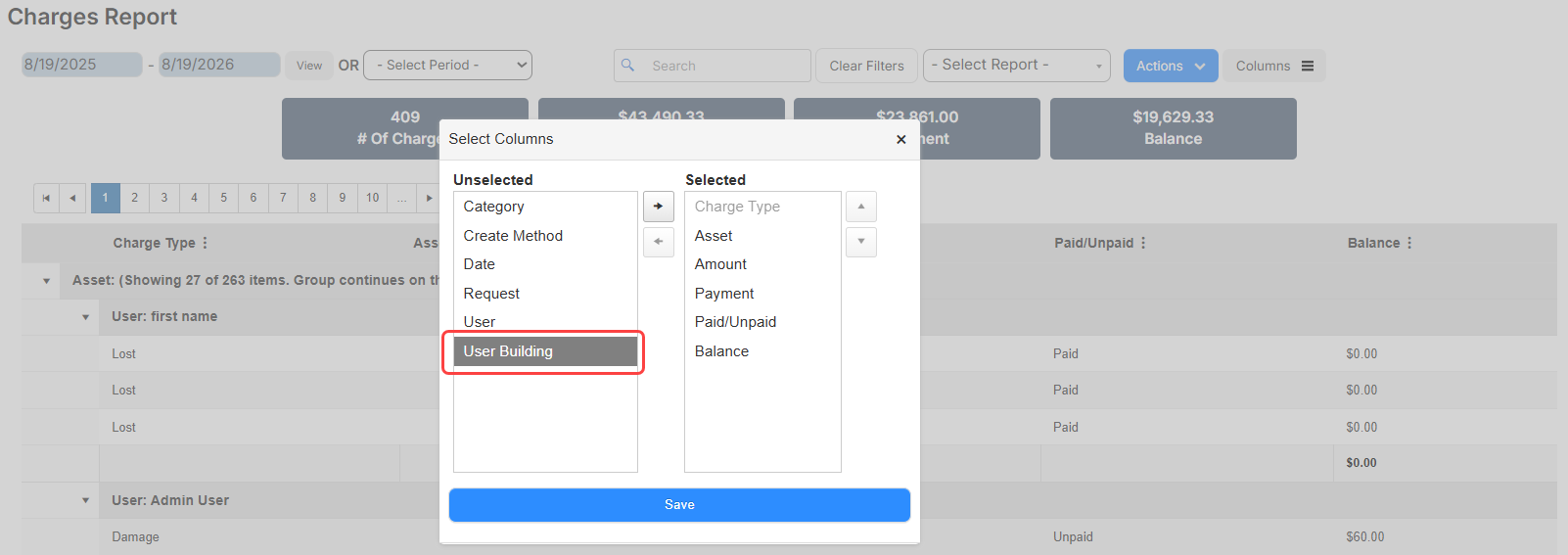
Learn more about the Charges Report.
Update to the In Transit status| IT Asset Manager | Date: 8/23/2026 | Release: 26.4 |
To help prevent assets from becoming stuck in an unrecoverable state, In Transit is no longer available for users to select or change manually.
When an asset transfer begins, the asset's status automatically changes to In Transit. To change the asset's status, you must complete or cancel the transfer. When you cancel a transfer, the asset returns to its previous status, and the transfer remains available as read-only history.
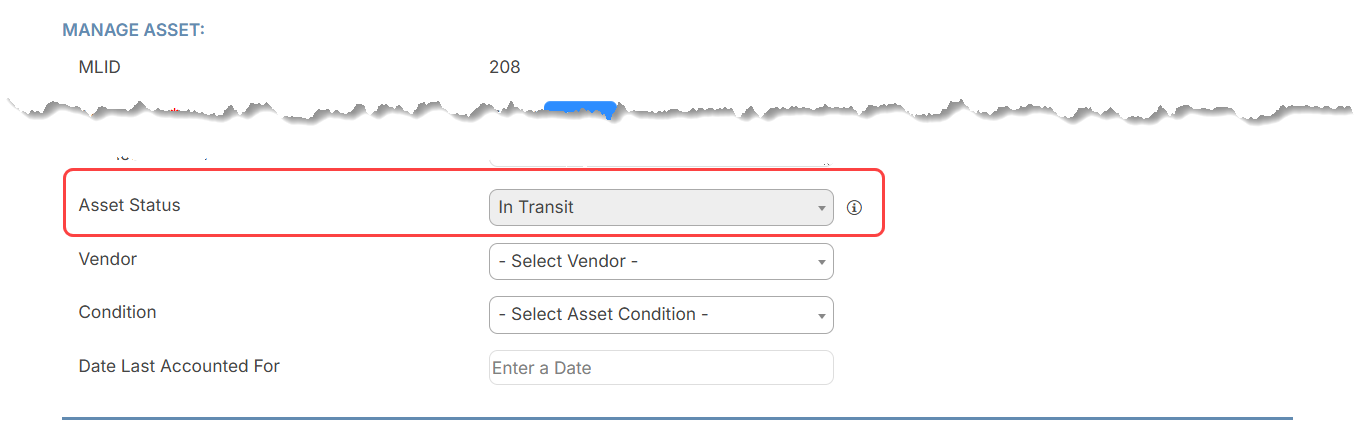
This update applies when adding or editing an asset, viewing asset details, and mapping statuses for the Google Device integration. When you add an asset, In Transit is not available in the Asset Status field. For an existing asset, the field is disabled, and you cannot select another status.
Learn more about asset transfers.
Require custom fields for walk-through requests| IT Asset Manager | Date: 8/23/2026 | Release: 26.4 |
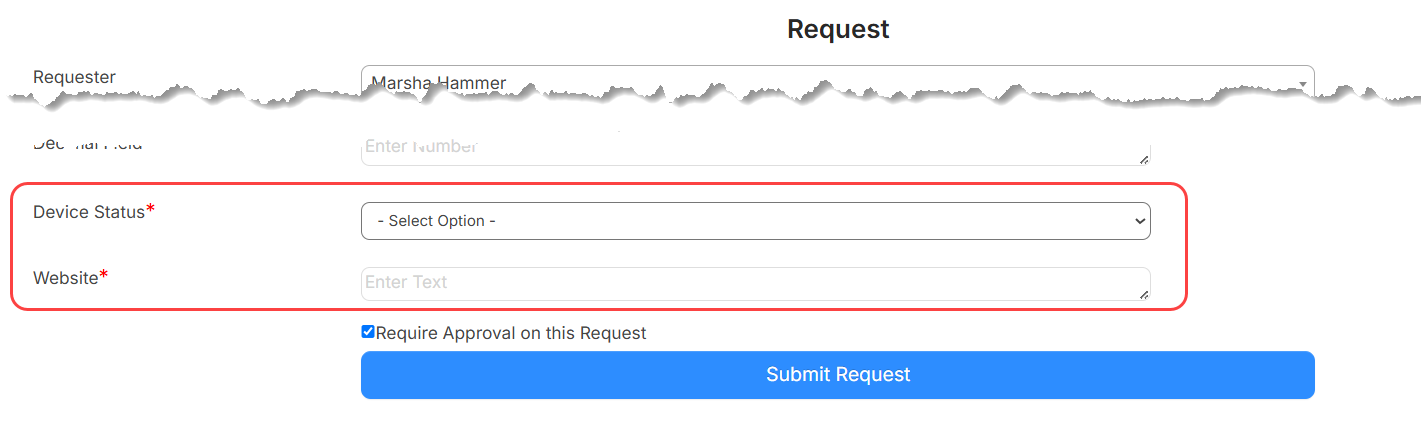
Administrators can now require users to complete custom fields when they submit requests using walk-through mode. In Manage Request Types, select the new Require Custom Fields option for selected categories. The setting applies to all custom fields in that category and is inherited by its child categories.
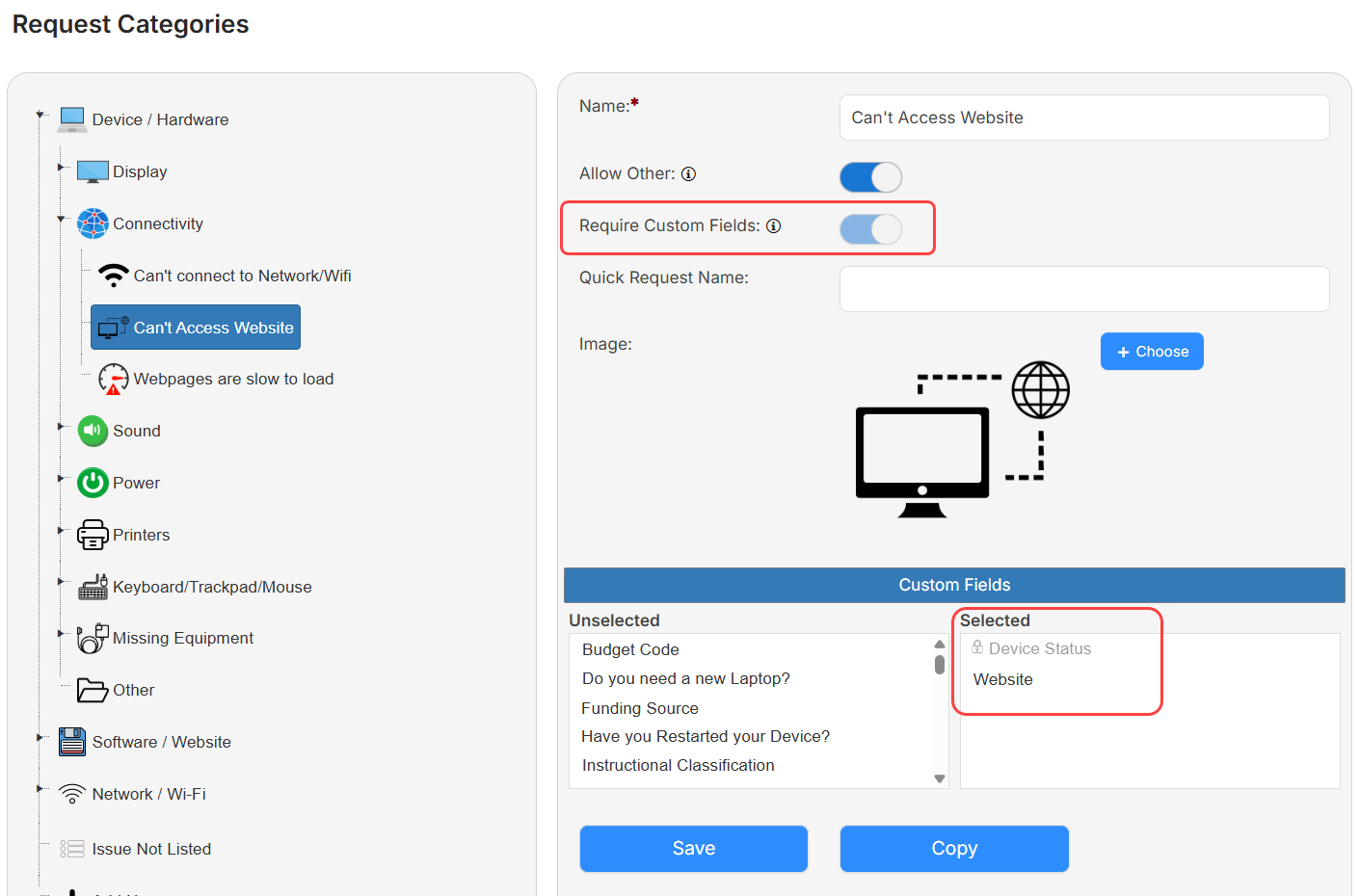
Required custom fields are identified on the request form, and users cannot submit a new request or save edits until they provide the required information.
Learn more about request categories.
Google MDM integration enhancements| IT Asset Manager | Date: 8/23/2026 | Release: 26.4 |
There are several new enhancements for the Google MDM integration in IT Asset Manager:
-
Automatically create circulation records with the Google MDM integration
A new sync rule automatically creates a circulation record when a device syncs from Google Workspace with an In Use status and an assigned user.
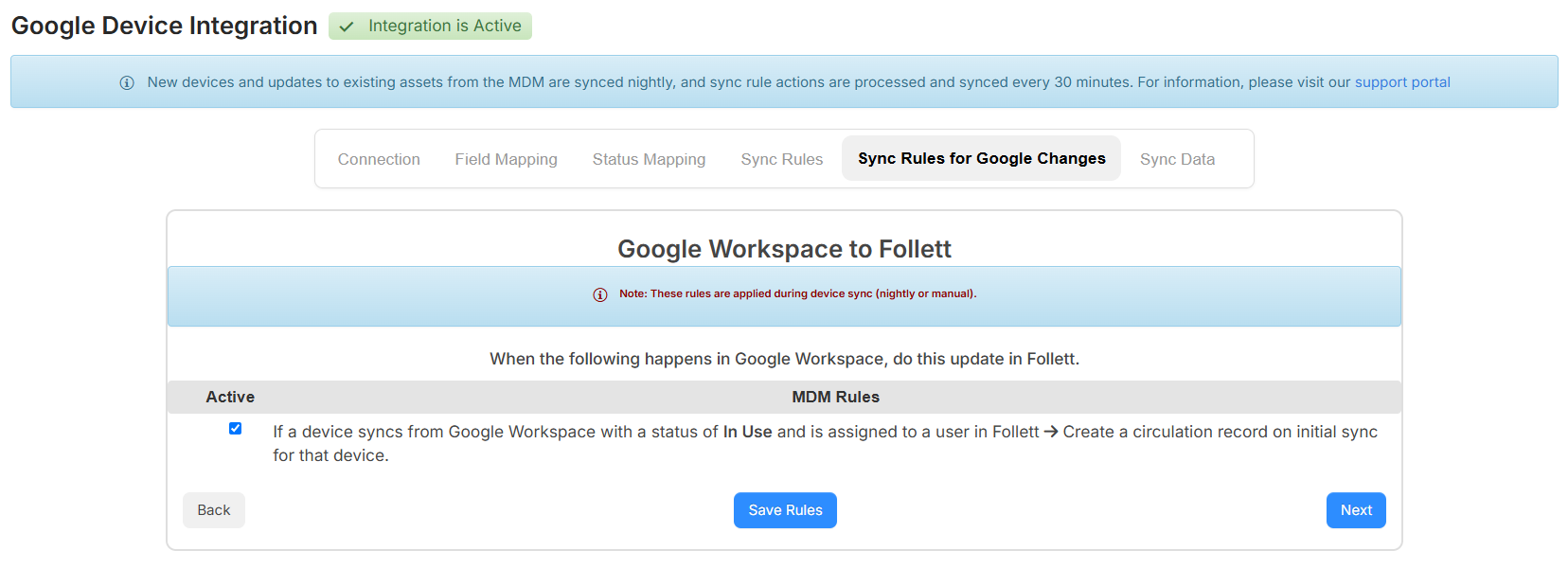
This keeps device assignments and circulation records aligned, so you can check devices in and out without first changing the device status or manually creating a record with the Mass Circulation tool.
When the rule is enabled:
- The check-out date is the device’s assigned-to date, when available. If no assigned-to date is available, the system uses the current date.
- The due date is based on the applicable circulation rule. If no circulation rule applies, the due date remains blank.
- If a device already exists without a circulation record, a subsequent sync creates the missing record without replacing existing circulation records.
-
Additional Google MDM fields
IT Asset Manager now saves additional device information from the Google MDM integration. These new fields make it easier to identify the most recent managed user associated with a device and when the device was last used:
- Last Known User – The most recent managed user reported by Google.
- Last Used Date – The most recent activity date reported by Google.
These fields appear in the IT Related section of the Asset Details and Edit Asset pages, but they are not editable.
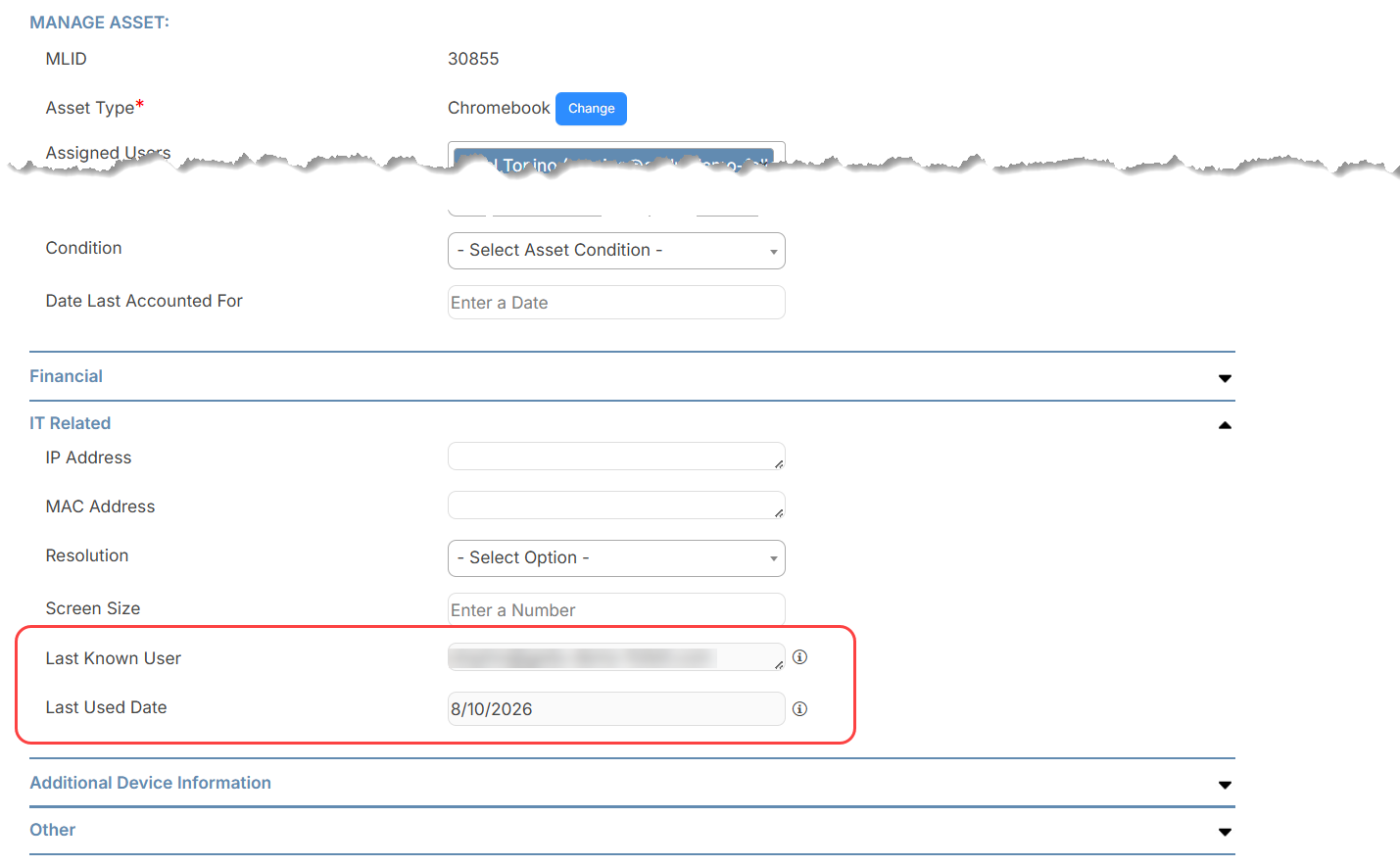
You can also add them as optional columns in View All Assets and View All Assets (All Fields).
When Google does not provide a value, the corresponding field remains blank. The fields are updated during Google MDM synchronization.
-
Actions for Google MDM devices
You can now manage Google MDM devices directly from an asset's details page in IT Asset Manager. Use the new MDM Actions button to disable, deprovision, or re-enable a supported device without opening the Google Admin console. The MDM Actions button appears only for assets synced from Google MDM and for users with the Edit Assets permission.
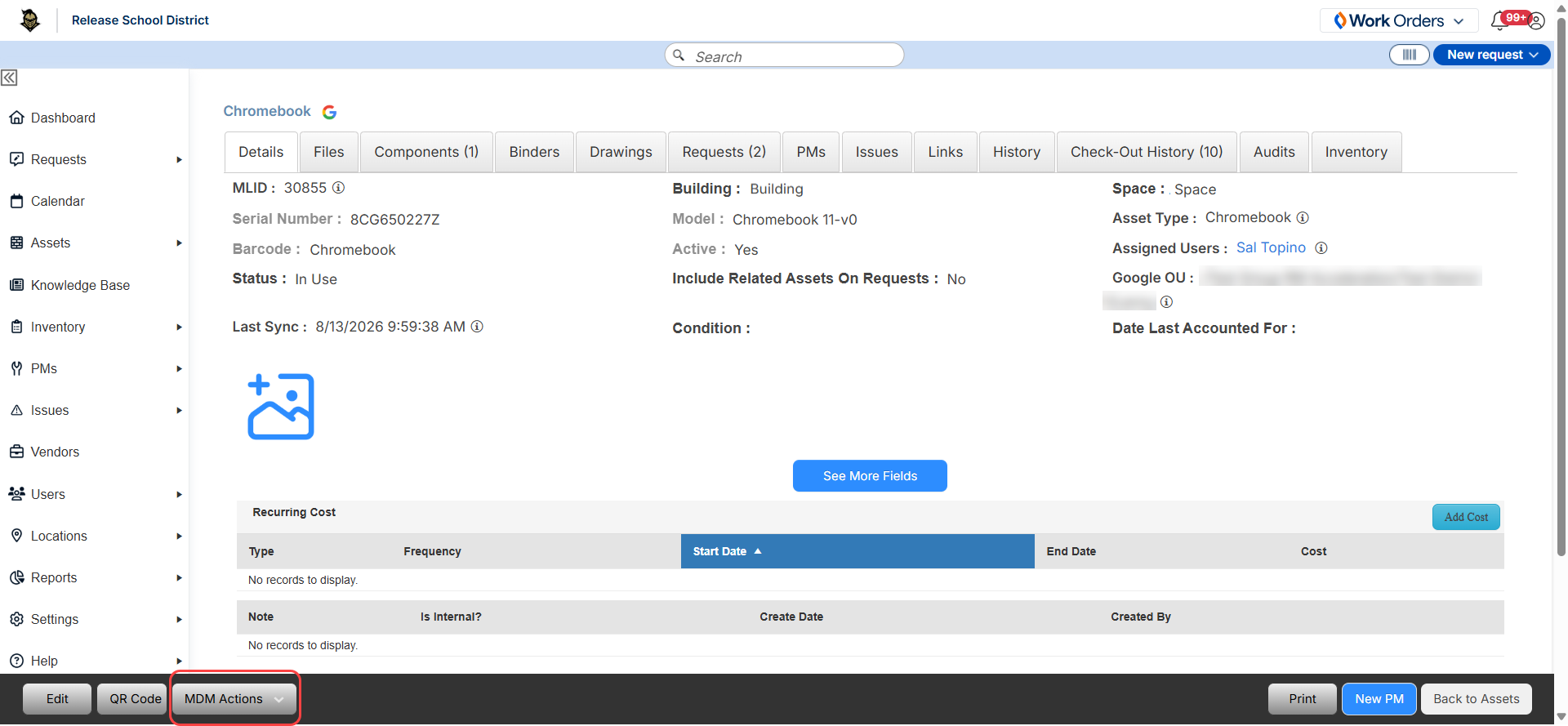
Only the actions supported for the device's current state appear in the menu.
Asset statuses are updated according to the mappings configured on the Status Mapping tab of the integration.
Learn more about the Google MDM integration.
Customize SIS ID field mapping| IT Asset Manager | Date: 8/23/2026 | Release: 26.4 |
You can now choose how SIS ID values are mapped in the SIS Data Sync and OneRoster integrations. Map SIS ID values to the External ID field, the Barcode field, or both.
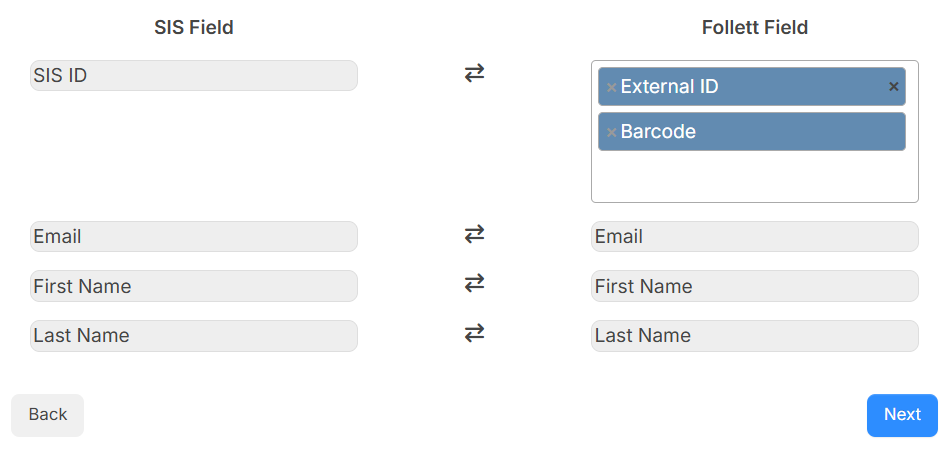
Learn more about the SIS Data Sync and OneRoster integrations.
Third party API| IT Asset Manager | Date: 8/23/2026 | Release: 26.4 |
Administrators can now generate API keys for users who need to connect to approved third-party applications. Each key is associated with a specific user, helping administrators manage API access more securely.
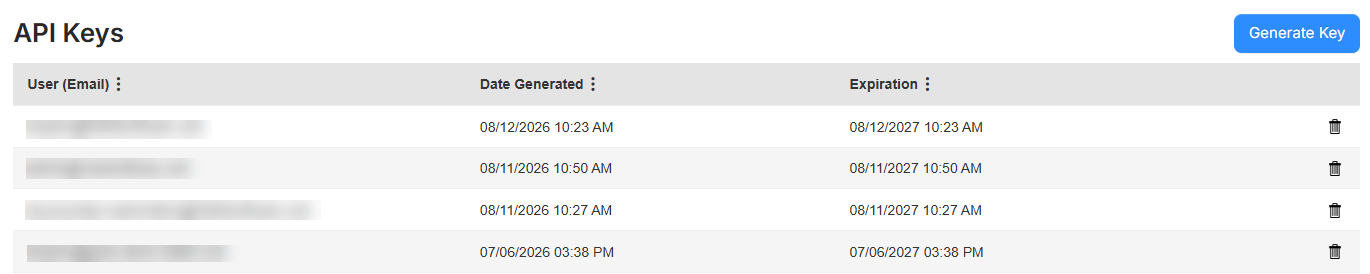
Learn more about API keys.
Add subtasks to requests| IT Asset Manager | Date: 8/2/2026 |
You can now create subtasks within a request to break work into smaller, trackable items. For example, if you are updating a district-wide sound system, you can track each building as a separate subtask.
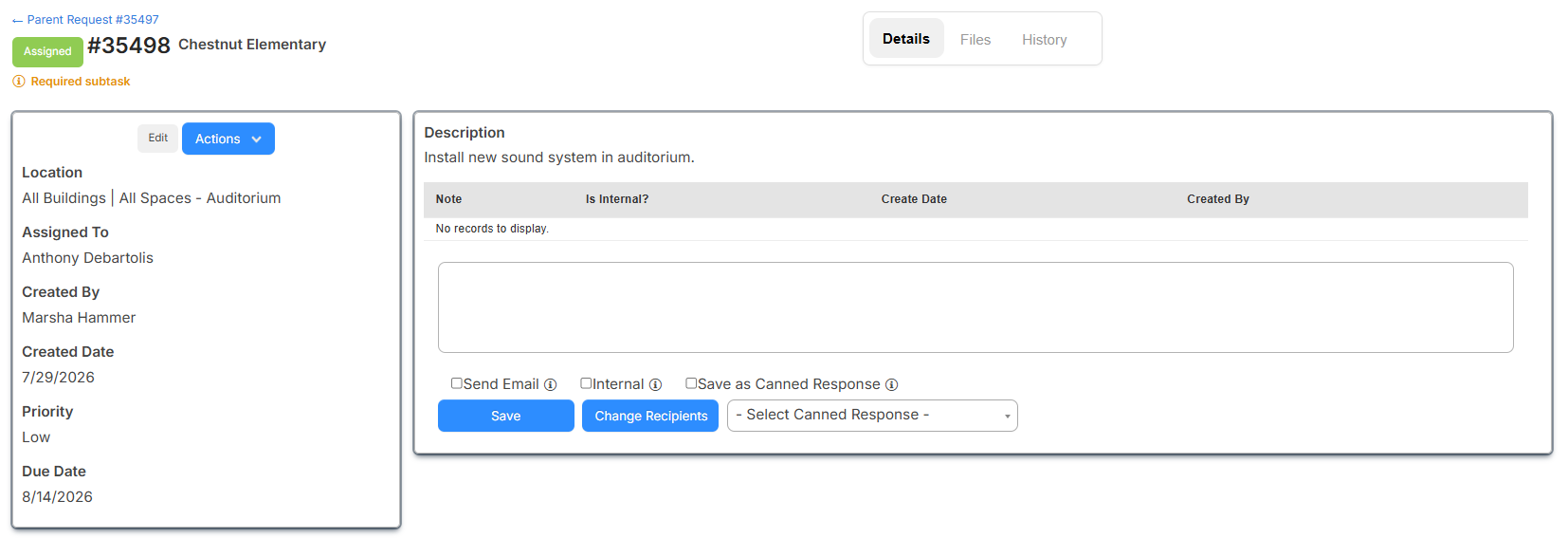
On the parent request, a new Subtasks tab shows the number of subtasks and includes a table with information about each. From this tab, users can create a subtask and update its status without opening it.
If a subtask is marked as required, it must be completed before the parent request can be closed.

Subtasks use the same permissions, notifications, and related tab functionality as requests.
Learn more about subtasks.
View Knowledge Base articles when submitting a request| IT Asset Manager | Date: 8/2/2026 |
Users with the Manage Knowledge Base Articles or View Knowledge Base Articles permission can now view relevant Knowledge Base articles when creating a new request.
When the new 'Suggest Knowledge Base Articles on Request Submission' toggle is enabled for a request type, the request form displays a 'Suggested articles' section. The section shows up to five published articles. If no matching articles match are found, the section does not appear.
In walk-through mode, articles are matched using the following hierarchy:
- Request Type + Specific Category + Specific Asset Type
- Request Type + All Categories + Specific Asset Type
- Request Type + Specific Category + All Asset Types
- Request Type+ All Categories + All Asset Types
If a request is submitted from the single-form page, articles are matched based on the following criteria:
- Request Type + Specific Asset Type
- Request Type + All Asset Types
Learn more about the Knowledge Base.
Quick Circulation enhancements| IT Asset Manager | Date: 8/2/2026 |
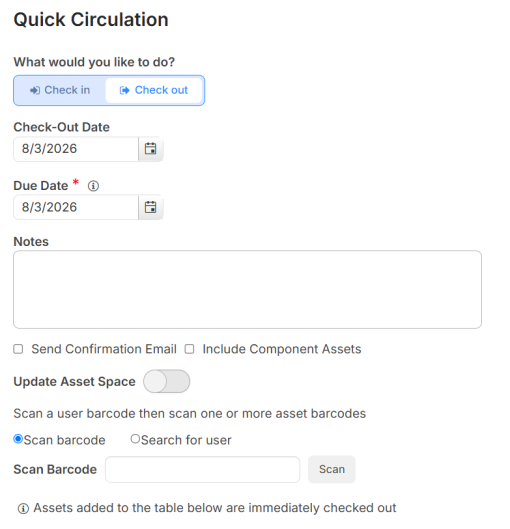
Quick Circulation is now more efficient when checking out assets. Updates include:
- Search for a user instead of scanning a user barcode.
- Select how to update the asset space:
- Use the user's default space.
- Select a different space.
- Update to the user's default space, or select a space if the user does not have a default.
Learn more about the Quick Circulation.
Sync buildings and spaces in Jamf| IT Asset Manager | Date: 8/2/2026 |
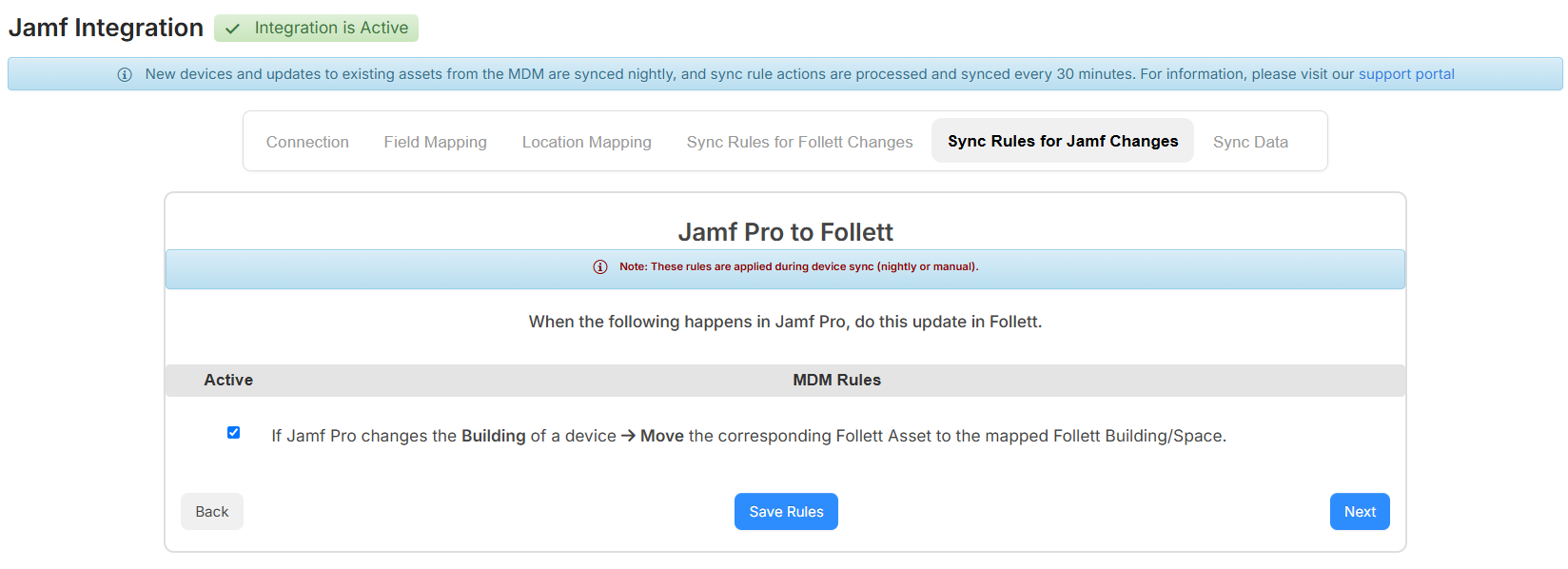
You can now enable a sync rule that moves existing synced items to the mapped Follett location when their building or space changes in Jamf Pro or Jamf School.
When this rule is enabled, Follett updates the Building and Space values for existing assets during a nightly or manual Jamf sync, instead of applying location data only when the asset is first created.
Learn more about the Jamf integration.
SIS Data Sync| IT Asset Manager | Date: 8/2/2026 |
Your district can now import user and location data into IT Asset Manager through the SIS Data Sync integration.
- The integration syncs student and staff records nightly to keep data aligned with your student information system (SIS).
- It maps core user fields, including External ID, Email, First Name, Last Name, and Role.
- It also supports building and role mapping.
Learn more about the SIS Data Sync integration.
June
AI email ticketing| IT Asset Manager | Date: 6/14/2026 | Release: 26.2 |
With AI email ticketing, when an active IT Asset Manager user submits a request by email, AI populates the following request fields based on the email content:
- Request Category
- Problem Type
- Purpose
- Priority
With those fields populated, any configured approval paths, auto assignments, auto-notifications, and SLAs apply to the applicable request types.
 . You can manually update any field as needed.
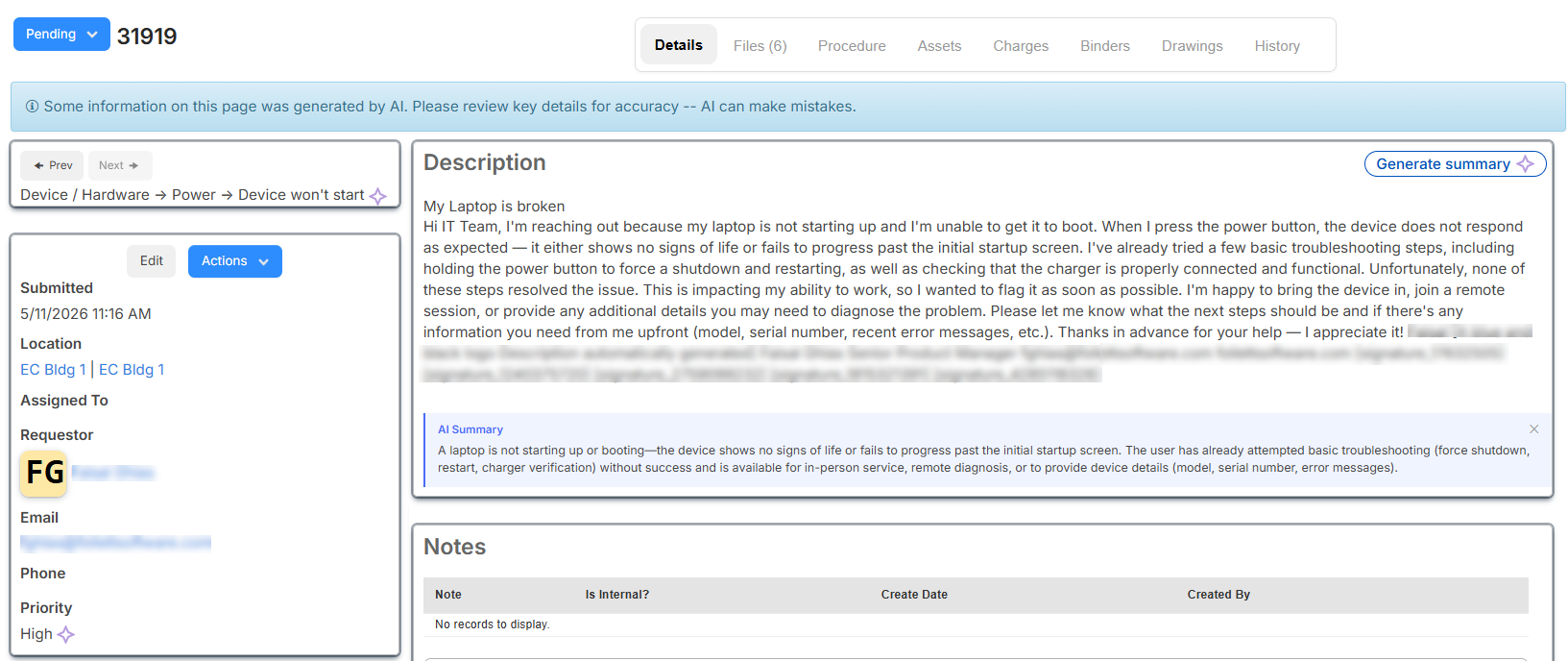
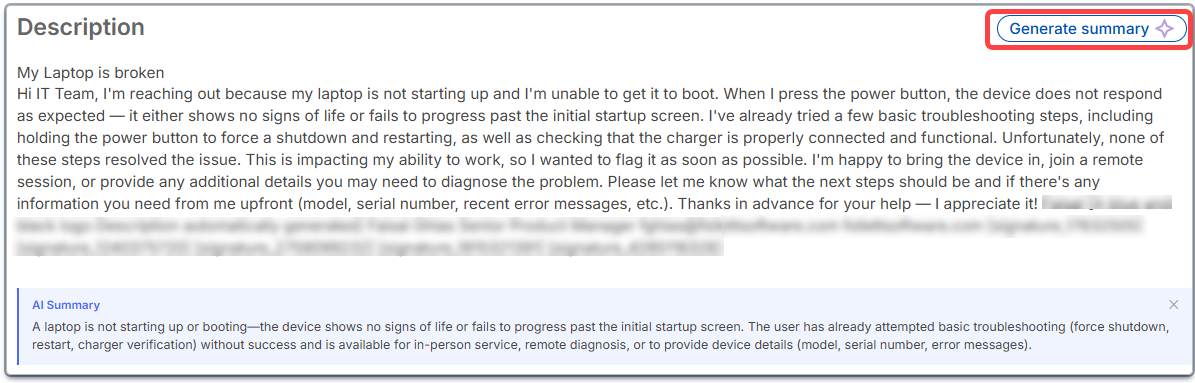
If a description exceeds 500 characters, regardless of whether a request is sent by email or through the app (web or Follett Software Ops), AI can generate a concise summary of the problem.
The request's History tab shows if fields were set by AI.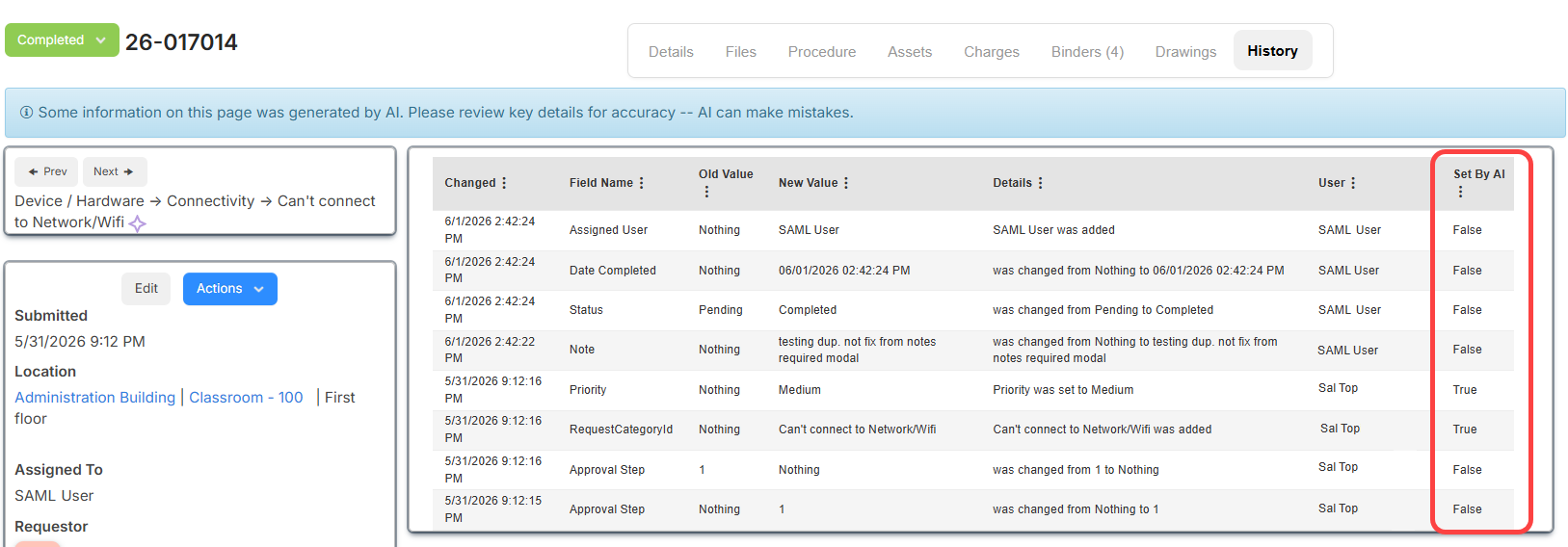
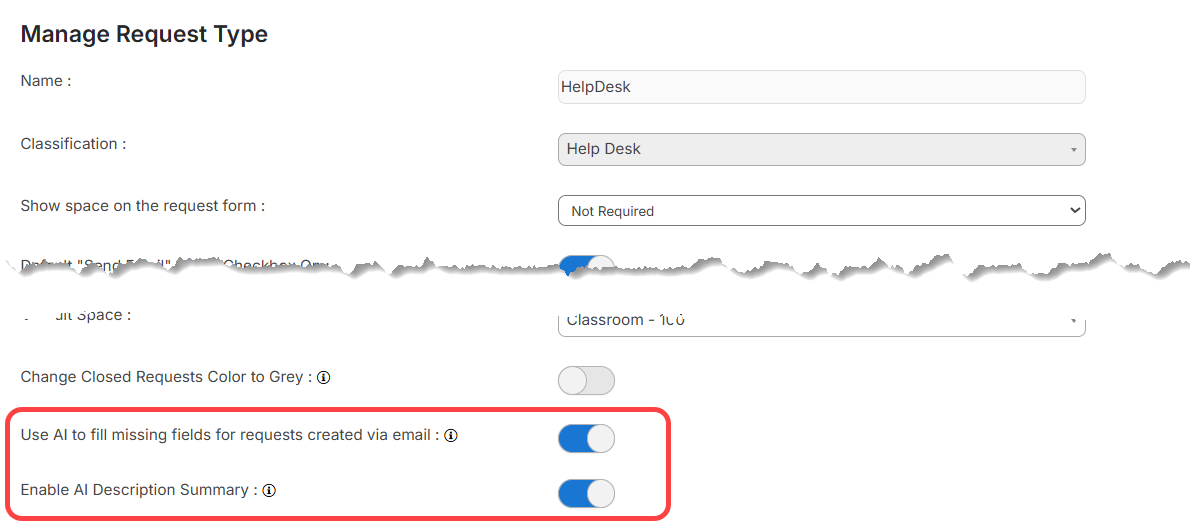
New request type settings that must be enabled to allow AI to complete fields and generate a description summary are:
- Use AI to fill missing fields for requests created via email
- Enable AI Description Summary
Learn more about AI email ticketing and setting up AI request type options.
Introducing the Knowledge Base| IT Asset Manager | Date: 6/14/2026 | Release: 26.2 |
IT Asset Manager now includes an internal documentation hub where IT teams can document solutions, standard procedures, and troubleshooting guides. Articles support rich-text formatting, images, and various file types. A new Manage Article Types page lets administrators add, edit, and delete the article types used to organize content.
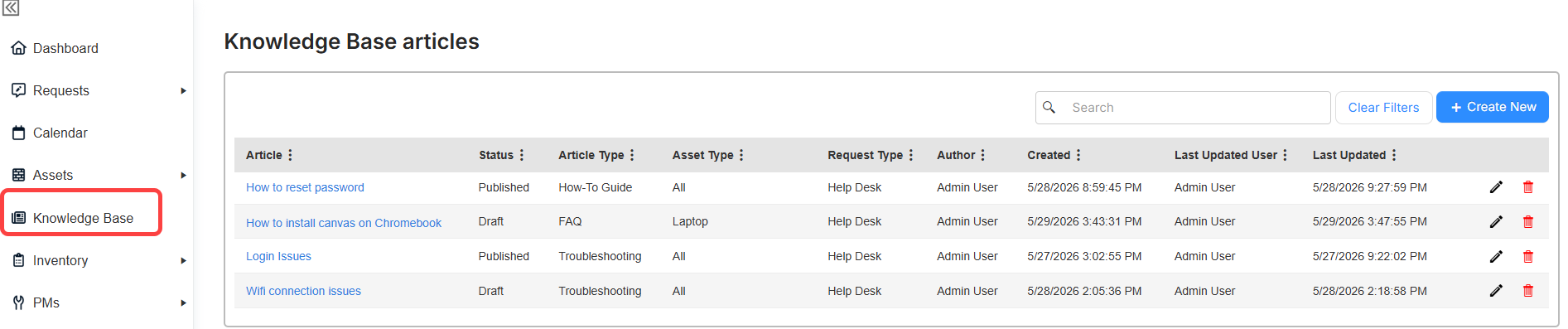
Two new role permissions are included for Knowledge Base access:
- View Knowledge Base Articles: Browse and read published articles based on the assigned asset type and request type restrictions.
- Manage Knowledge Base Articles: Create, edit, delete, and update article status.
Learn more about the Knowledge Base.
Create circulation rules| IT Asset Manager | Date: 6/14/2026 | Release: 26.2 |
You can now create circulation rules to automate your asset checkout policies. Rules define when assets are due and related overdue charges. Set up rules based on asset type, user role, and/or building.

Learn more about circulation rules.
Send circulation notifications to more people| IT Asset Manager | Date: 6/14/2026 | Release: 26.2 |
You can now add additional email addresses to the Manage Users page for asset circulation notifications. The addresses will receive asset check-in and check-out receipts, due date reminders, and overdue notices.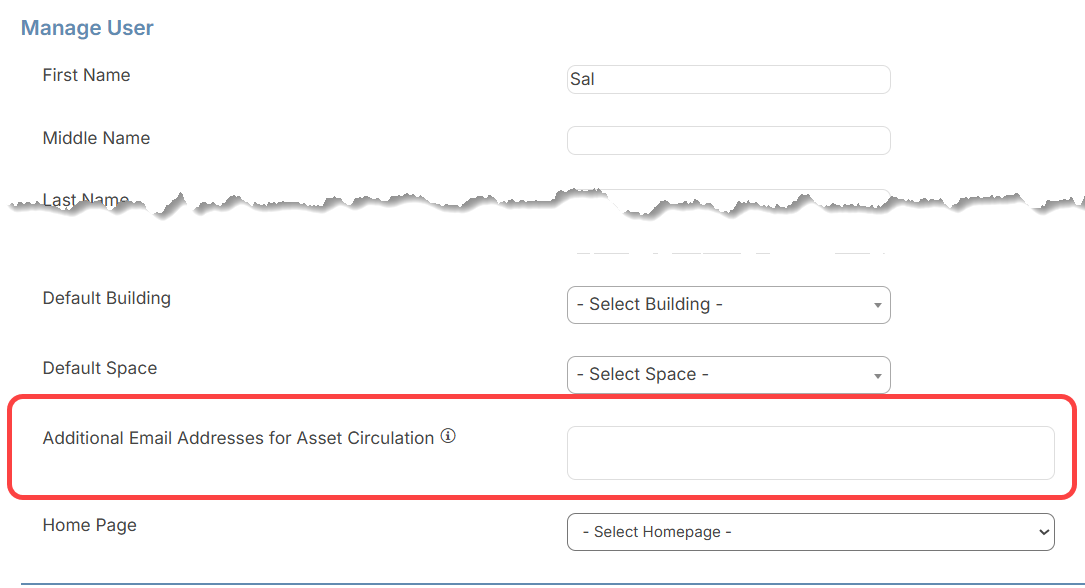
Learn more about managing users.
New tab behavior| IT Asset Manager | Date: 6/14/2026 | Release: 26.2 |
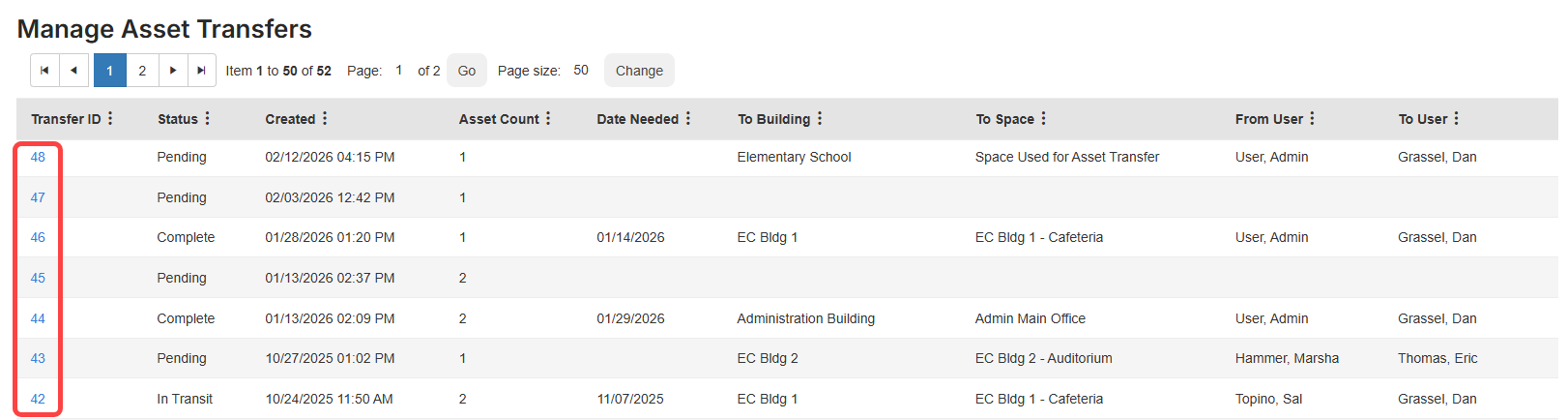
To make navigation more predictable and reduce tab clutter, Dashboard actions, asset transfer IDs, and Dashboard reports now open in the same tab from which they were launched.
Dashboard actions: Add asset, Check in, New request, and Check out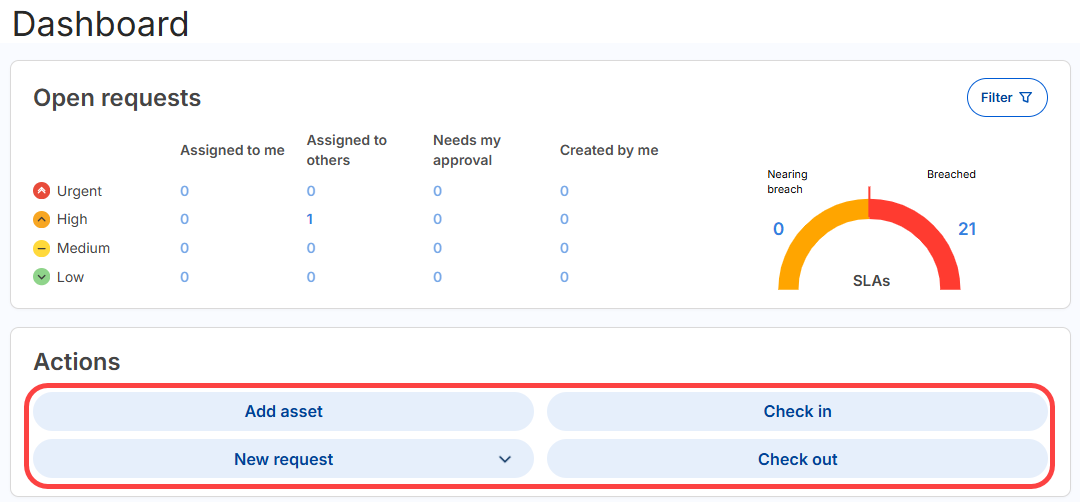
Transfer ID in Assets > Manage Asset Transfers
Reports
- Summary Dashboard
- Labor Dashboard
- Facilities Asset Dashboard
- Technology Asset Dashboard
- Total Cost Dashboard
Update to On Hold status| IT Asset Manager | Date: 6/14/2026 | Release: 26.2 |
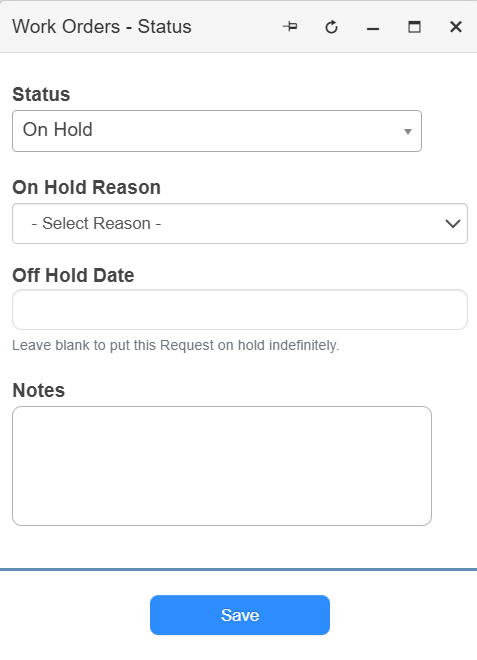
When updating a request to On Hold from the Requests page, you are now prompted to select an on-hold reason and an off-hold date, matching the behavior on the request details page.
Learn more about putting requests on hold.
'Select all' on Asset and Request pages | IT Asset Manager | Date: 6/14/2026 | Release: 26.2 |
On asset and request list pages, you can now specify whether to select all items on a page or all items across all pages.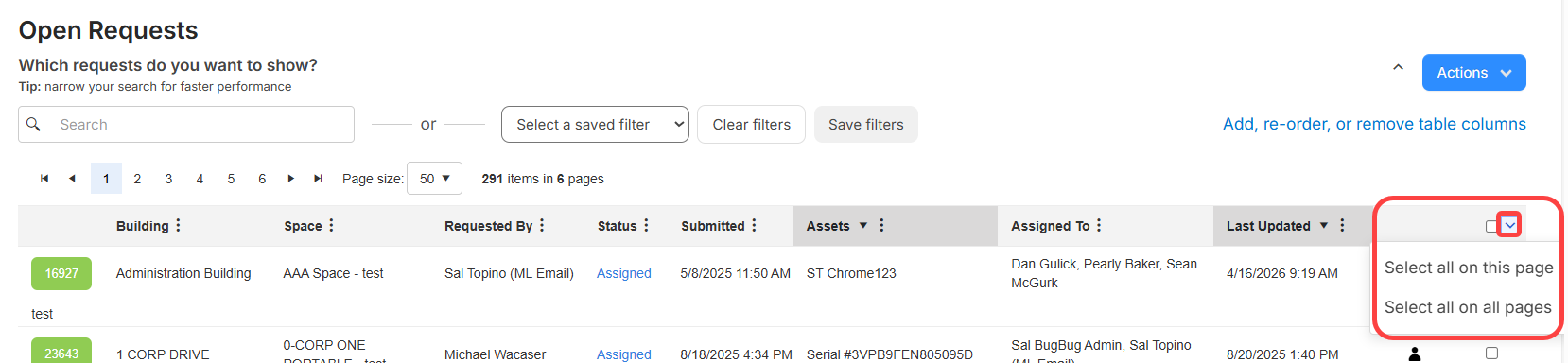
A new icon ( ) appears at the top of the 'Select all' column. After choosing an option, a banner at the top of the page indicates the number of items selected. To remove the selection, click Clear in the banner.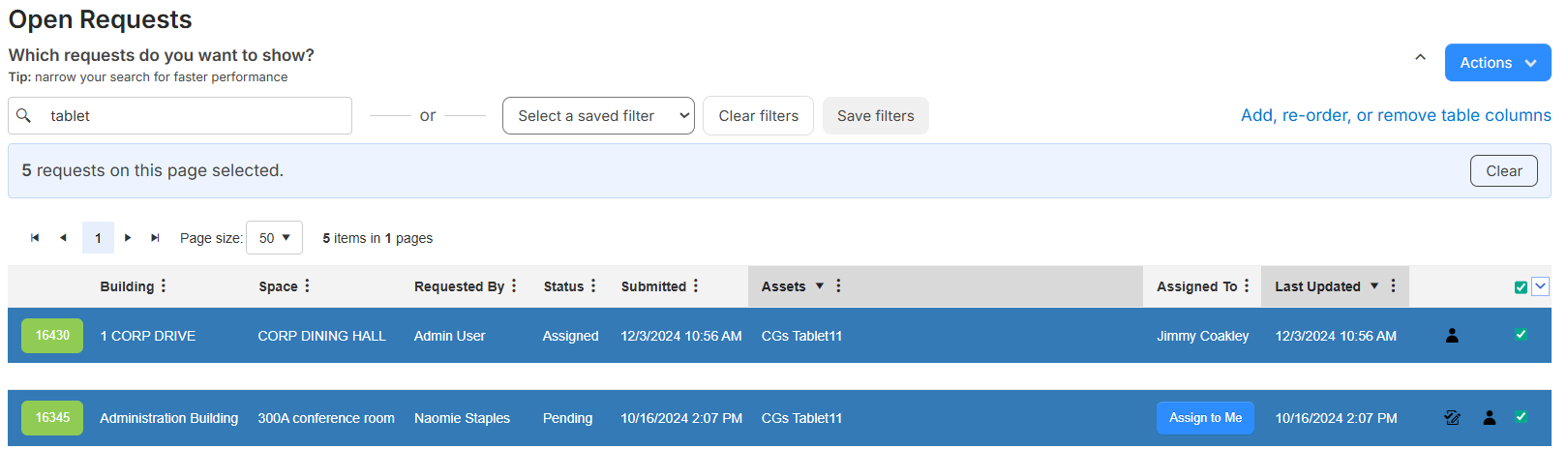
If you perform one of the following actions, the selected items are included:
- Asset pages:
- Mass Update
- Transfer Assets
- Print Details
- QR Report
- Perform Audit
- Request pages:
- Mass Update
- Merge Requests
- Print Details
- Delete
User barcode added to details| IT Asset Manager | Date: 6/14/2026 | Release: 26.2 |
With the View User Details Administrative permission, you can now see a user's barcode on the User View page (Users > Manage Users, select a user).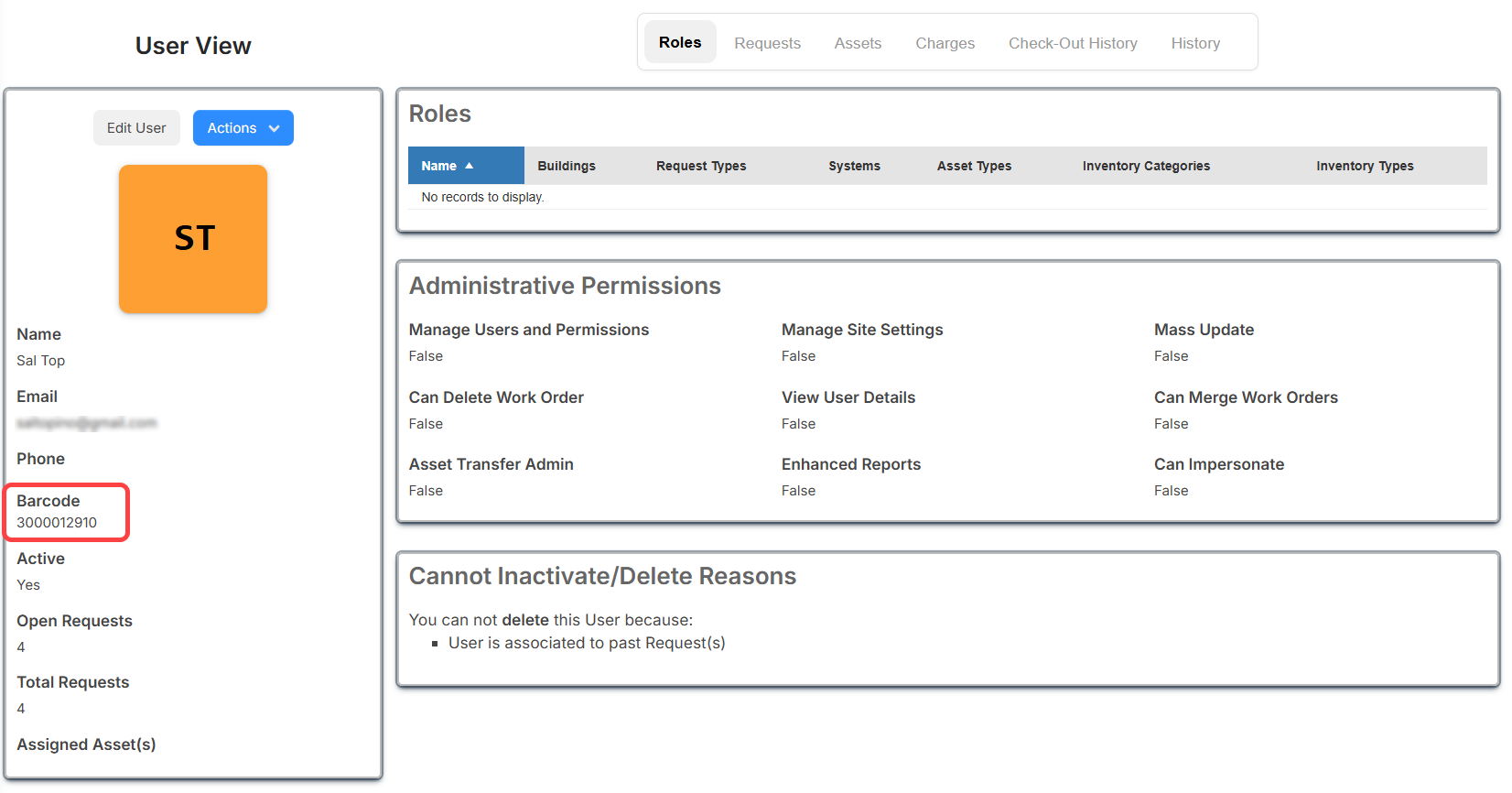
Learn more about managing users.
Dashboard filter enhancement| IT Asset Manager | Date: 6/14/2026 | Release: 26.2 |
When you set filters for the 'Open requests' and Requests widgets, the filters persist when you log out. The next time you log in, the filters remain. They stay set until you clear or update them.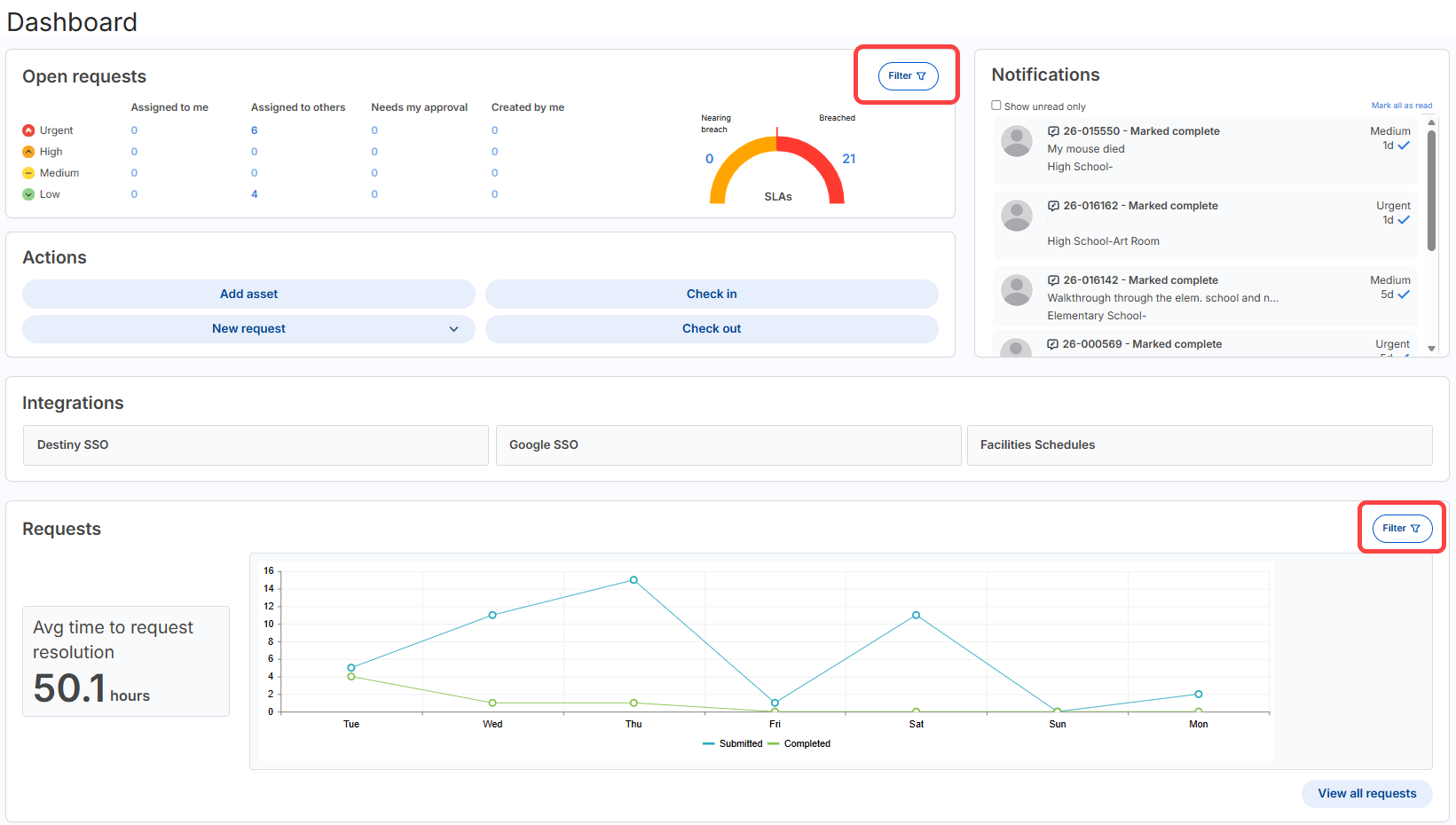
Learn more about the Dashboard.
New asset import fields| IT Asset Manager | Date: 6/14/2026 | Release: 26.2 |
Asset Import now supports additional fields that appear in the import template and the column-mapping step of the import wizard.
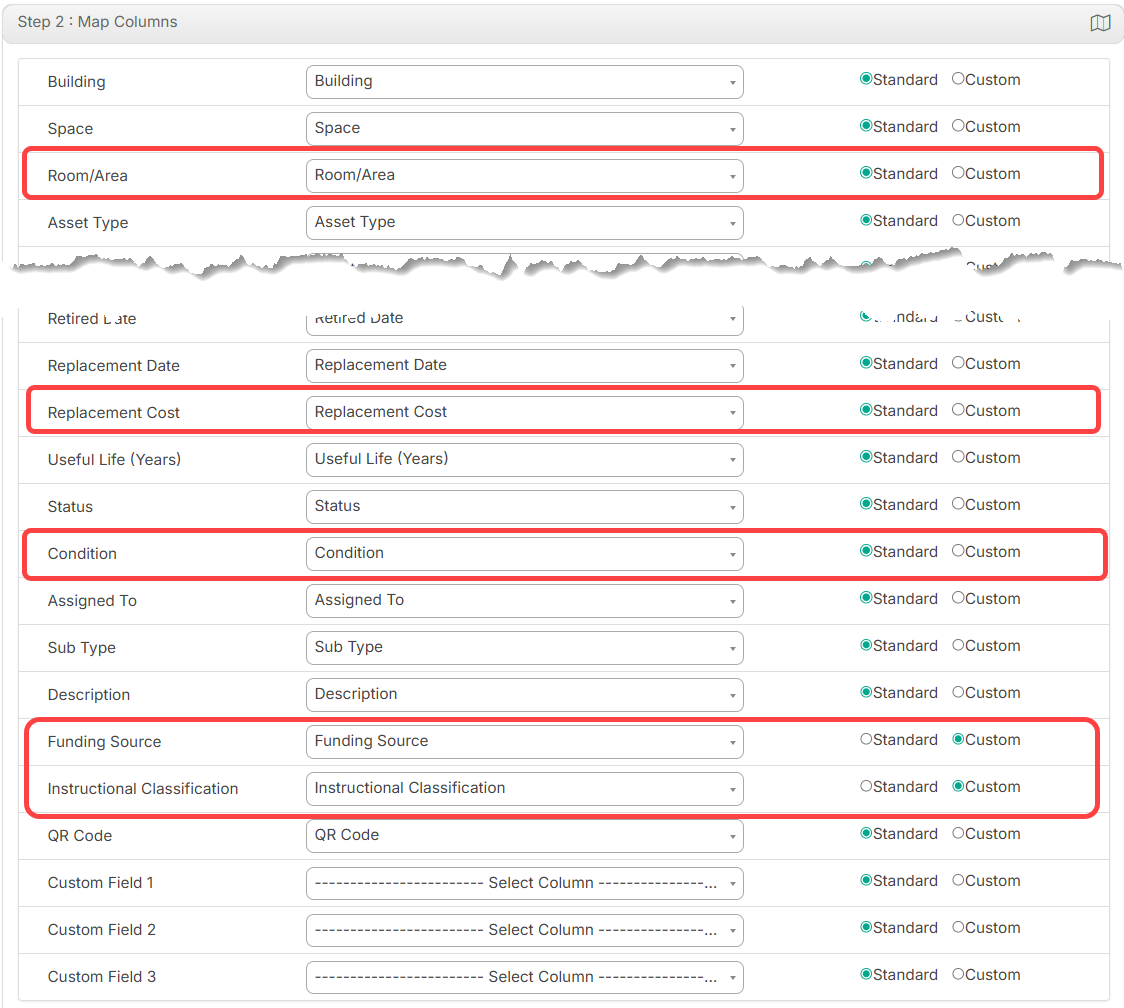
When you download the import template, the Condition, Funding Source, and Instructional Classification fields include drop-down values based on what is set up in Manage Custom Fields. The Excel file also includes a Dropdown Values sheet that lists the available values for those fields, along with an Asset Type column that shows all asset types that exist in IT Asset Manager at the time the template is downloaded.
Learn more about importing assets.
Inactivate students via OneRoster| IT Asset Manager | Date: 6/14/2026 | Release: 26.2 |
IT Asset Manager now supports automatic student inactivation through OneRoster. During the nightly OneRoster sync, students are inactivated if they are marked inactive or 'to be deleted' in the district's student information system (SIS).
Learn more about OneRoster.
Updates to spaces | IT Asset Manager | Date: 6/14/2026 | Release: 26.2 |
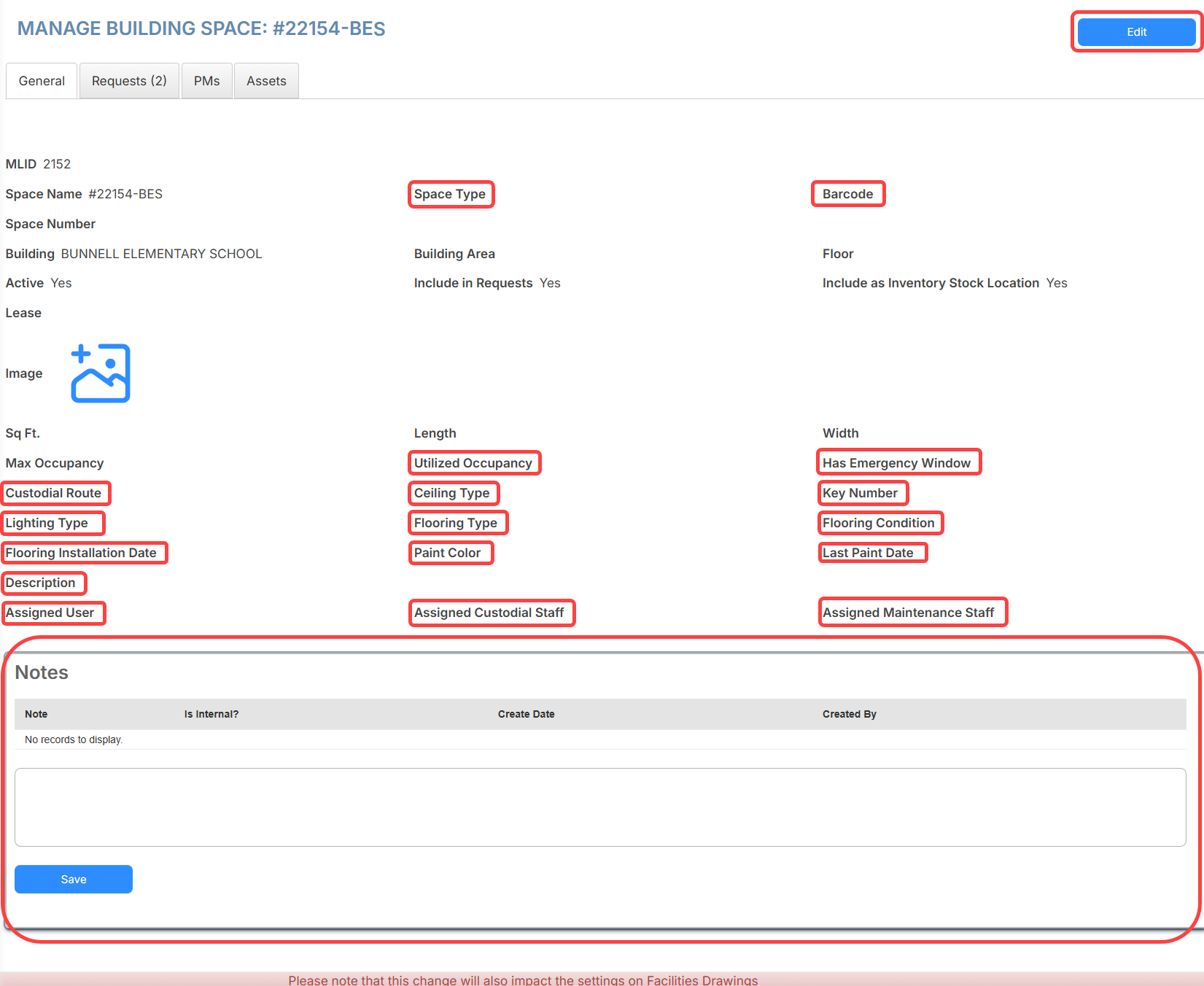
Spaces now includes more fields, making it easier to track room information, maintenance context, and assigned staff in one place. These fields continue to be shared with Facilities Drawings.
On the Spaces list page, the space name now links directly to the space's detail page. You can also add external notes and edit space details from that page. All new fields are available as optional columns on the Spaces list page.
Learn more about spaces.
May
Asset audit updates| IT Asset Manager | Date: 5/10/2026 |
Asset audits are now easier to manage while they are in progress.
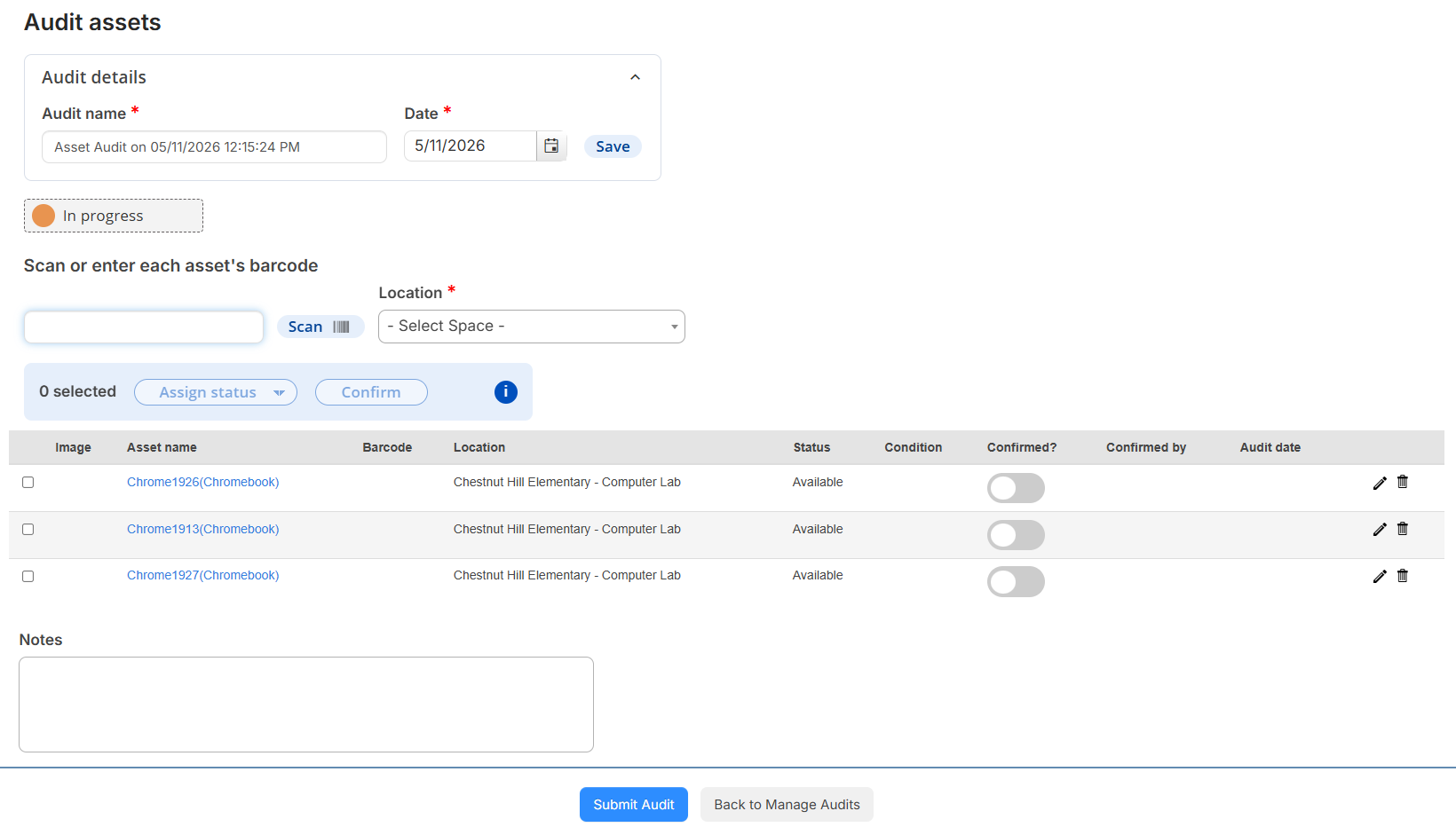
Updates include the following:
- The Perform Audit page has been renamed 'Audit assets'.
- The audit name and date appear in a collapsible 'Audit details' section and can be updated anytime before the audit is completed.
- The status indicator is more prominent and updates in real time.
- A bulk action toolbar lets you assign a status or confirm multiple assets at once.
- Columns in the asset table were rearranged, have new labels, and include a row-select checkbox; and the Confirmed checkbox is now a toggle.
- When an asset is confirmed, that row is updated with the user and audit date. A row cannot be selected for bulk actions unless it is unconfirmed.
- You can edit an asset and update its Location, Status, and/or Condition using a drop-down.
- To save Notes, you now click 'Back to Manage Audits'.
- When you submit an audit with unconfirmed assets, a warning appears that lets you proceed or return to confirm remaining assets.
Learn more about asset audits.
March
Follett Software Ops app updates| IT Asset Manager | Date: 3/31/2026 |
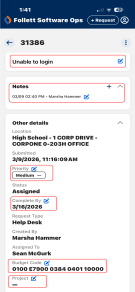
The Follett Software Ops app includes several updates that make it more efficient to use. You can now do the following:
- Log in using single sign-on with SAML for Google, Microsoft, or Okta.
- Edit the Description, Notes, Priority, Complete By, Budget Code, and Project fields on a request's details.
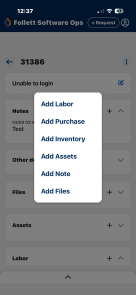
- Add purchases, inventory, assets, and files to a request.
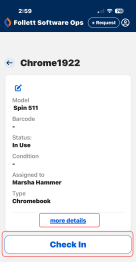
- View and edit an asset's details, check it out or in, and view its history.
Learn more about the Follett Software Ops app.
Dashboard update| IT Asset Manager | Date: 3/1/2026 | Release: 26.1 |
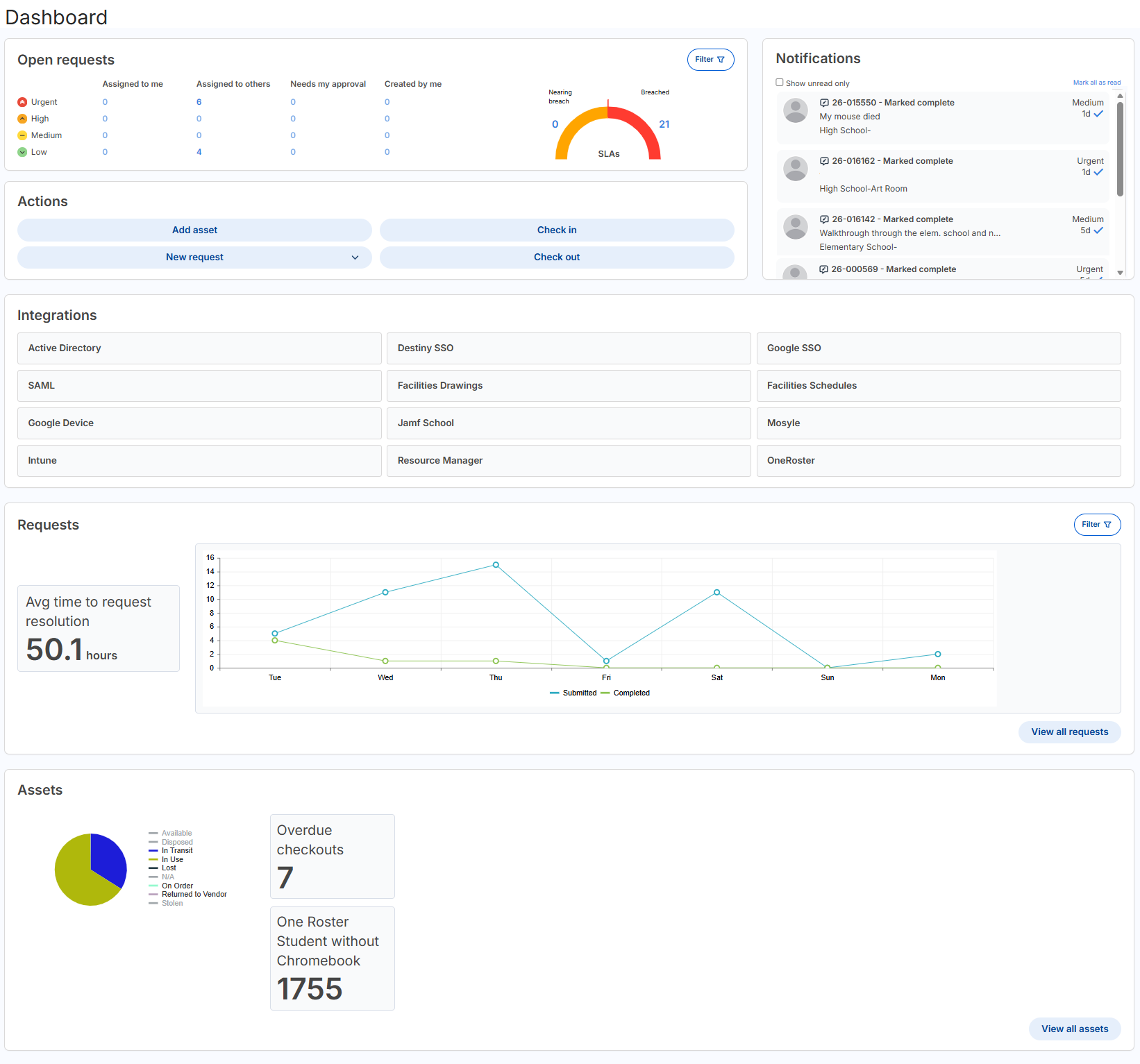
More changes have been made to the Dashboard page since its redesign in the 25.6 release. It now includes:
- Service level agreements in the 'Open requests' widget.
- A Requests widget showing the average time to request resolution.
- The option to filter in the 'Open requests' and Requests widgets.
- An interactive Assets widget showing asset status via a pie chart.
Learn more about the Dashboard.
Updates to the Manage Assets page| IT Asset Manager | Date: 3/1/2026 | Release: 26.1 |
The Manage Assets page has several updates, including the following:
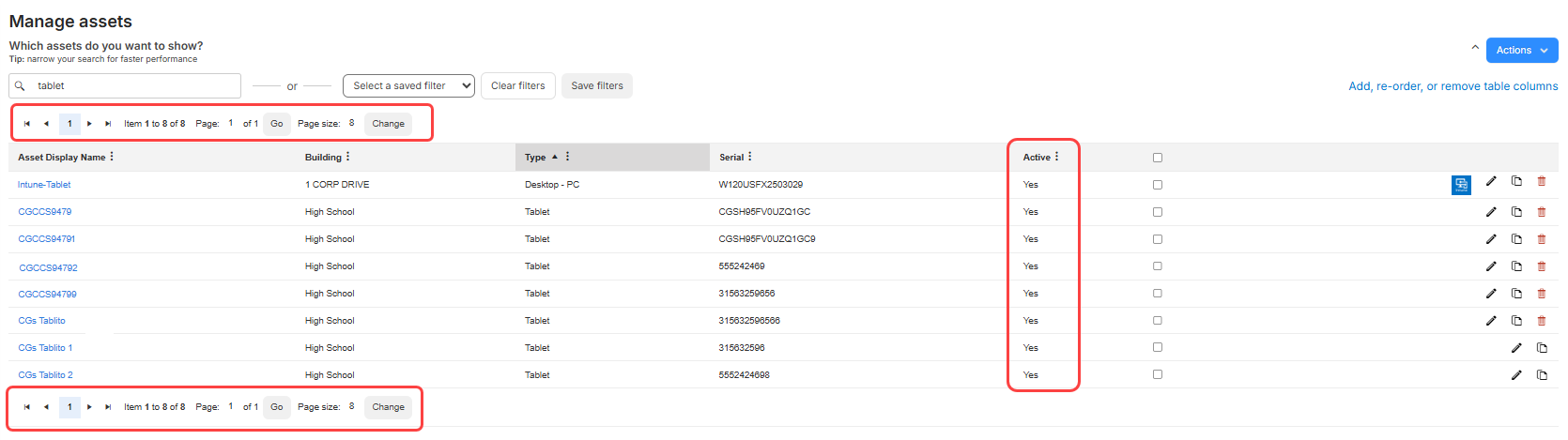
- Pagination, number of items, and number of assets now appear at the top and bottom of the table.
- The Active column shows Yes or No instead of a checkbox.
- To inactivate an asset, access the asset's details page instead of using an icon on the Manage Assets page.
- When you do not select any assets and try to perform Actions > Mass Update, Transfer Assets, QR Report, or Perform Audit, a message informs you to select one or more assets and try again.
Learn more about managing assets.
Asset audit barcode scanning| IT Asset Manager | Date: 3/1/2026 | Release: 26.1 |
When you perform an audit, you can now scan asset barcodes. If the assets are part of the audit, they are confirmed. If an asset is not part of the audit, it is added automatically.
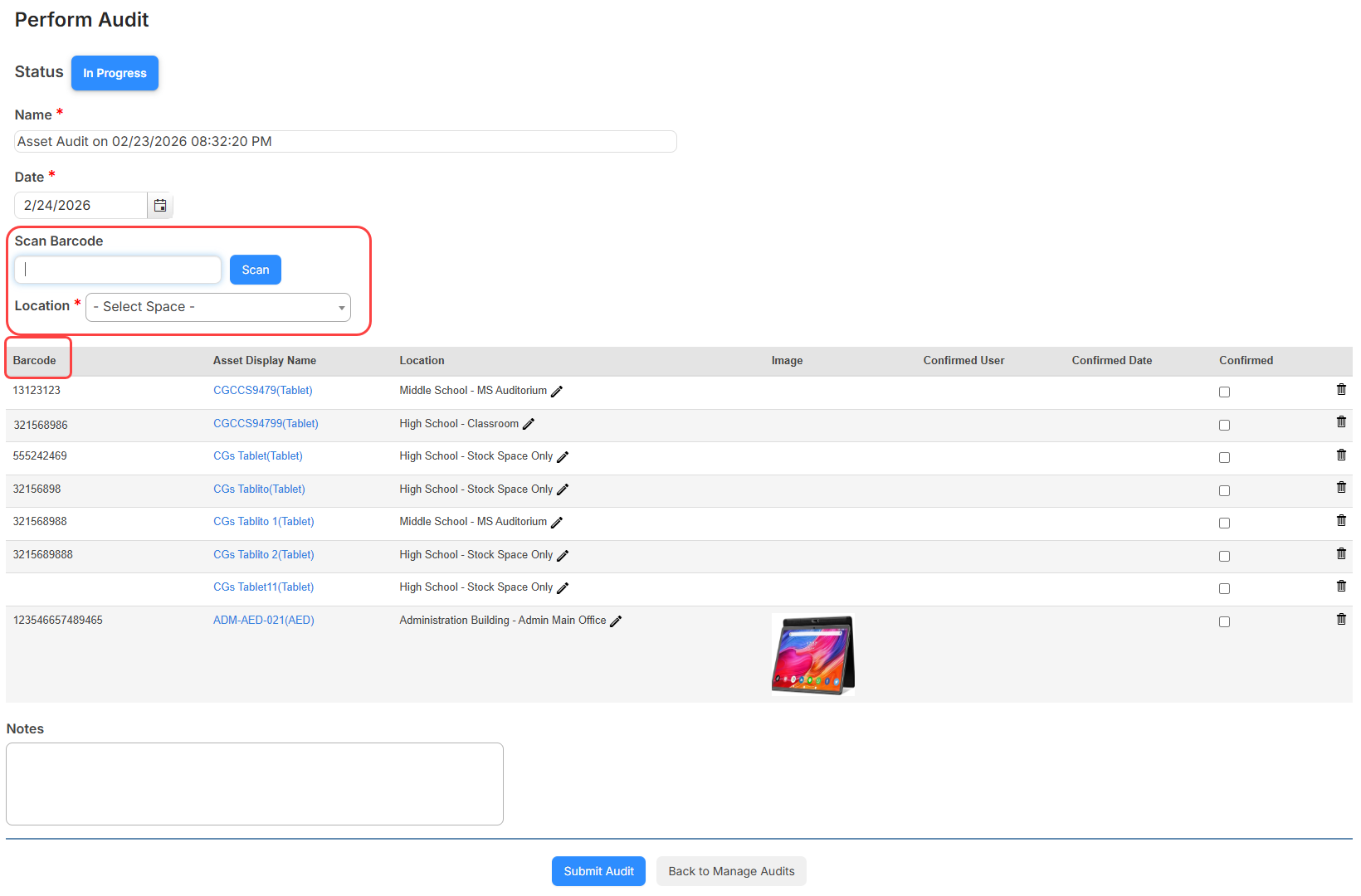
When you perform an audit, you will see the following changes related to the Scan Barcode option:
- A new Location drop-down appears below the Scan Barcode field. A selection is required when you scan or enter a barcode.
- If you have a carriage return setting for your scanner, the scan is done automatically. Otherwise, you can click Scan.
- When you scan an asset barcode that is part of the audit, if the location is different than the one you selected, the location is updated. If the asset is not part of the audit, it is added to the audit and the location is updated to what was selected.
- The table now shows a Barcode column instead of ID.
- If a scanned device has a status of In Use, Lost, or Stolen, a message asks if you want to update the status to Available.
- Assets with a status of In Use can be checked in when adding them to the audit.
Learn more about managing asset audits.
Quick Circulation updates| IIT Asset Manager | Date: 3/1/2026 | Release: 26.1 |
The Quick Circulation page has several updates to help you when circulating assets, including the following:
- On both Check Out and Check In, there is text above the Scan Barcode field to remind you to scan a user barcode and then the asset barcode.
- If an asset cannot be checked out, a message appears letting you know the reason, such as the asset is already in use, lost, stolen, or the barcode is not found.
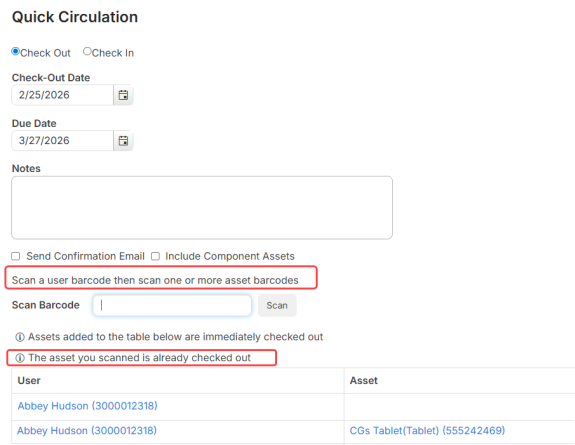
- After checking out or in an asset, the table at the bottom of the page shows both the user name and barcode, along with the asset name and barcode.
- Administrators can now require a due date when checking out assets. If this option is set to yes, a due date is required wherever you check out assets, except Mass Circulate.
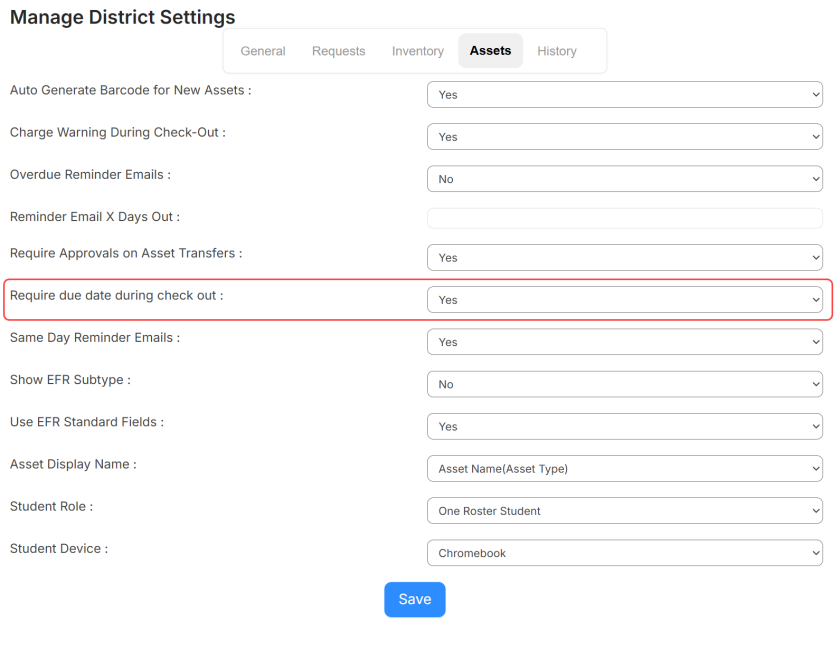
Learn more about Quick Circulation and General Settings.
January
Introducing IT Asset Manager| IT Asset Manager | Date: 1/19/2026 | Release: 25.6 |
The newest Follett Software product is IT Asset Manager. Use it to manage all your technology devices. Students and staff can create support requests, while IT staff can assign and track them. Administrators can run reports to view the number of requests, labor costs, purchase costs, inventory, request response times, and more.
Learn more about IT Asset Manager.
Introducing the new Ops app| IT Help Desk | Date: 1/19/2026 | Release: 25.6 |
The new Follett Software Ops app lets you create and view requests on the go. Based on your permissions in the web app, you can also change a request status, view assets, add notes and labor, and scan assets.
Learn more about the Follett Software Ops app.
Dashboard update| IT Help Desk | Date: 1/19/2026 | Release: 25.6 |
The redesigned dashboard gives you a comprehensive view of your requests and assets at a glance:
- See open requests organized by priority and assignment.
- View recent notifications with improved formatting.
- Access quick actions for common tasks.
- Track request trends with visual charts.
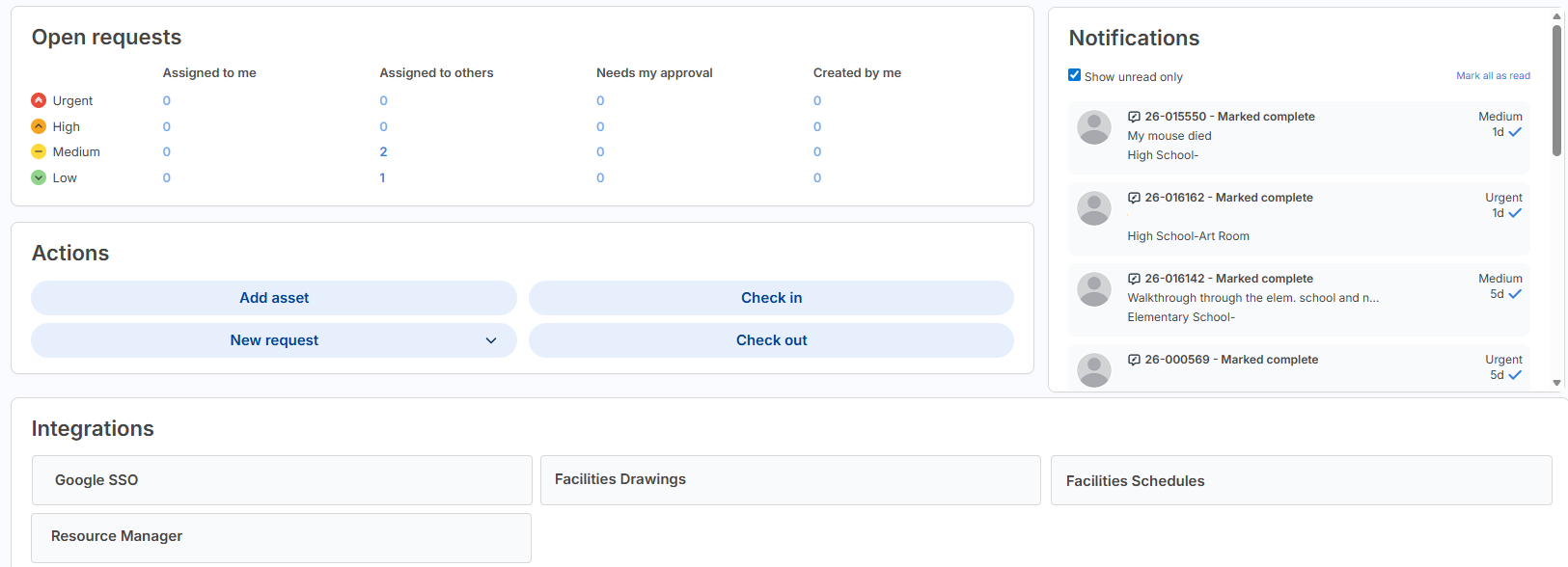
Learn more about the Dashboard.
Manage Users column enhancements| IT Help Desk | Date: 1/19/2026 | Release: 25.6 |
Two new columns make it easier to manage users.
Create Date column
When a user is created, whether manually or through a sync, a Create Date is stored in IT Help Desk. Create Date is now an available optional column on the Manage Users page. The date and time appears in the column when selected.
Create Method column
To make troubleshooting easier, when a user is added to IT Help Desk, how the user was created is logged. You can add Create Method as a column to the Manage Users page.
Note: This column only shows data for new users added after the 25.6 release. Existing users will show N/A in the column.
The column logs when a user is created in any of the following ways:
- Manually on the Manage Users page and the Check-Out Assets page, using the + Add User button
- Via a custom form, email, or import
- Google SSO or Destiny SSO
- Active Directory
- SAML Azure, SAML Classlink, SAML Google, or SAML Okta
- OneRoster
- A user is created in FacilitiesDrawings and synced
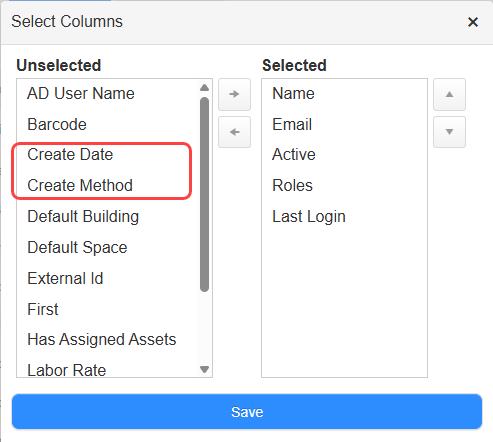
You can sort and filter on both the Create Date and Create Method columns.
Learn more about managing users.
New user fields| IT Help Desk | Date: 1/19/2026 | Release: 25.6 |
There are many new fields on the Manage Users page. You can't add these fields as columns to the Manage Users page, and they won't appear on a user's details page.
New fields on the Manage Users page include:
- Middle Name
- Mobile Phone Number
- Name Suffix
- Secondary Phone
- Secondary Mobile Phone
- Secondary E-Mail
- Alt ID
- State ID
- District ID
- Grade Level
- Graduation Year
- Birthdate
- Locker
Address is in a separate collapsible section. You can add primary and secondary addresses. Address fields include:
- Address 1
- Address 2
- City
- State
- Zip
Learn more about managing users.
Updates to View All pages for requests and assets| IT Help Desk | Date: 1/19/2026 | Release: 25.6 |
Before seeing data on the View All Requests and View All Assets pages, you now need to search or apply a filter. This update will load data quicker.

In addition, the following updates were made to buttons and links on all pages that let you view requests and assets:
- If you filter on a column, a filter icon appears in the column header. To sort a filtered column, click the filter icon to see the sort icon.
- Clear filters sets the page back to showing no data.
- The Columns button is now a link called Add, re-order, or remove table columns.
- The delete icon is red.
- Inactive requests or assets are now gray instead of red.
When filters are set, the next time you access that page, the filters will continue to be applied.
New asset fields| IT Help Desk | Date: 1/19/2026 | Release: 25.6 |
Funding Source and Instructional Classification are now single-select drop-down fields that can be added to asset records of a specific type. Users with the Manage Site Settings permission can customize these fields, creating unique category names and linking them to specific asset types. For example, maybe you want the PTO funding source linked to iPads.
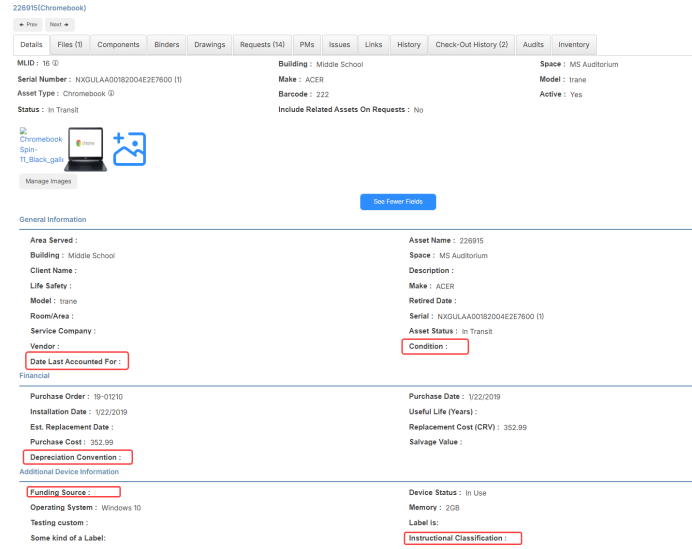
There are also new EFR standard fields in asset records:
- Condition: Track if an asset is new, good, fair, poor, usable, damaged, or unusable.
- Date Last Accounted For: Manually enter the date you accounted for an asset.
- Depreciation Convention: Determine how much an asset depreciates over the course of its life. This is based on IRS depreciation conventions of annual, half-year, mid-month, and mid-quarter.
Learn more about managing custom fields and assets.
Automatic barcodes for new assets| IT Help Desk | Date: 1/19/2026 | Release: 25.6 |
Administrators can enable a new 'Auto Generate Barcode for New Assets' field in General Settings > Assets tab. When an asset is created – either manually or via an asset import –IT Help Desk will automatically generate a barcode if that field is blank.
Barcodes will use Code 39 Generic format. They will be 10 characters, start with a 5, and can contain numbers, uppercase letters, and the following characters: minus (-), plus (+), period (.), dollar sign ($), slash (/), and percent (%).
Learn more about general settings and managing assets.
Duplicate barcode handling| IT Help Desk | Date: 1/19/2026 | Release: 25.6 |
Duplicate barcodes are now supported. When duplicate barcodes are found, you are required to select the correct asset from a pop-up. This pop-up will appear on pages where you can search for assets, such as Check In, Check Out, Quick Circulation, when adding an asset to a request, and when creating a request.
During mass circulation, the checkout is not completed and a note is added to the error log.
Learn more about assets.