What’s new in the Facilities Suite
See what's possible with the latest enhancements to Facilities Binders, Facilities Drawings, Capital Plans, Event Registration, Facilities Schedules, Work Orders, and Facilities Utilities.
The following enhancements incorporate many of your suggestions as we continue to improve. Click a month to expand it, and then click a title for more information on each feature. To expand all entries, click  at the top-right of this page.
 August
Follett Software Ops app updates
August
Follett Software Ops app updates| Work Orders | Date: 8/30/2026 |
The following updates are available in the Follett Software Ops app:
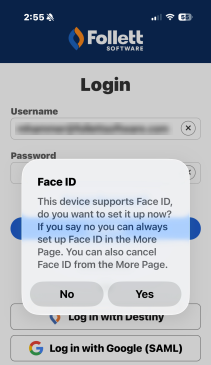
- Sign in with Face ID or fingerprint
You can now sign in to the Follett Software Ops app using Face ID on iOS devices or fingerprint authentication on Android devices.
- Assign requests
In addition to using the up arrow at the bottom of a request's details, you can now tap
 on the request details screen to assign a request or change its assignment.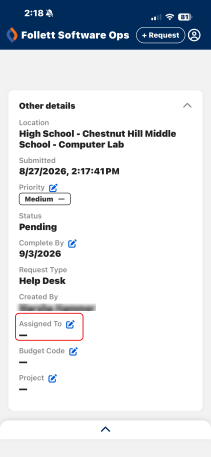
- Apply circulation rules
The mobile app now applies the circulation rules configured by your district. Circulation activity completed in the app is evaluated against those rules to prevent unauthorized actions.
Learn more about the Follett Software Ops app and circulation rules.
'Expired COI' column now shows N/A| Schedules | Date: 8/23/2026 | Release: 26.4 |
On the Manage Requests page, the 'Expired COI' (Certificate of Insurance) column now displays N/A (not applicable) for groups and classifications that do not require insurance. This makes it easier identify which groups need updated insurance information and which are exempt.
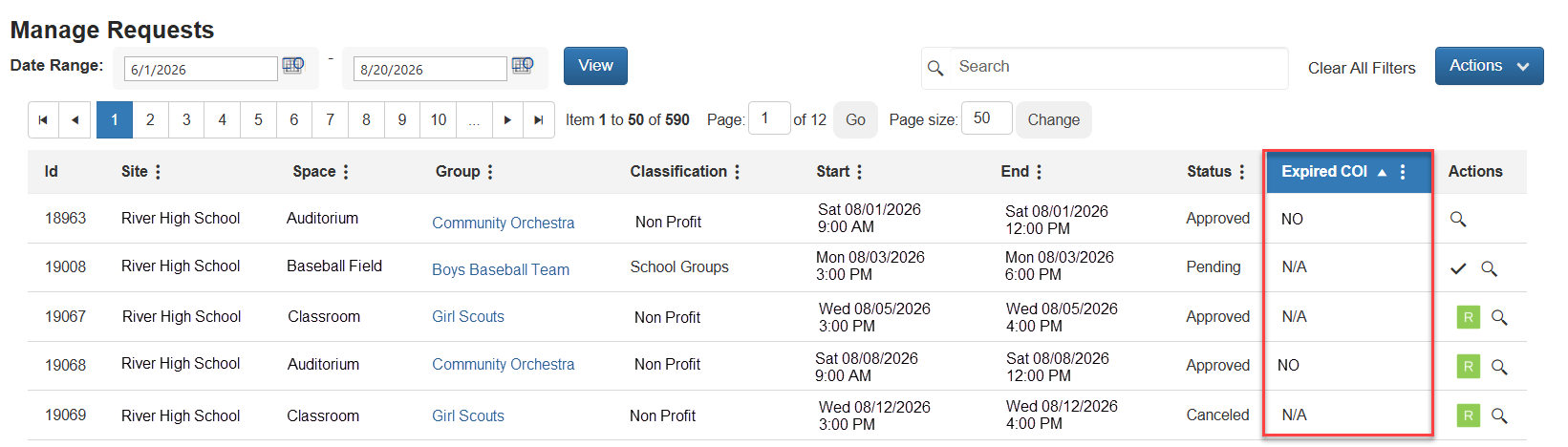
Learn more about viewing requests.
Approval path enhancements| Schedules | Date: 8/23/2026 | Release: 26.4 |
This release includes two approval path enhancements:
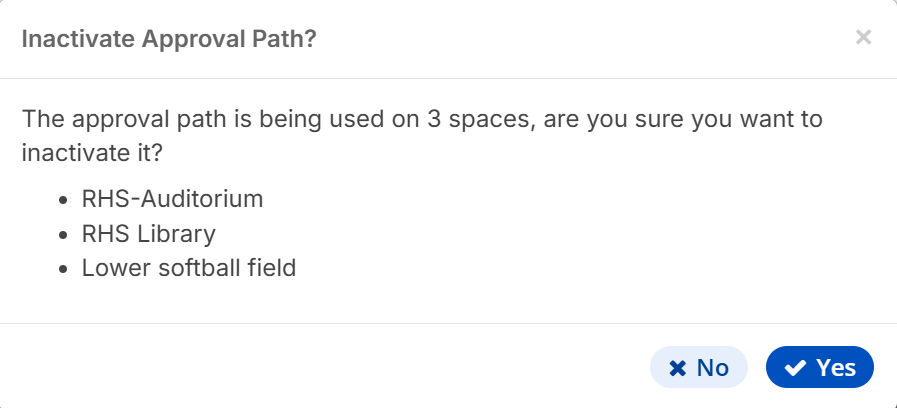
- When you inactivate an approval path associated with one or more spaces, a new confirmation pop-up now lists the spaces using that approval path.
- The exported Approval Path Excel file now includes a tab showing the spaces that use each approval path.
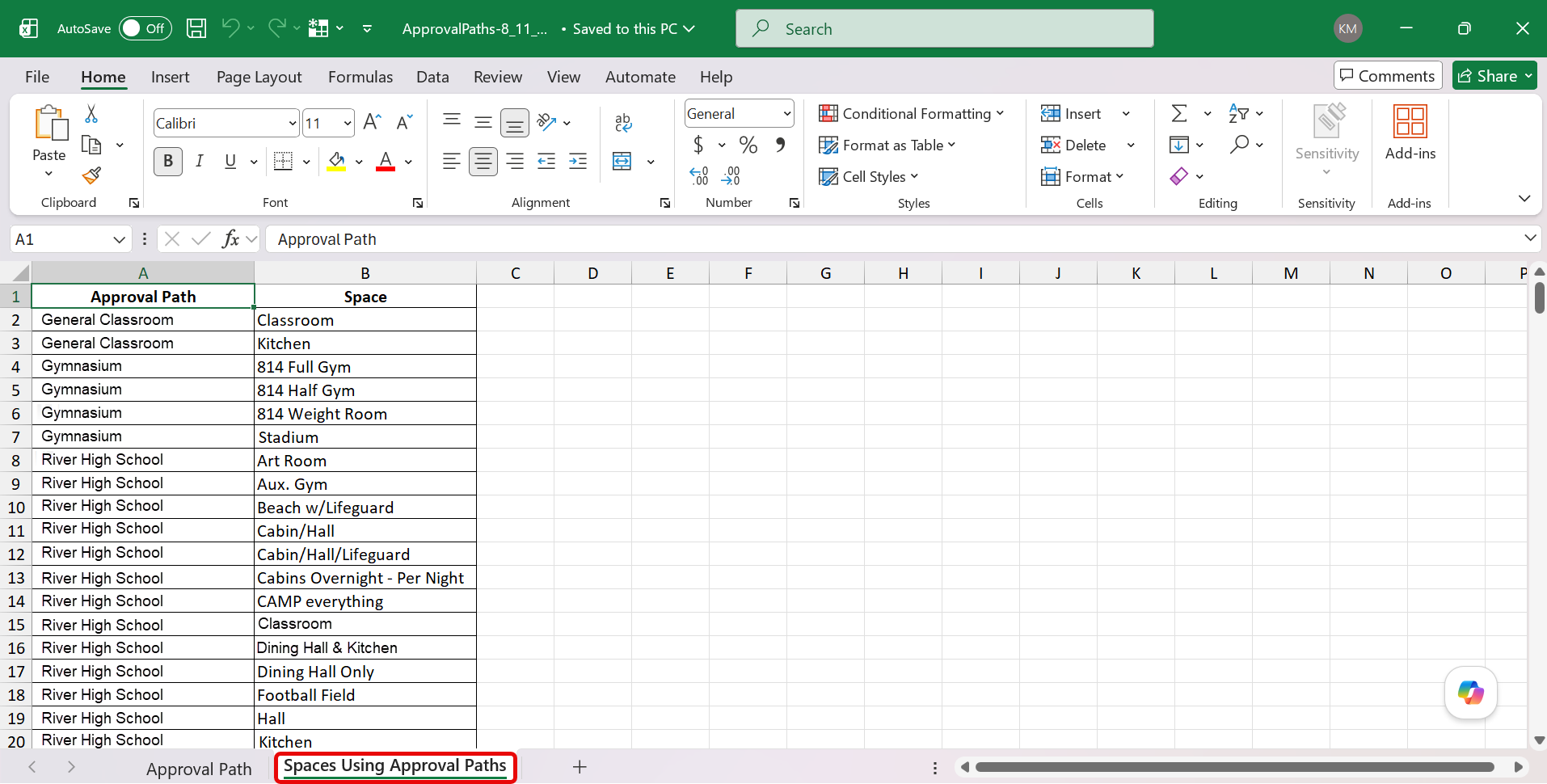
Learn more about approval paths.
Assign users to events| Schedules | Date: 8/23/2026 | Release: 26.4 |
Administrators can now assign users to recurring, multiple recurring, and multiple requests, making it easier to manage event staffing across related requests.
-
Assigned users can be associated with requests at the schedule level.
-
Assigned users can receive an email notification when they are assigned.
-
This update extends the assigned-events workflow to more request types, supporting broader visibility and coordination for staff involved in scheduled events.
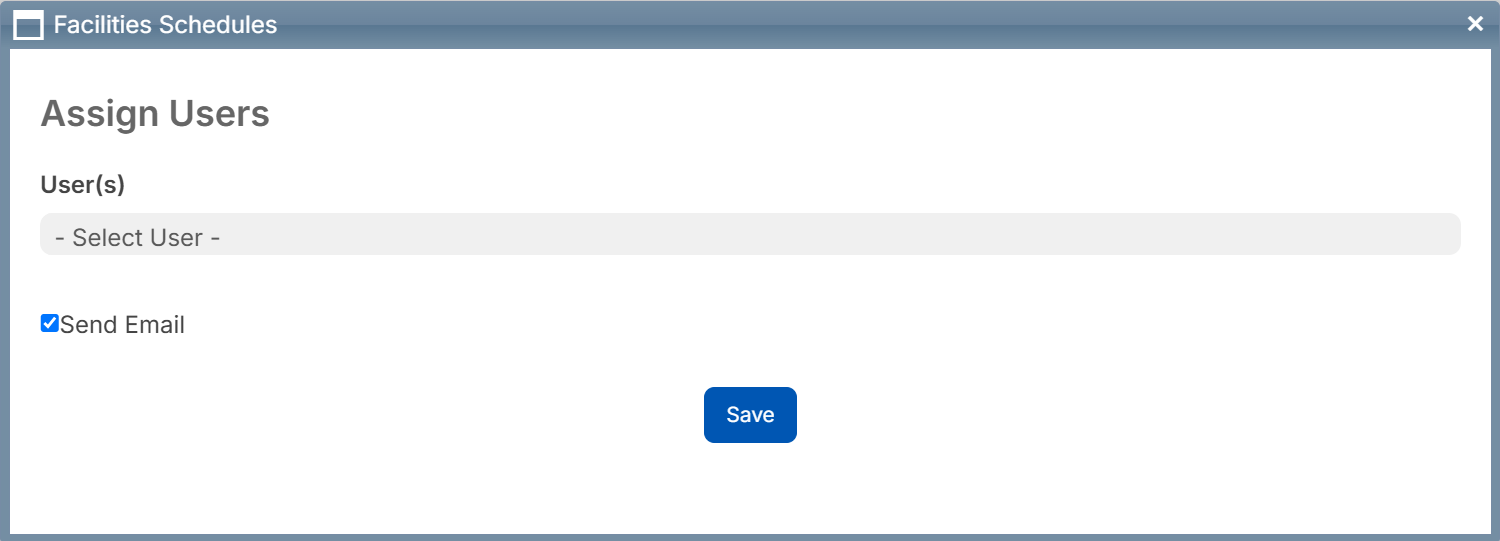
Learn more about assigning users to events.
Blocked date conflict notification| Schedules | Date: 8/23/2026 | Release: 26.4 |
Administrators now receive a notification when they add or edit a blocked date that overlaps with existing events. Before saving, a pop-up displays each conflict; for recurring blocked dates, it checks all occurrences and combines the conflicts. Click Yes to save the blocked date. This advisory notification does not cancel or modify existing events, and Calendar Information entries are not affected.
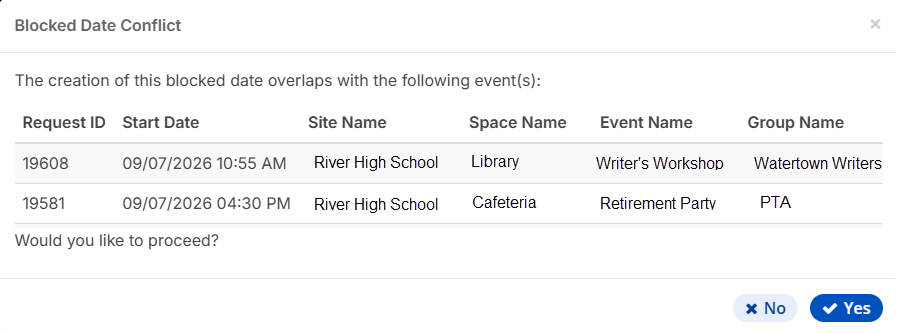
Learn more about blocked dates.
Mass update enhancements| Schedules | Date: 8/23/2026 | Release: 26.4 |
Several mass update enhancements are now available for users with the Manage District Settings permission.
-
Classifications Allowed:
You can now mass update the classifications allowed for spaces.
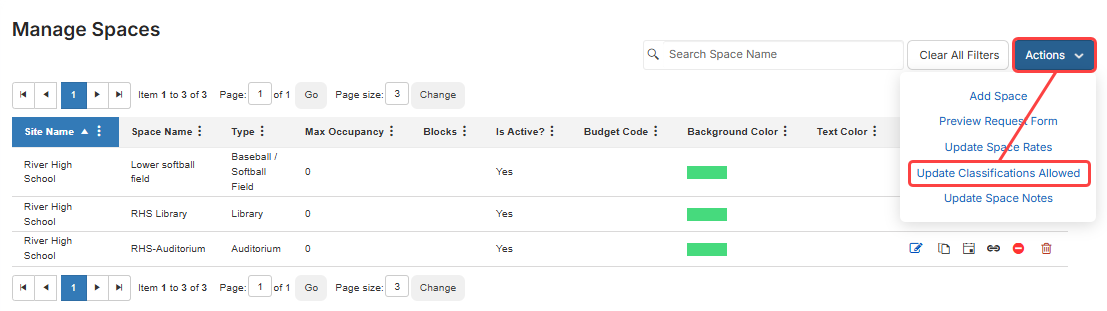
Learn more about mass updating classifications allowed.
- Email notifications for group managers:
You can now update email notification preferences for all group managers at once. Select the notification settings to update; only those changes are applied, and all other preferences remain unchanged.
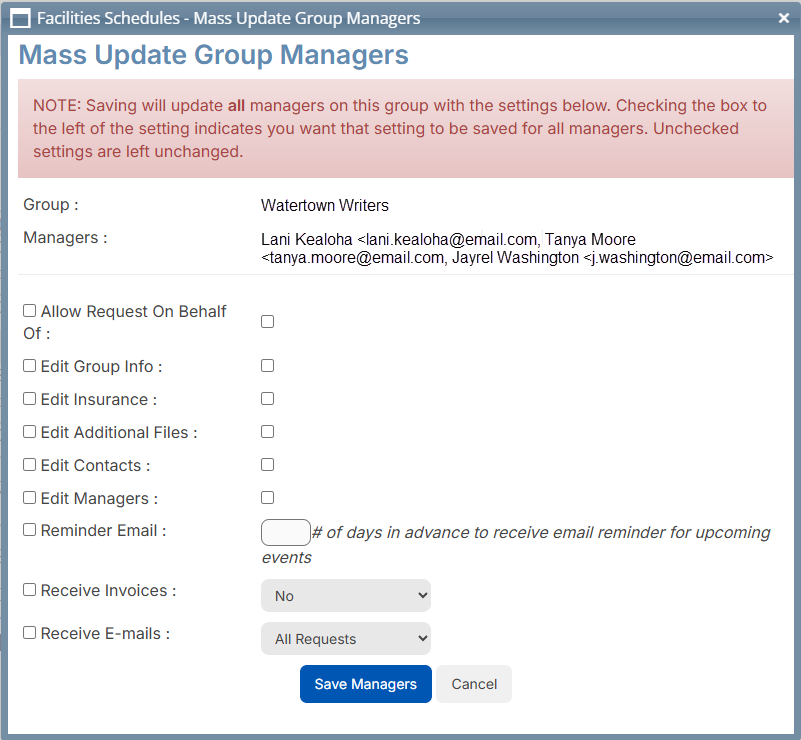
Learn more about mass updating group managers.
Bypass classifications| Schedules | Date: 8/23/2026 | Release: 26.4 |
District administrators can now select any active site and space when submitting a request on behalf of another group, even when the space’s Classifications Allowed setting does not include that group’s classification. This bypass applies only when a district administrator submits a request on behalf of another group – not when they submit a request for their own group. Classifications must be turned on.
Learn more about group classifications.
Calendar updates| Schedules | Date: 8/23/2026 | Release: 26.4 |
The calendar has the following updates:
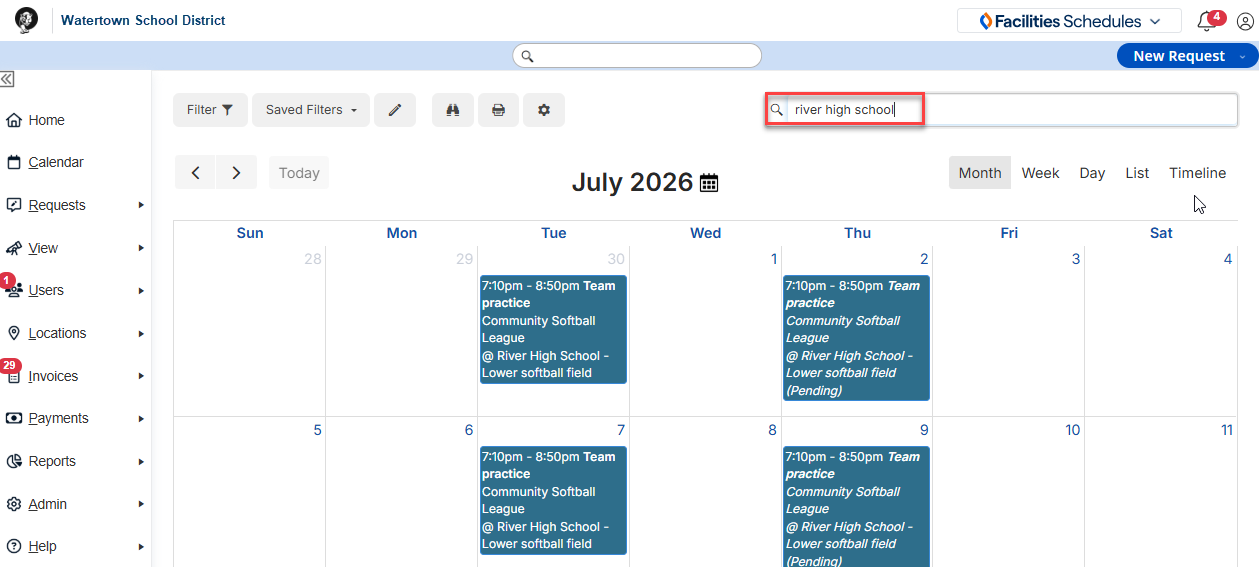
- In the Calendar search box, you can now search by site name.
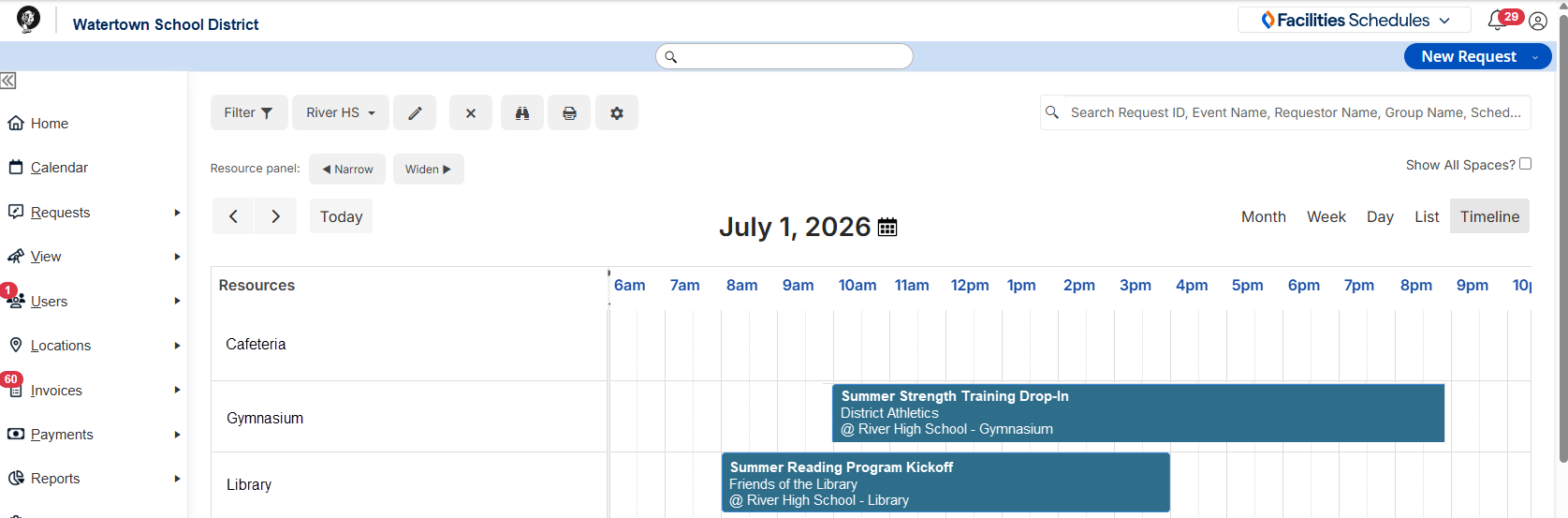
- When using the new request process, districts that allow requests from the calendar can now start a request from Timeline view. Click on an open time slot to start a request. The selected time and space carry over to the request.
Learn more about the calendar.
Change history enhancements| Schedules | Date: 8/23/2026 | Release: 26.4 |
Change history has been enhanced in the following areas:
- Users with the Manage District Settings permission can now view the changes made to request form fields, including a complete history of what changed and when.
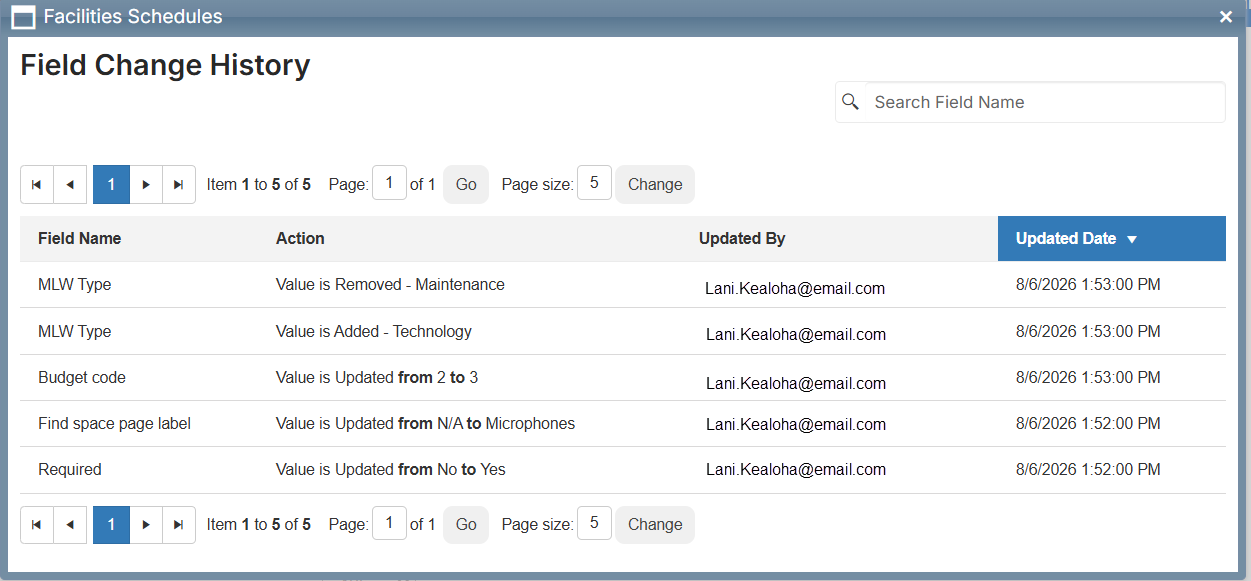
Learn more about request form fields.
-
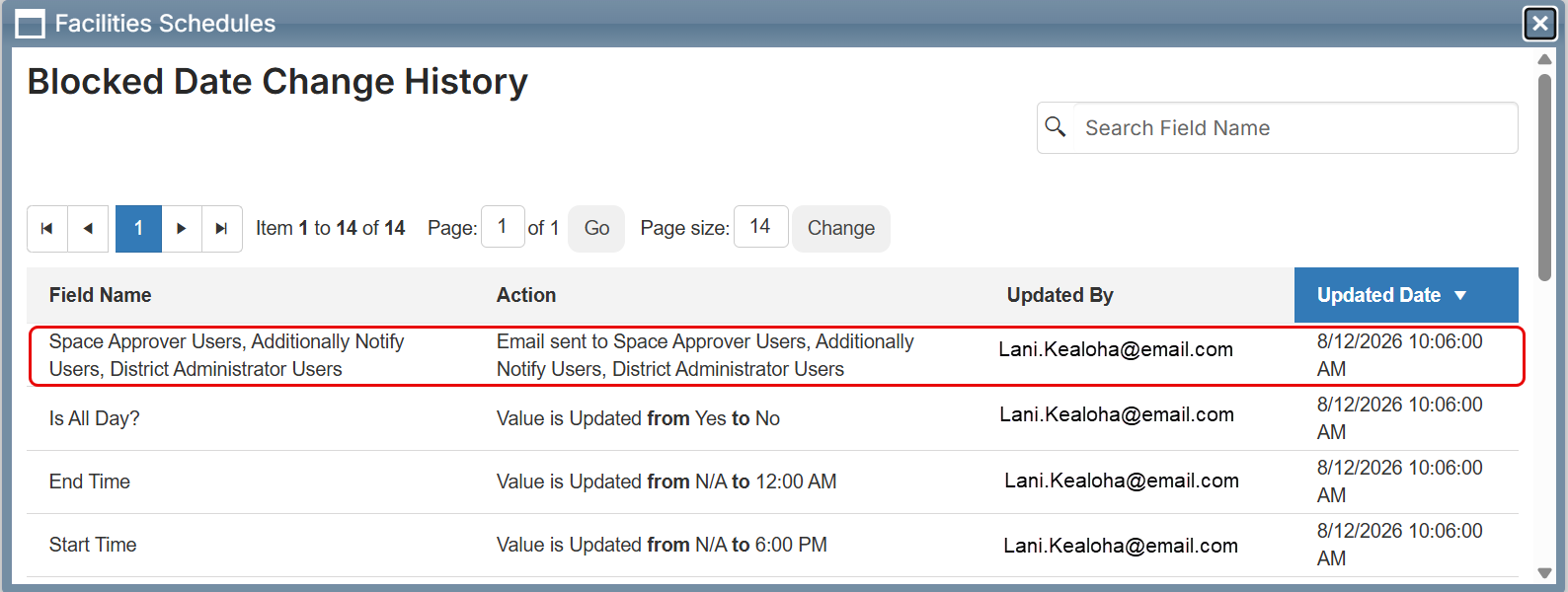
Blocked Date Change History now records notification activity when an administrator selects options in Users to Notify while editing a blocked date. The saved history shows when the notification was sent and which notification role was selected.
Learn more about blocked dates.
Set default group, site, and space for submitting requests| Schedules | Date: 8/23/2026 | Release: 26.4 |
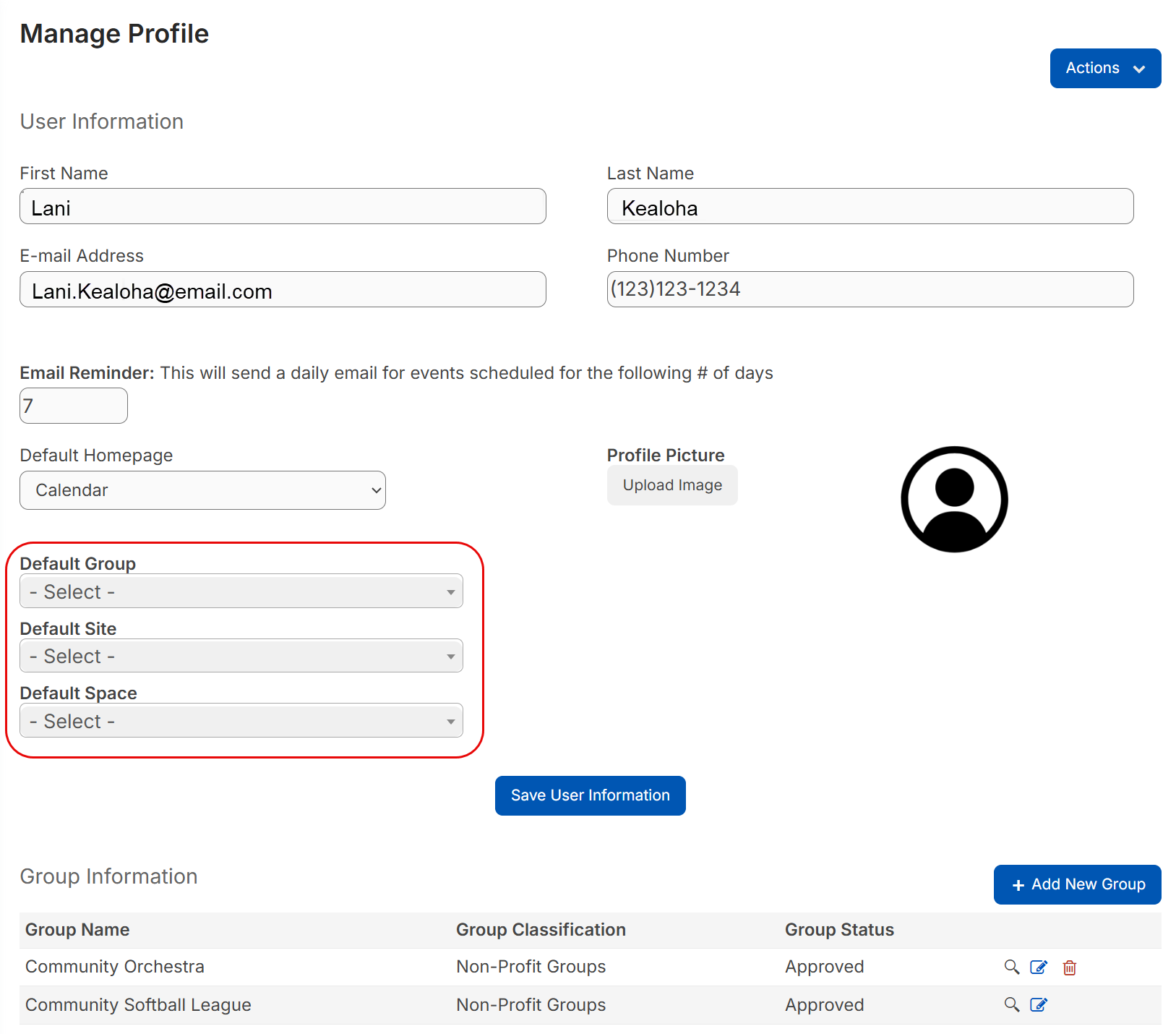
You can now set the Default Group, Default Site, and Default Space values on a user profile, so requestors who regularly use the same locations can submit requests with fewer manual selections.
- Only active sites and spaces are available.
- Spaces are limited to the selected building.
- Users with only one group do not need to choose a group.
- Saved defaults apply when submitting requests for one or more specific spaces.
Learn more about managing your profile.
Fields Report enhancements| Schedules | Date: 8/23/2026 | Release: 26.4 |
This release includes two Fields Report enhancements:
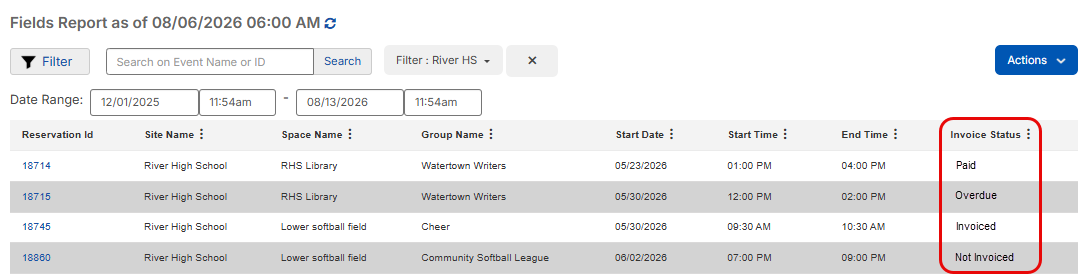
- The Fields Report now includes an Invoice Status column. You can sort by Not Invoiced, Invoiced, Paid, and Overdue.
-
Administrators can now rebuild the Fields Report directly from the report. A new Sync icon (
 ) appears near the last sync line and lets you refresh the report without leaving the page.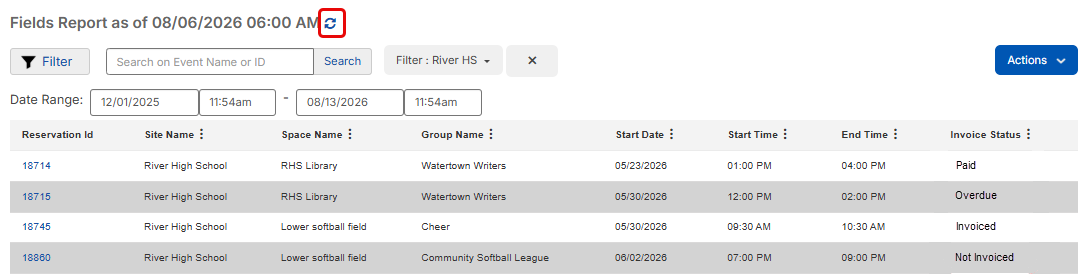
Learn more about the Fields Report.
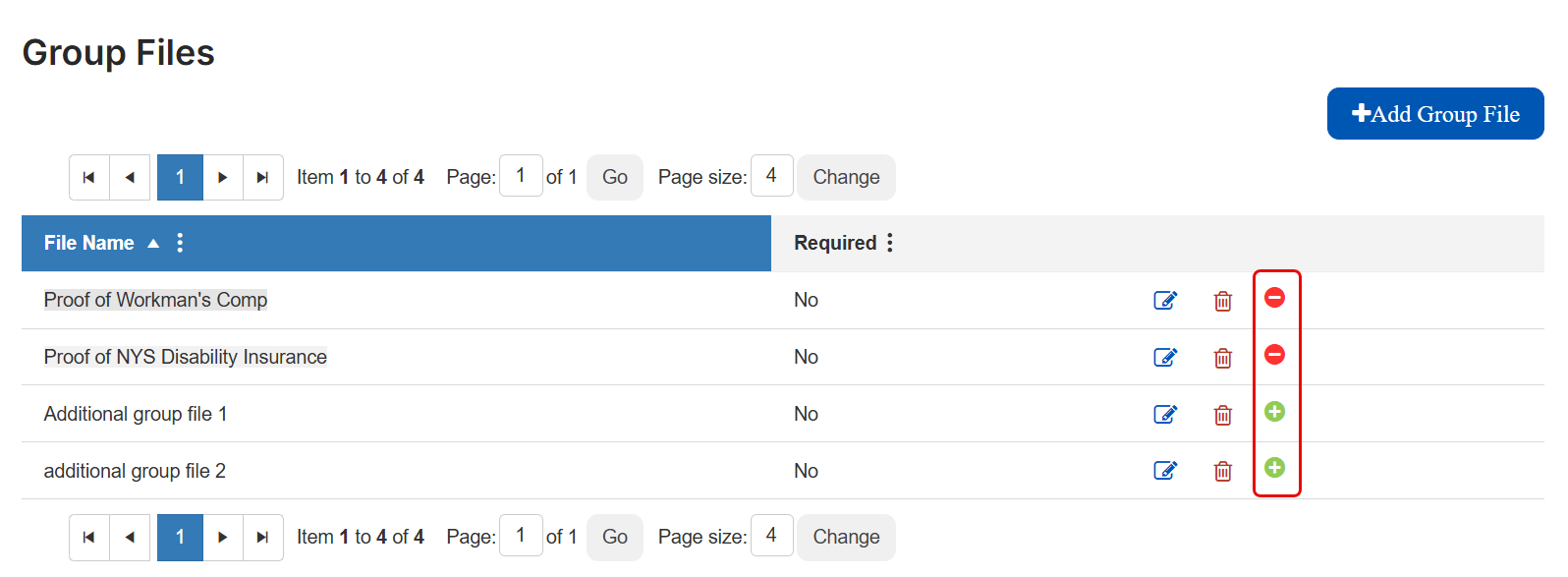
Inactivate group files| Schedules | Date: 8/23/2026 | Release: 26.4 |
Administrators can now inactivate and reactivate additional group files from the Group Files page. When a file is inactive, it no longer appears in Register, Profiles, or View Request Details for group attachments.
Inactive files still appear on the Manage Groups page, so administrators can review inactive files.
Learn more about group files.
Event Registration integration updates| Schedules | Date: 8/23/2026 | Release: 26.4 |
Facilities Schedules now checks Event Registration dates and times against existing reservations and blocked dates. If it finds a conflict, it displays the conflicting request IDs. Users with the appropriate permissions can double-book spaces or bypass blocked dates; other users must select an available date or space, or contact an administrator.
Learn more about the Event Registration integration.
Link a space to multiple sites| Schedules | Date: 8/23/2026 | Release: 26.4 |
You can now link a shared space to multiple sites. For example, a middle school and a high school are separate sites but share a theater. The theater can now be viewed and requested from both sites while appearing as a single space for availability.

Learn more about managing spaces.
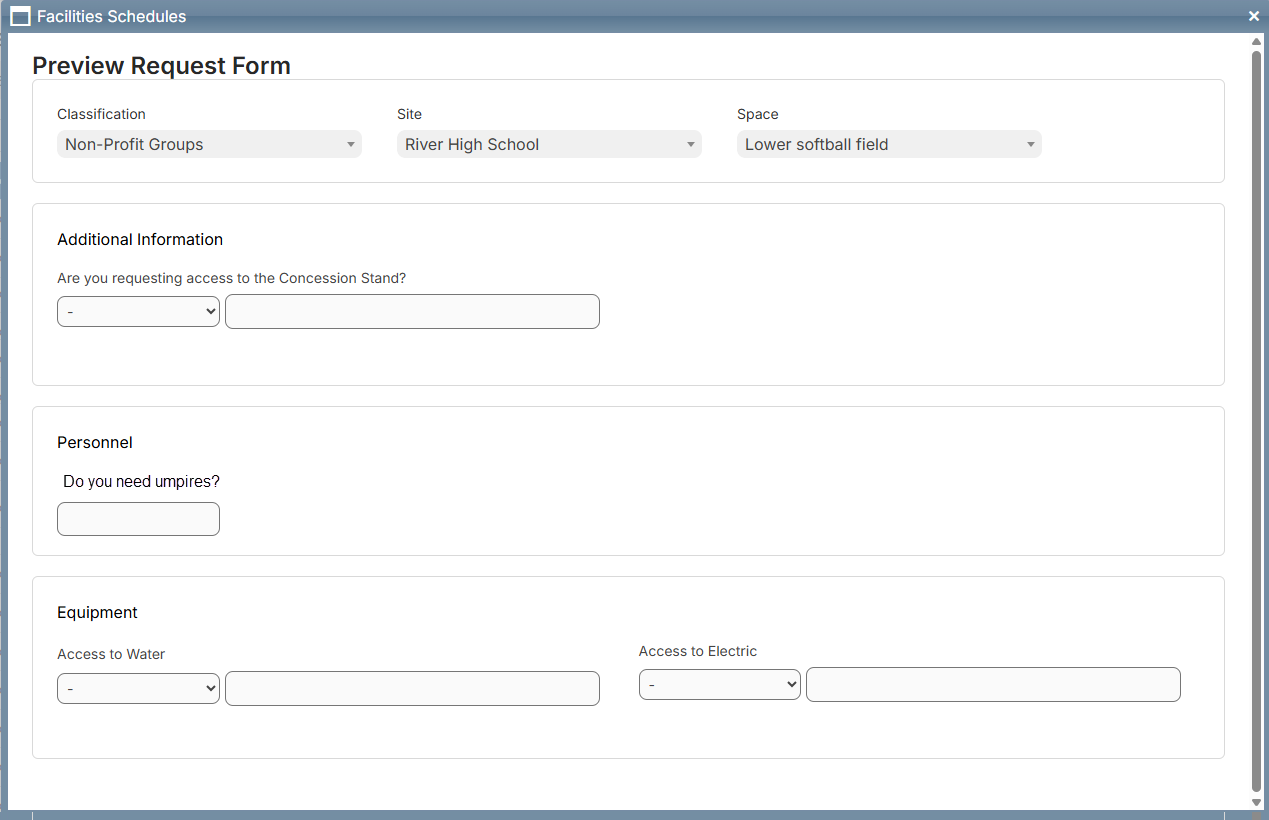
Preview request form UI update| Schedules | Date: 8/23/2026 | Release: 26.4 |
The Preview Request Form page now uses the updated request form design.
Learn more about managing request forms.
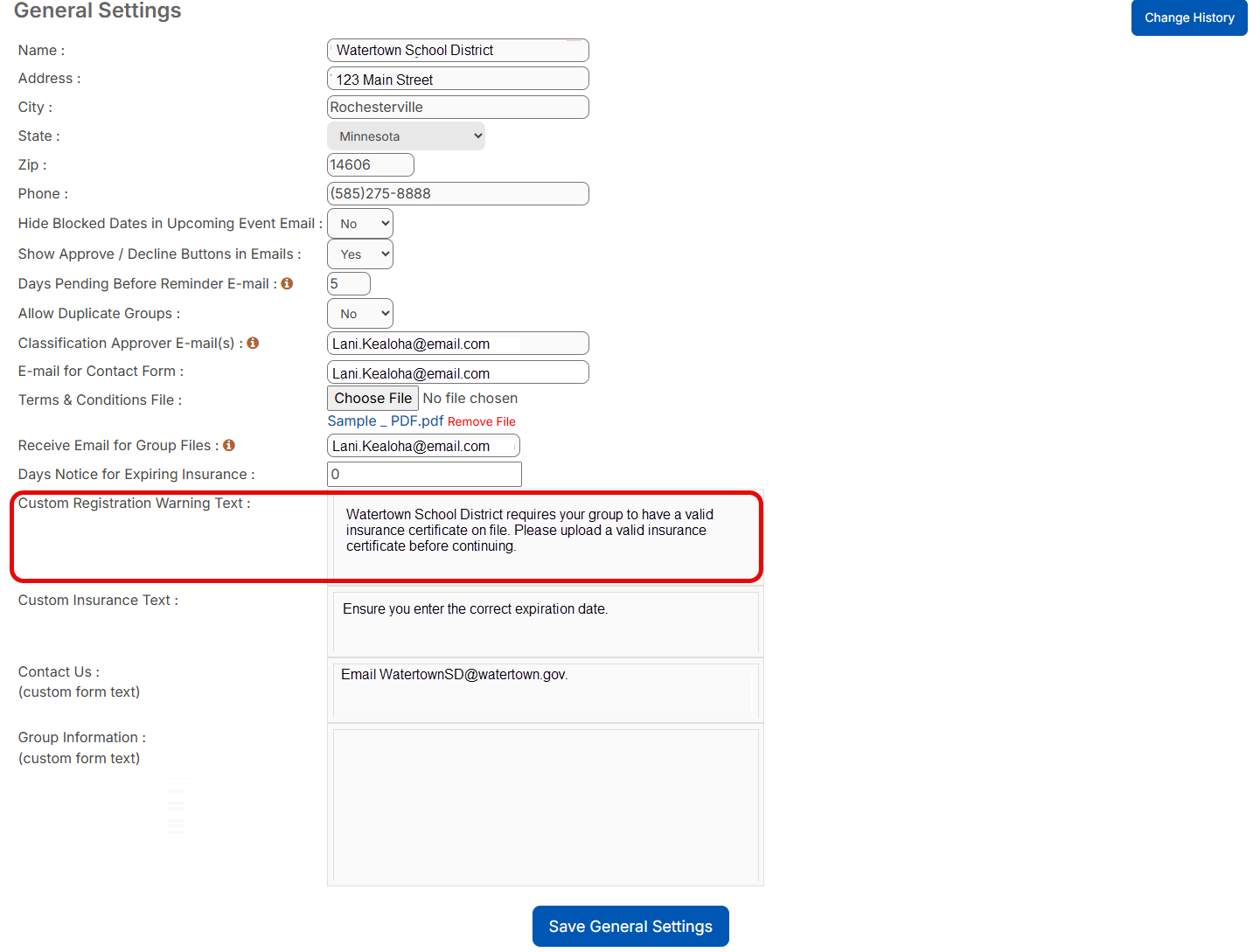
Customize registration warning text| Schedules | Date: 8/23/2026 | Release: 26.4 |
You can now customize the warning that appears in the yellow banner on the registration page. By default, the field contains the current warning text. If you leave the field blank, the warning no longer appears.
Learn more about General Settings.
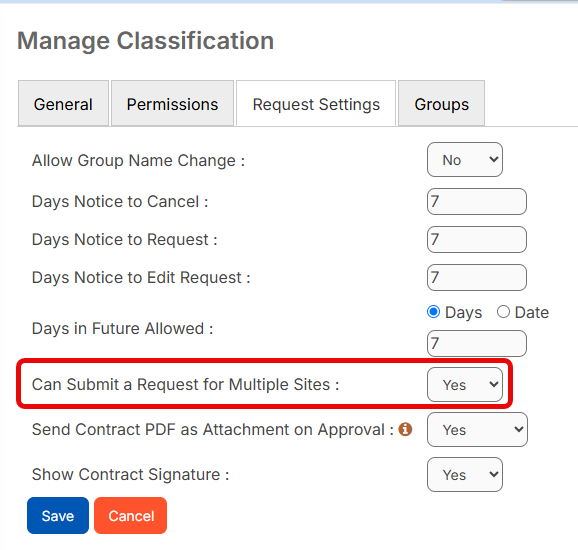
Restrict multiple site requests| Schedules | Date: 8/23/2026 | Release: 26.4 |
Administrators can now control whether a classification can submit a request for more than one site. When this is set to No, the new request process limits the requester to a single site.
If the requester tries to select a second site, a validation message appears before they complete the rest of the request. Because the request cannot continue with multiple sites, this helps prevent time spent on a request that cannot be completed.
Learn more about managing classifications.
Introducing the Facilities AI Assistant| Work Orders | Date: 8/23/2026 | Release: 26.4 |
The new Facilities AI Assistant answers product-focused questions, such as how many requests are open or how many assets are checked out. It cannot create, edit, or delete records.
When you start a conversation, the assistant suggests prompts based on where you are in the product.
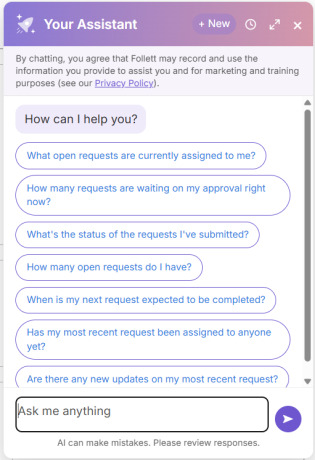
You can also enter your own question and continue the conversation with follow-up prompts.
To give users access, administrators must grant them the new AI Assistant Access permission. The assistant honors each user’s existing permissions. For example, one user might have access to assets at the high school, while another has access to requests at the middle school. If either user asks about the elementary school, the assistant does not provide an answer.
Learn more about the Facilities AI Assistant.
Import users| Work Orders | Date: 8/23/2026 | Release: 26.4 |
Administrators can now create and update users by uploading a completed Excel spreadsheet in Work Orders. This makes it easier to add and maintain user information without entering each record manually.
A downloadable template includes all available user fields. Work Orders matches existing user records by primary email address.
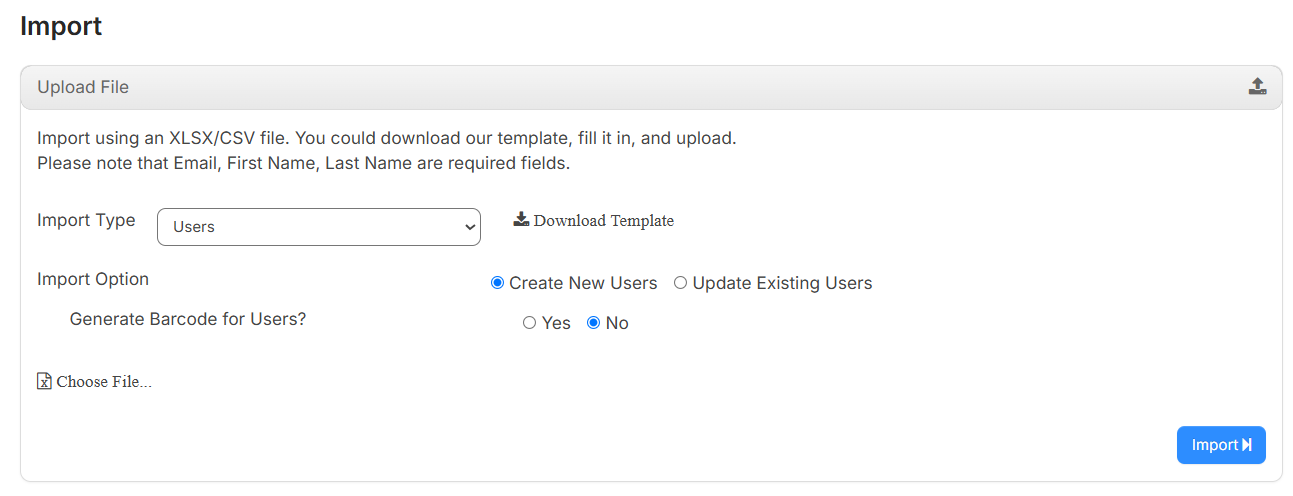
The import supports multiple roles per user. To assign more than one role, use a separate row for each role. You can include related role information – such as assigned location, type, systems, and inventory categories – when applicable.
Before processing, the import validates the file and reports issues such as missing required fields, users, roles, or buildings, as well as invalid email, date, number, or phone formats. After processing, the results show how many rows were imported, updated, or skipped, and how many produced errors. You can download an error log for the rows that need attention.
Learn more about importing users.
Mass update users| Work Orders | Date: 8/23/2026 | Release: 26.4 |
Administrators can now update information for multiple users at once. This makes it easier to maintain user records without opening and editing each user individually.
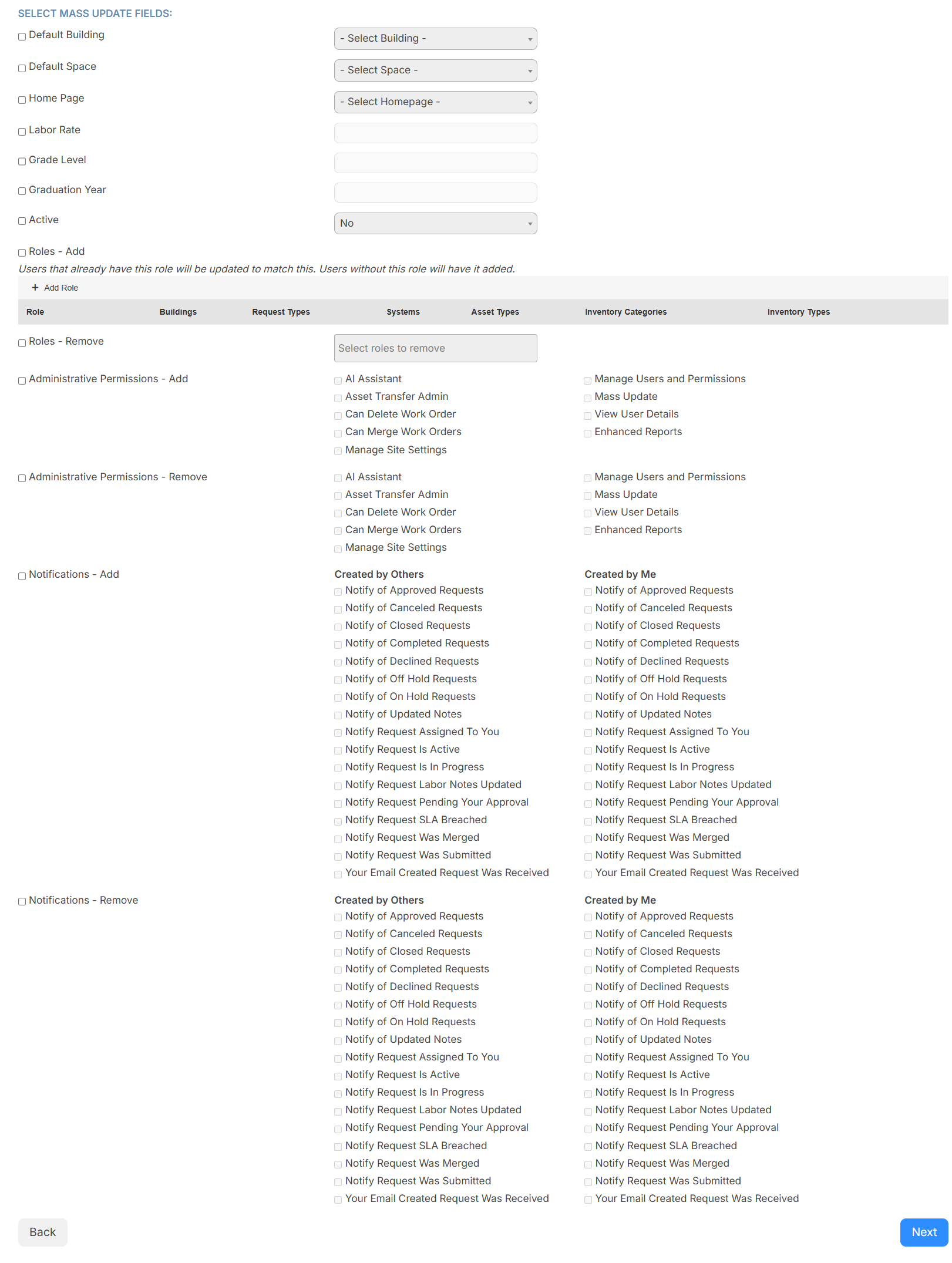
Changes are recorded in each user’s activity history. If some selected users cannot be updated, they are identified after the eligible users are updated. You can download a log of the results.
Learn more about mass updating users.
Simplified asset imports| Work Orders | Date: 8/23/2026 | Release: 26.4 |
The Asset Import process has been redesigned to make it more easier and more efficient to create and update assets in bulk. The new workflow guides you through more import customization options, including whether to update existing assets or create new ones.
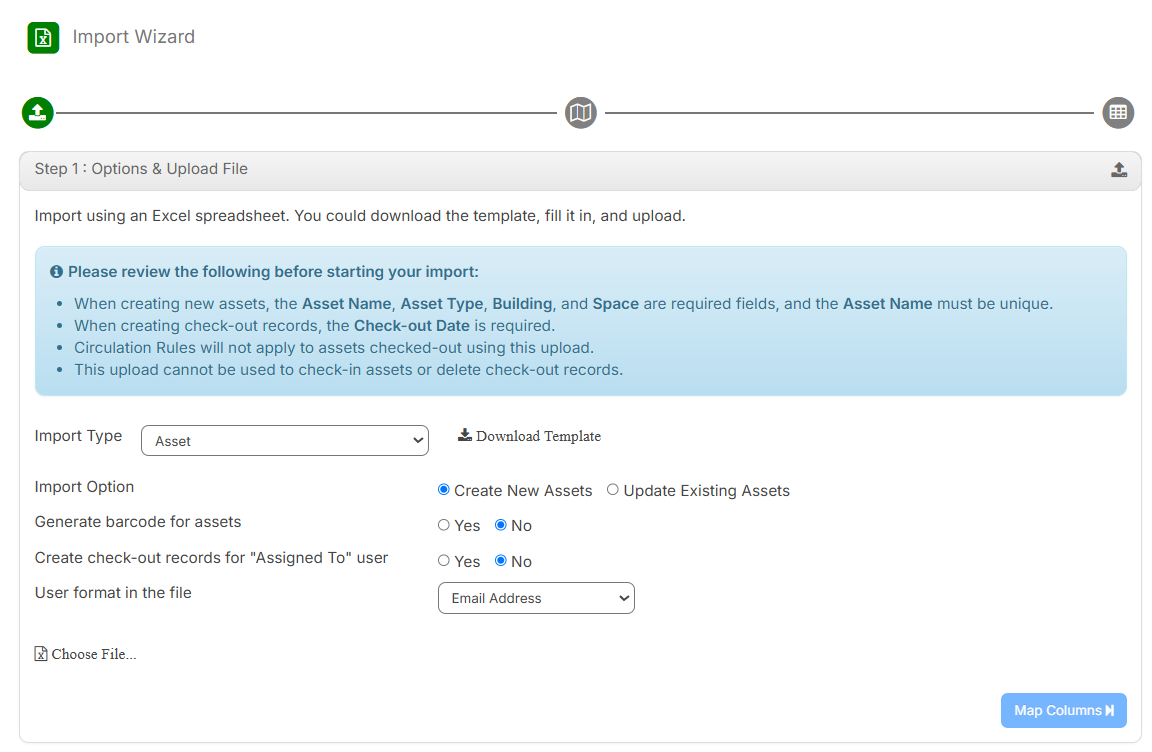
The import template has also been updated to include Check-out Ddate and Due Date columns.
Learn more about importing assets
Scanning sounds during circulation| Work Orders | Date: 8/23/2026 | Release: 26.4 |
You can now turn on circulation sounds when circulating assets in the web app. Audio cues help you recognize successful scans, errors that need attention, and overdue items.
Enable audio feedback on the Quick Circulation and Audit Assets pages using the toggle at the top. The setting is off by default and is saved for each user on each page.

The web app provides different audio cues for:
- Successful checkout, check-in, or audit confirmation
- Errors and conditions that require attention, such as unavailable items, an unrecognized barcode, or items that cannot be checked in or out
- Items identified as overdue during check-in
Audio feedback plays as soon as the scan result is available and does not delay scan processing.
Learn more about quick circulation and auditing assets.
Persistent Quick Circulation settings| Work Orders | Date: 8/23/2026 | Release: 26.4 |
Your Quick Circulation selections are now saved when you leave and return to the page. You no longer need to reselect your options each time you navigate away, and your settings remain available even after you log out and back in.
The following settings are saved:
- Check in vs. Check out
- Due Date, when populated
- Send Confirmation Email
- Include Component Assets
- Update Asset Space and the associated selection
Learn more about Quick Circulation.
Check in assets for inactive users| Work Orders | Date: 8/23/2026 | Release: 26.4 |
Managing assets assigned to inactive user accounts is now easier. You can configure a new circulation rule setting by asset type, user's role, or building to Automatically check in this equipment if the assigned person’s account is inactivated.
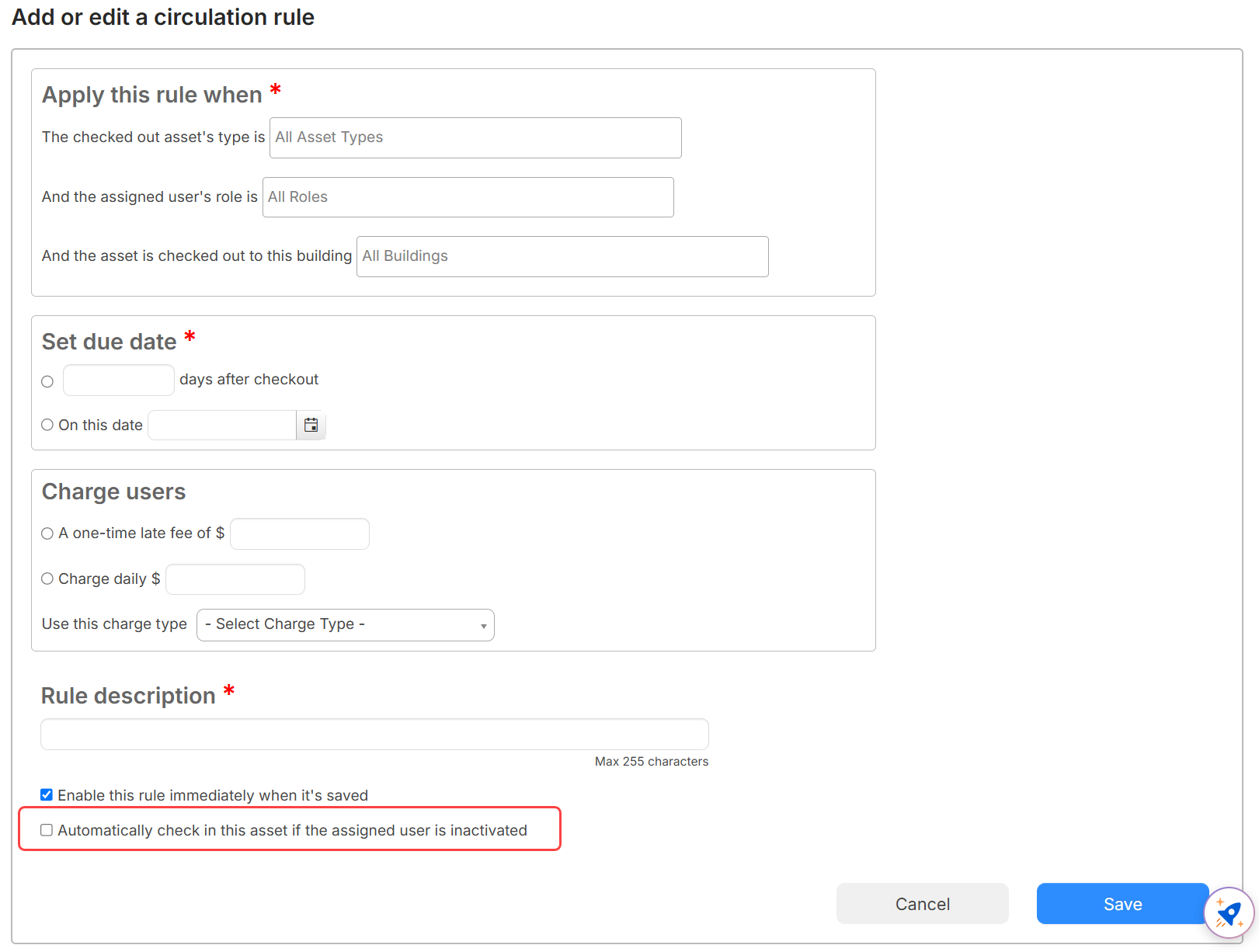
When enabled:
- Matching checked-out assets change to Available and are unlinked from the user.
- The automatic check-in is recorded in the asset’s checkout history.
- Existing check-in safeguards remain in place. For example, equipment with a status such as Lost is not overridden.
- The setting applies whether the account is inactivated manually, through a bulk update or import, or by an automated roster sync.
Learn more about configuring circulation rules.
Enable charge notification emails| Work Orders | Date: 8/23/2026 | Release: 26.4 |
You can now send automatic email notifications when a charge is created or updated for a user.
- When the new Charge Notification Emails setting is enabled in General Settings, an email is sent to the user associated with the charge, with a copy to any additional addresses listed on the user’s profile.
- Notifications apply to charges created manually, during asset check-in, from request inventory, and from circulation-rule late fees.
- Charges imported through CSV or Excel do not trigger charge notification emails.
Learn more about enabling the Charge Notification Emails setting.
New Charges Report column| Work Orders | Date: 8/23/2026 | Release: 26.4 |
You can now add a User Building column to the Charges Report. This column displays the default building for the user associated with each charge, making it easier to review charges by location.
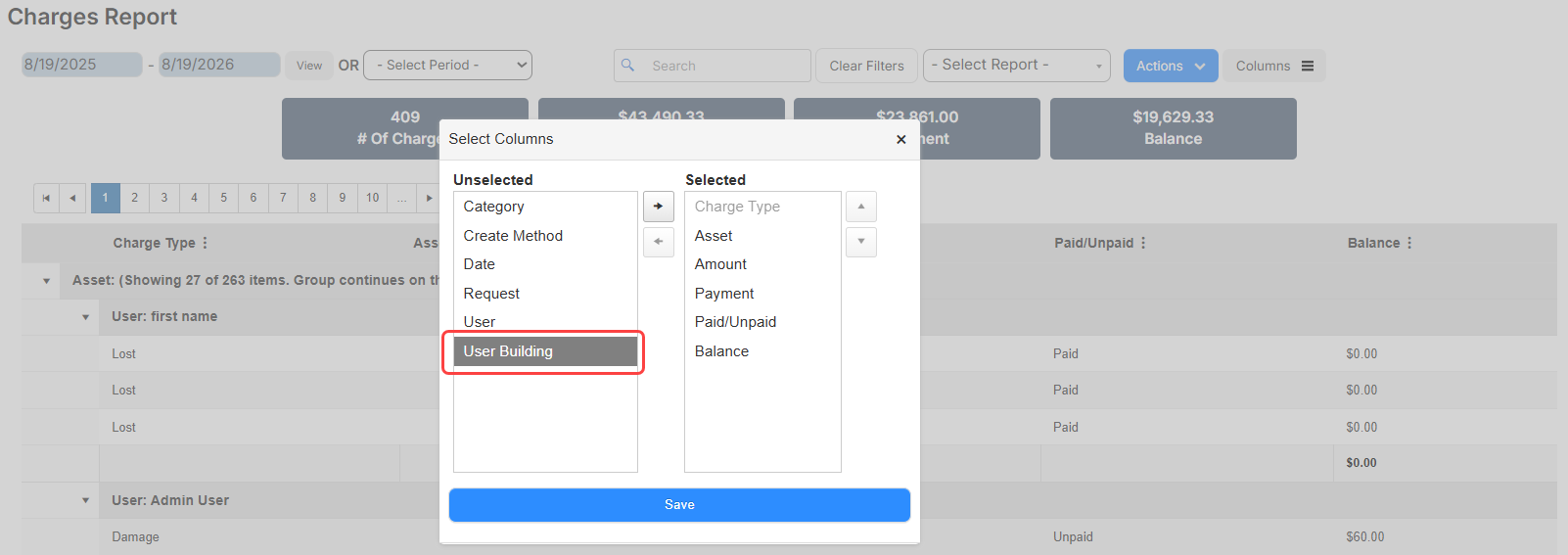
Learn more about the Charges Report.
Update to the In Transit status| Work Orders | Date: 8/23/2026 | Release: 26.4 |
To help prevent assets from becoming stuck in an unrecoverable state, In Transit is no longer available for users to select or change manually.
When an asset transfer begins, the asset's status automatically changes to In Transit. To change the asset's status, you must complete or cancel the transfer. When you cancel a transfer, the asset returns to its previous status, and the transfer remains available as read-only history.
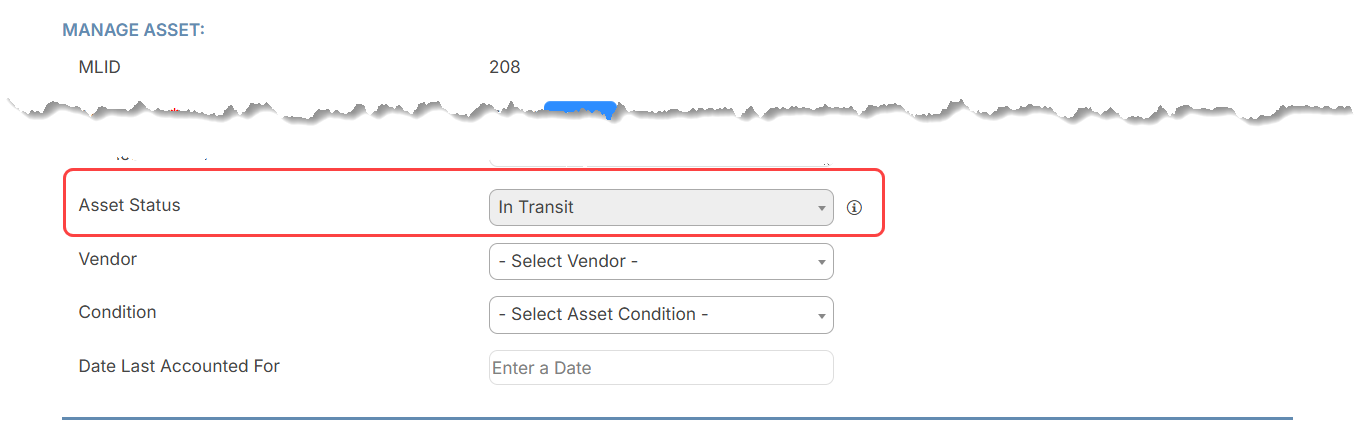
This update applies when adding or editing an asset, viewing asset details, and mapping statuses for the Google Device integration. When you add an asset, In Transit is not available in the Asset Status field. For an existing asset, the field is disabled, and you cannot select another status.
Learn more about asset transfers.
Require custom fields for walk-through requests| Work Orders | Date: 8/23/2026 | Release: 26.4 |
Administrators can now require users to complete custom fields when they submit requests using walk-through mode. In Manage Request Types, select the new Require Custom Fields option for selected categories. The setting applies to all custom fields in that category and is inherited by its child categories.
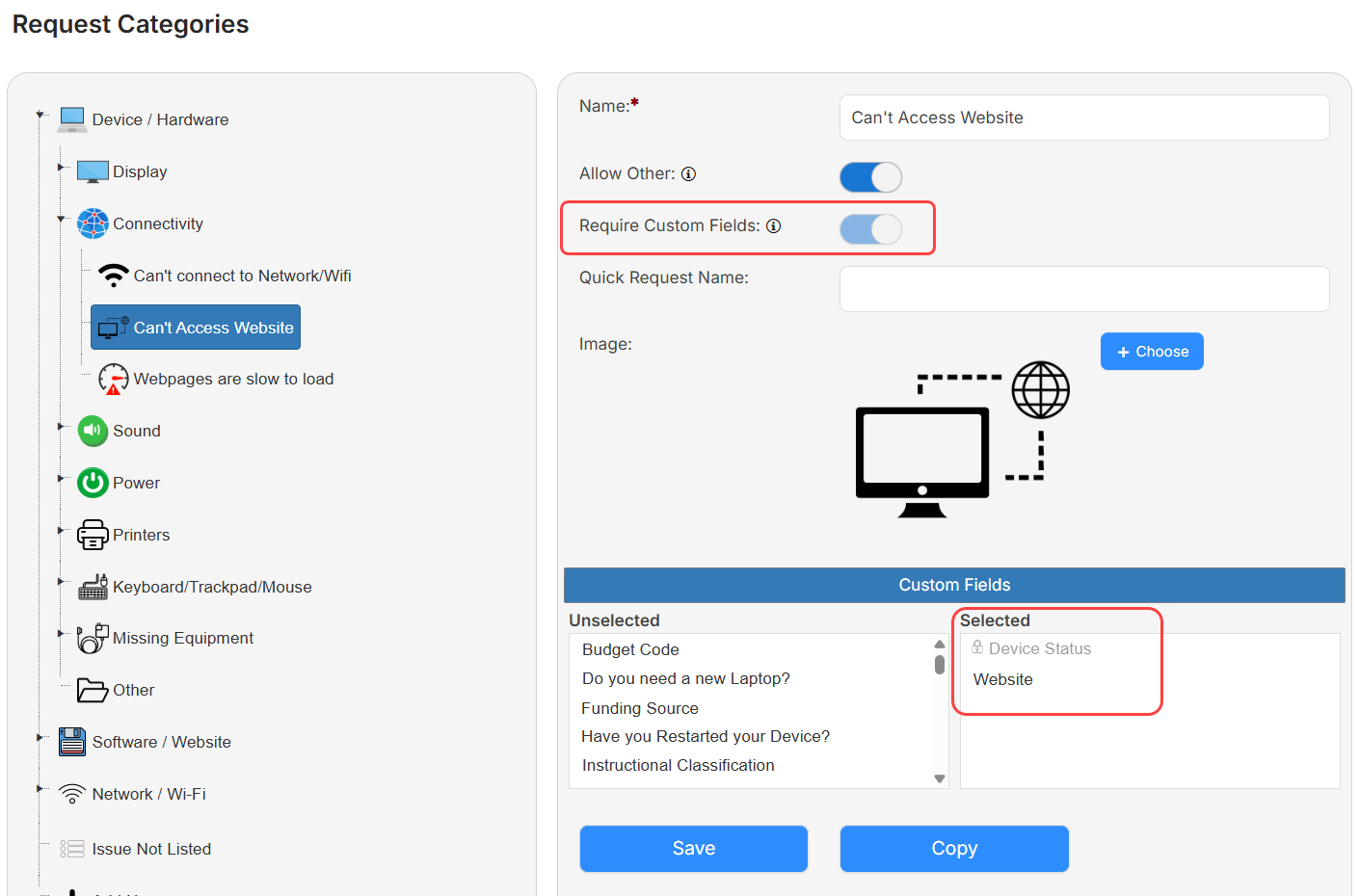
Required custom fields are identified on the request form, and users cannot submit a new request or save edits until they provide the required information.
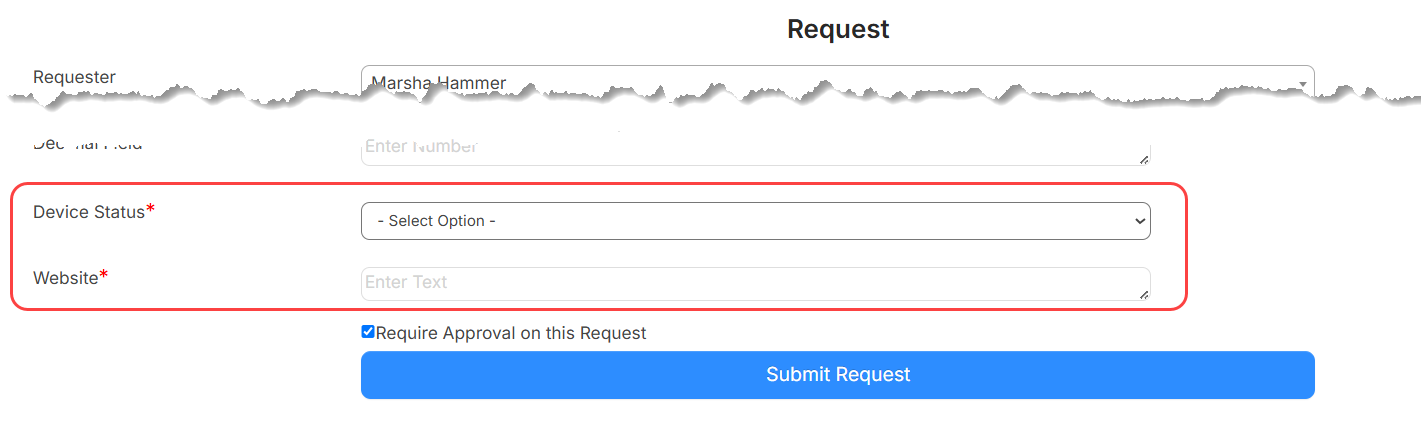
Learn more about request categories.
Customize SIS ID field mapping| Work Orders | Date: 8/23/2026 | Release: 26.4 |
You can now choose how SIS ID values are mapped in the OneRoster integration. Map SIS ID values to the External ID field, the Barcode field, or both.
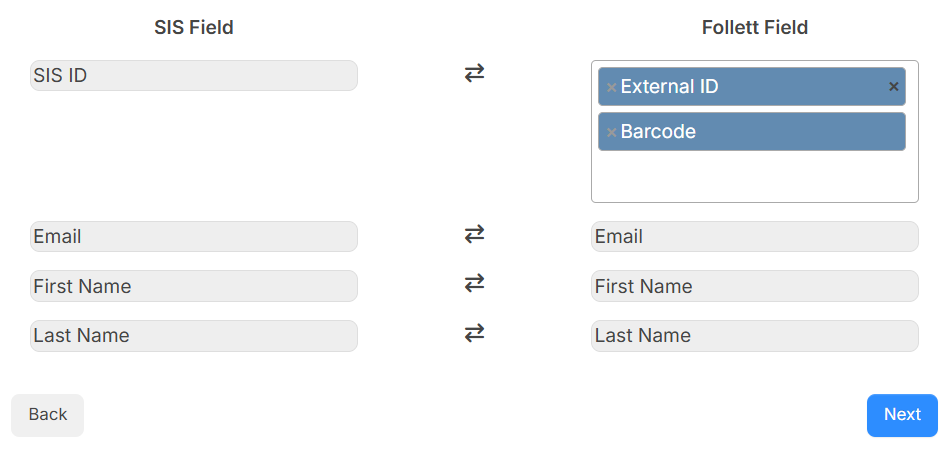
Learn more about the OneRoster.
Third party API| Work Orders | Date: 8/23/2026 | Release: 26.4 |
Administrators can now generate API keys for users who need to connect to approved third-party applications. Each key is associated with a specific user, helping administrators manage API access more securely.
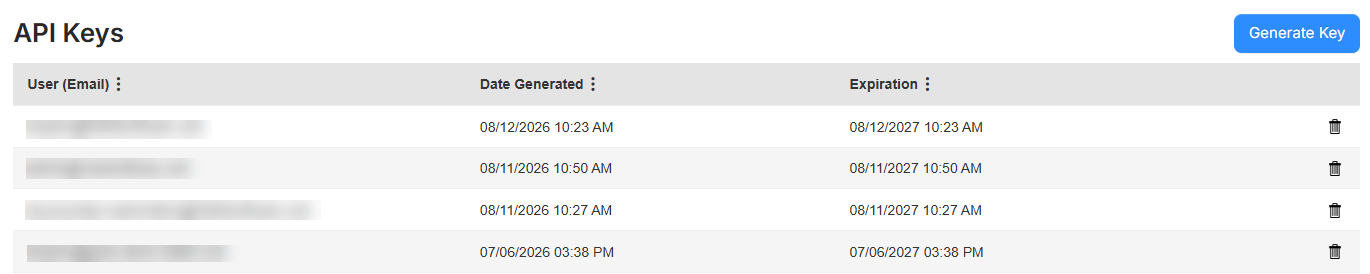
Learn more about API keys.
Add subtasks to requests| Work Orders | Date: 8/2/2026 |
You can now create subtasks within a request to break work into smaller, trackable items. For example, if you are updating a district-wide sound system, you can track each building as a separate subtask.
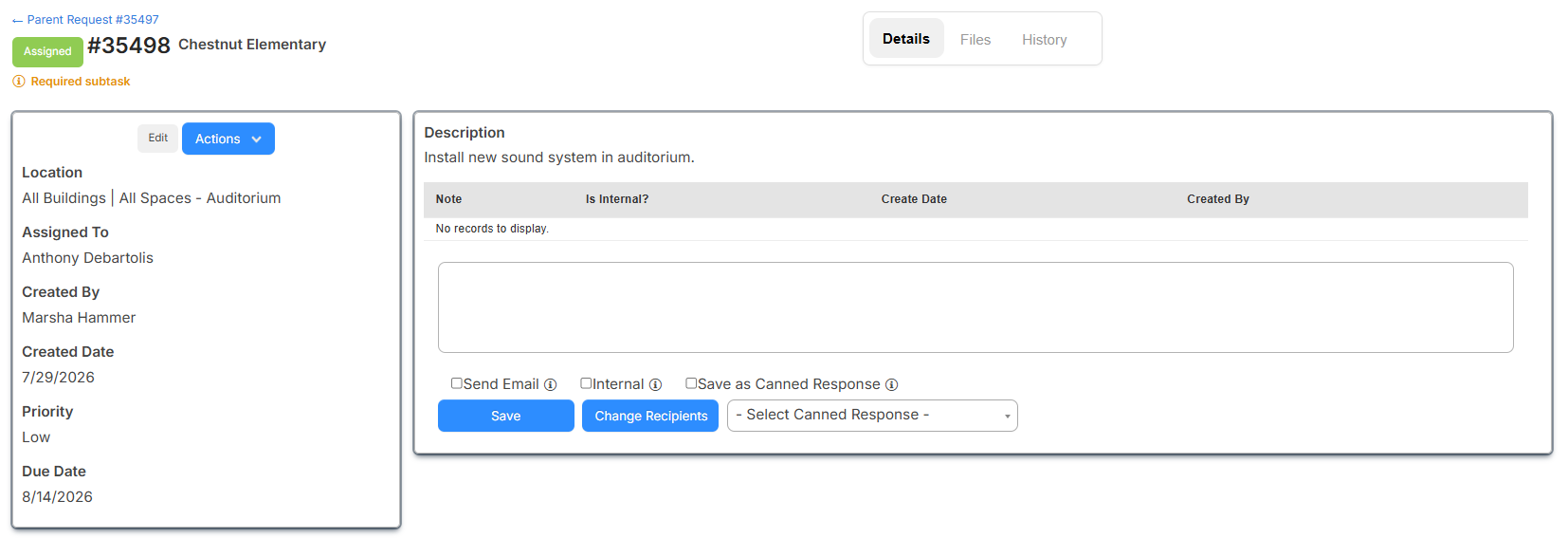
On the parent request, a new Subtasks tab shows the number of subtasks and includes a table with information about each. From this tab, users can create a subtask and update its status without opening it.
If a subtask is marked as required, it must be completed before the parent request can be closed.

Subtasks use the same permissions, notifications, and related tab functionality as requests.
Learn more about subtasks.
View Knowledge Base articles when submitting a request| Work Orders | Date: 8/2/2026 |
Users with the Manage Knowledge Base Articles or View Knowledge Base Articles permission can now view relevant Knowledge Base articles when creating a new request.
When the new 'Suggest Knowledge Base Articles on Request Submission' toggle is enabled for a request type, the request form displays a 'Suggested articles' section. The section shows up to five published articles. If no matching articles match are found, the section does not appear.
In walk-through mode, articles are matched using the following hierarchy:
- Request Type + Specific Category + Specific Asset Type
- Request Type + All Categories + Specific Asset Type
- Request Type + Specific Category + All Asset Types
- Request Type+ All Categories + All Asset Types
If a request is submitted from the single-form page, articles are matched based on the following criteria:
- Request Type + Specific Asset Type
- Request Type + All Asset Types
Learn more about the Knowledge Base.
Quick Circulation enhancements| Work Orders | Date: 8/2/2026 |
Quick Circulation is now more efficient when checking out assets. Updates include:
- Search for a user instead of scanning a user barcode.
- Select how to update the asset space:
- Use the user's default space.
- Select a different space.
- Update to the user's default space, or select a space if the user does not have a default.
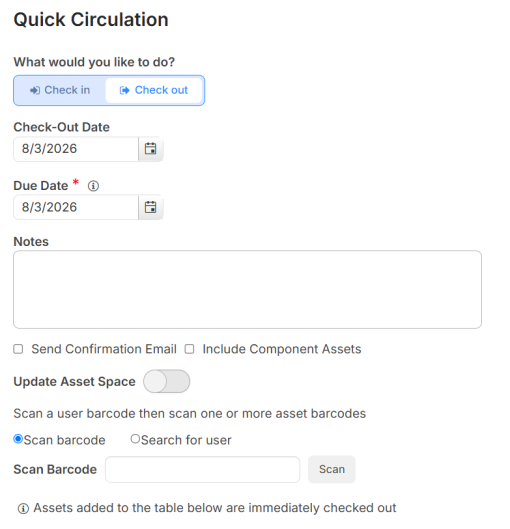
Learn more about the Quick Circulation.
June
Auto-populate asset details from an image
| Drawings | Date: 6/14/2026 | Release: 26.2 |
When annotating a drawing, you can now use AI beta to auto-populate fields on assets (such as make, model, and serial number) directly from a scanned image.
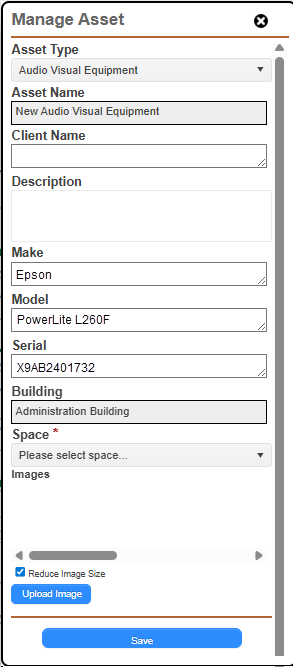
Learn more about annotating a drawing.
Updates to Spaces
| Drawings | Date: 6/14/2026 | Release: 26.2 |
Spaces now includes more fields, such as ceiling type and paint color. You can also select the order in which fields appear, or set a default field order from the Actions menu.
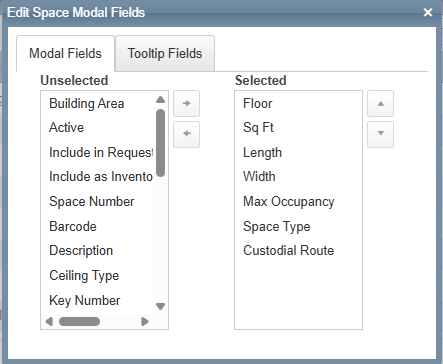
On the Manage Spaces page, an icon appears next to spaces with customized modal fields ( ) and tooltip fields (
 ).
).
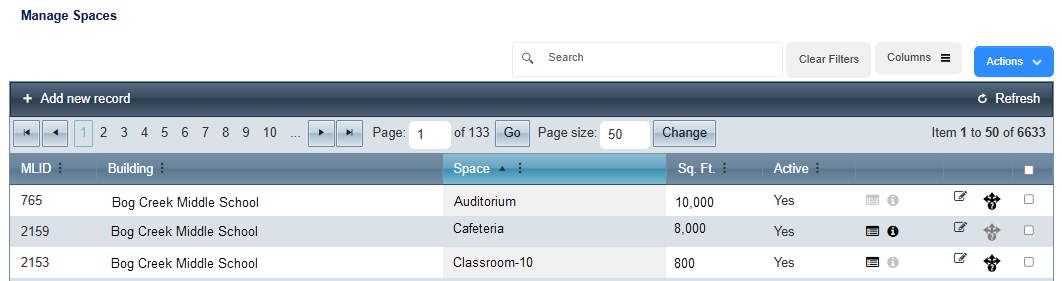
Learn more about spaces.
New request form| Schedules | Date: 6/14/2026 | Release: 26.2 |
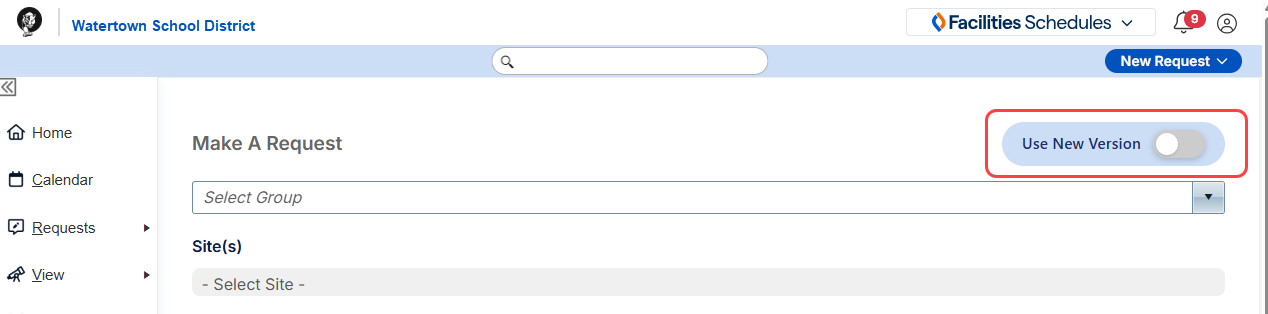
You can now choose to use a new form when making a request. On the Make A Request page, turn on the Use New Version toggle.
The new request form lets you select a specific space, or any space that fits your criteria.
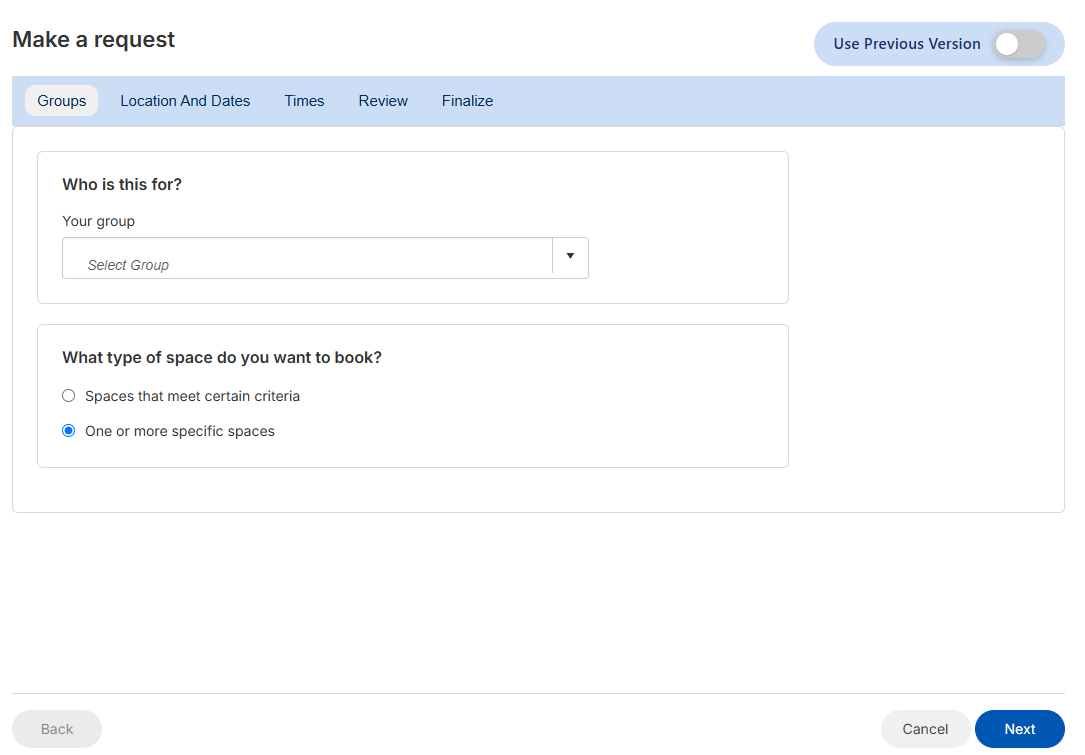
Learn more about making a request with the new form.
Calendar enhancements| Schedules | Date: 6/14/2026 | Release: 26.2 |
Several calendar enhancements make it more efficient to use.
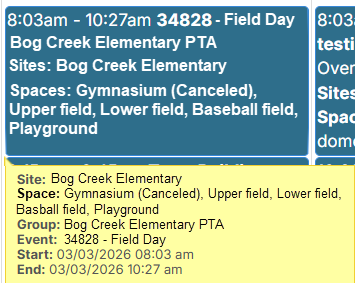
- When viewing a multiple occurrence, multi-space request, you can now see which spaces have been canceled for a specific occurrence.
-
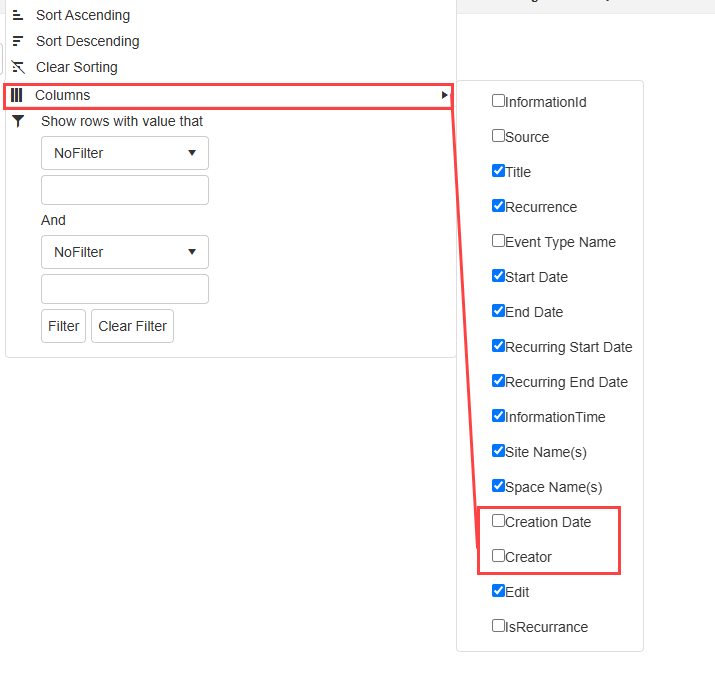
Creation Date and Creator are now available as optional columns on the Manage Calendar Information page and Manage Blocked Date page. These columns are hidden by default.
-
There have been updates to calendar filtering:
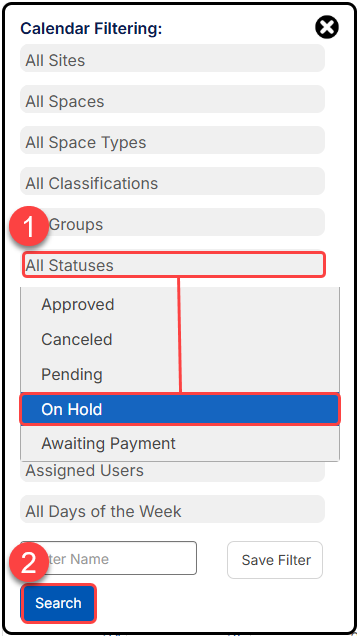
- Filter your calendar to show events with a status of On Hold.
- Use the new Search button.
Learn more about managing your calendar.
Payment updates| Schedules | Date: 6/14/2026 | Release: 26.2 |
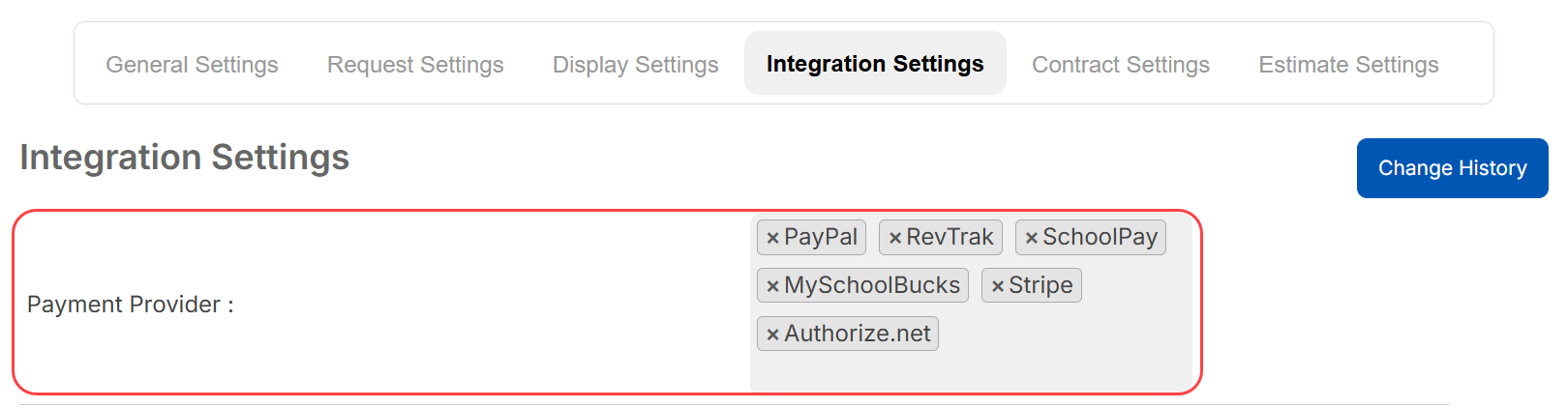
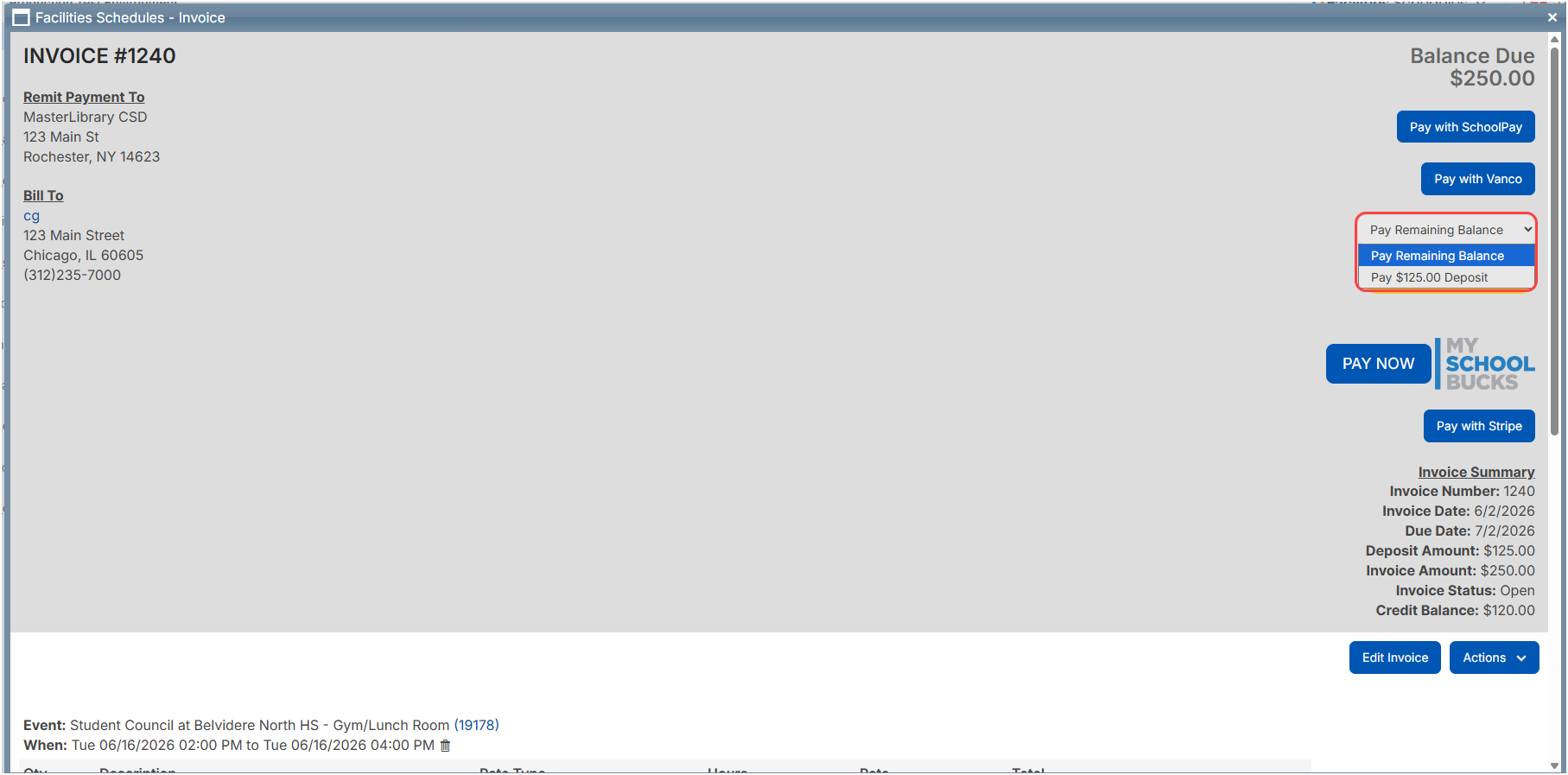
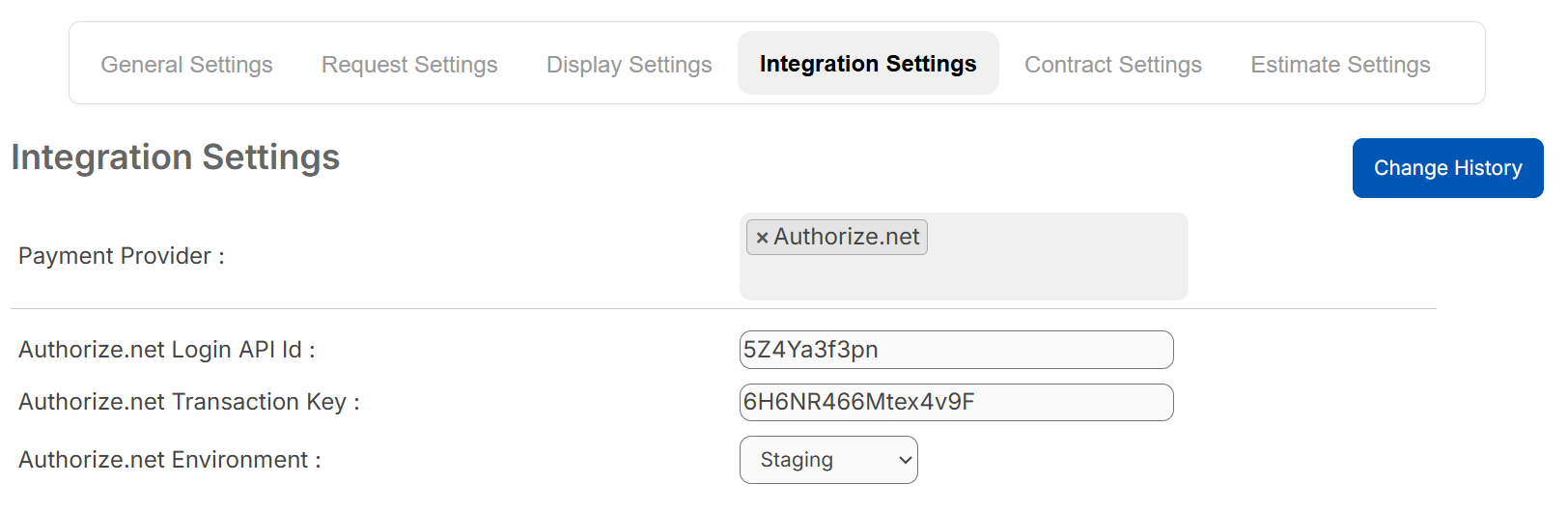
Several updates make payments more convenient:
- An updated Integrations Settings tab lets districts select multiple payment options, and view only the fields for the options selected.
- When paying with Stripe, users can now select from Pay Deposit or Pay Remaining Balance.
- You can now set up payments with Authorize.net.
Learn more about payment integrations.
Standardized Gallery View display| Schedules | Date: 6/14/2026 | Release: 26.2 |
Gallery View has a cleaner, more consistent appearance, with standardized image sizing.
Images in Gallery View no longer stretch to fill the full browser width. Instead, they are centered, display at a fixed height of 500 pixels, and automatically adjust in width to maintain their aspect ratio.
Portrait and square images are no longer allowed. If you try to upload one, the upload is blocked and you are prompted to choose a landscape image instead.
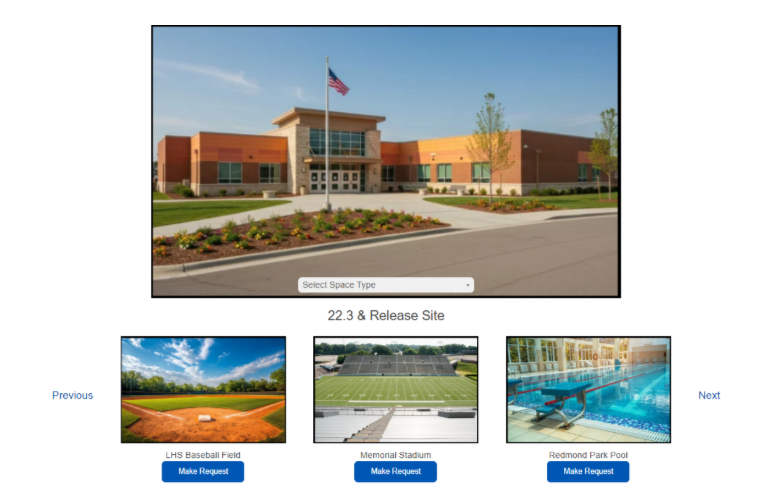
Learn more about Gallery View images.
View past insurance info| Schedules | Date: 6/14/2026 | Release: 26.2 |
Groups can now view their past insurance information. To see previously uploaded insurance files, click View Old Files next to Insurance Information.
When uploading a new file, if a file with the same name already exists, the new file is now saved with a time stamp.

Learn more about uploading insurance forms.
Invoice enhancements| Schedules | Date: 6/14/2026 | Release: 26.2 |
There are several enhancements to invoicing:
- You can now edit invoice dates.
- Users with the Manage District Settings user permission can change the Invoice Date (date when an invoice is sent).
- Users with the Can Send Invoices role permission can change the invoice Due Date.
These changes appear in the invoice Change History.
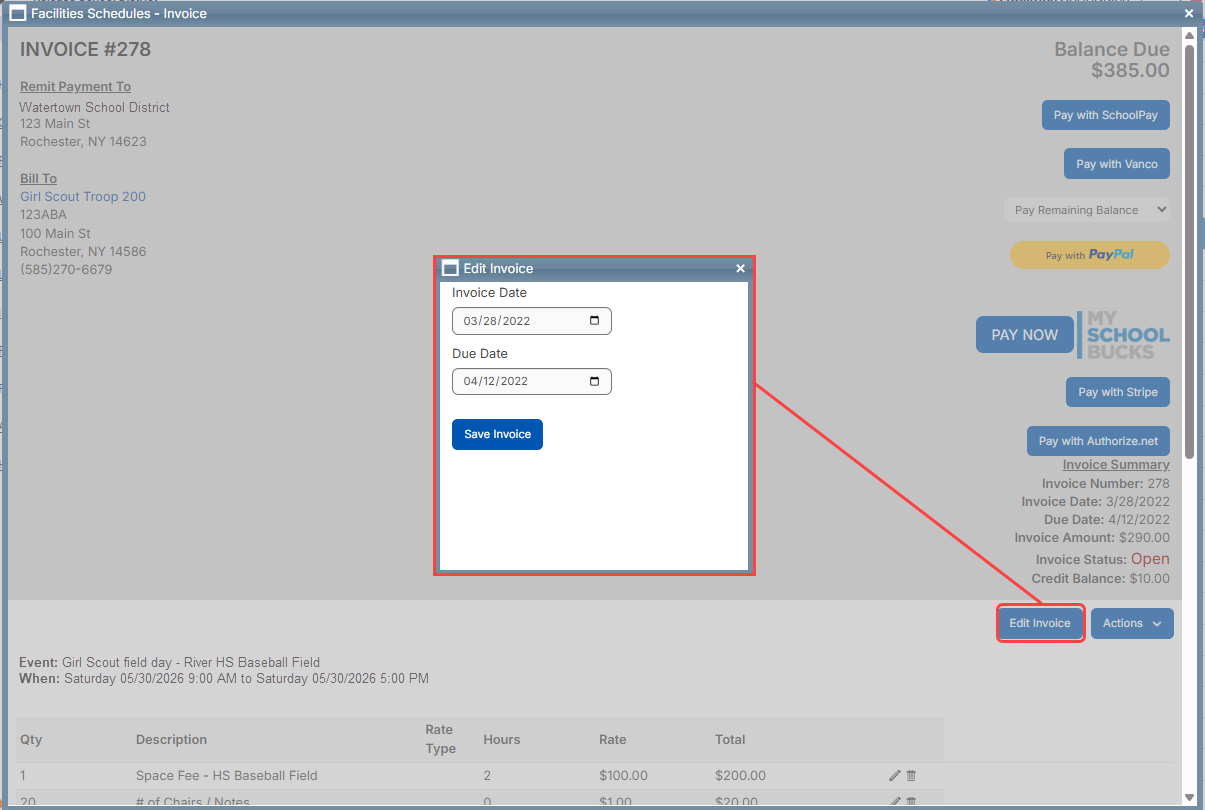
Learn more about draft invoices.
-
You can now enter negative dollar amounts on an invoice under Actions > Refund. When a negative amount is entered, Schedules adjusts the invoice balance, processes a refund, and logs the refund in the invoice history.
Learn more about refunding or crediting a group.
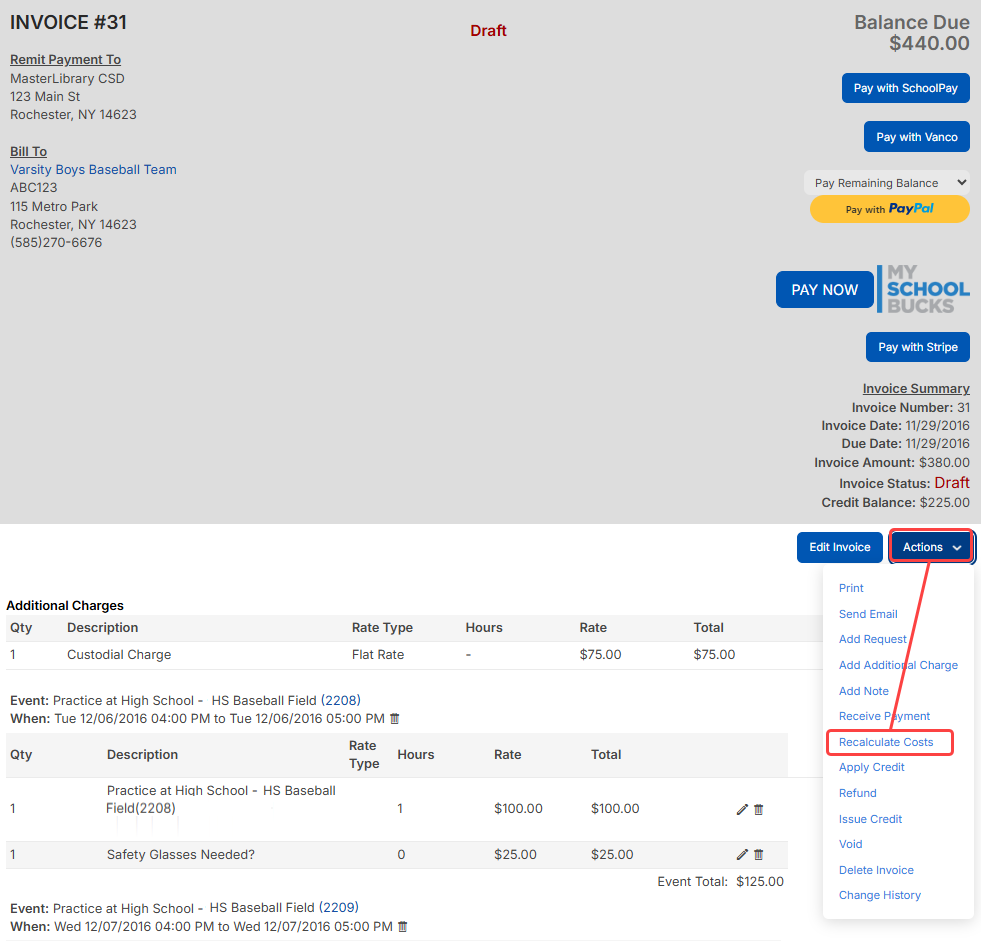
- You can now recalculate costs on an invoice in Draft status.
Learn more about recalculating costs on an invoice.
Report enhancements| Schedules | Date: 6/14/2026 | Release: 26.2 |
The following reports have been updated:
- On the Fields report, there is a new Request Files column that shows the names of files attached when the request was submitted. This column is optional and must be selected to appear.
- On the Calendar Report, the timeline view now shows an event in every space where it is scheduled, not just the first space. All scheduled spaces now appear as Unavailable.
-
On the Summary Dashboard, the Date field is now based on the event date instead of the create date.
Learn more about reports.
New email templates| Schedules | Date: 6/14/2026 | Release: 26.2 |
Additional email templates are available for status changes. Users can customize the message content in existing templates, but cannot create new ones. There are new templates for the following statuses:
- Submitted
- Awaiting Your Approval
- Approved
- On Hold
- Hold Removed
- Canceled
- Declined
- Modified
You can also revert a template to the default.
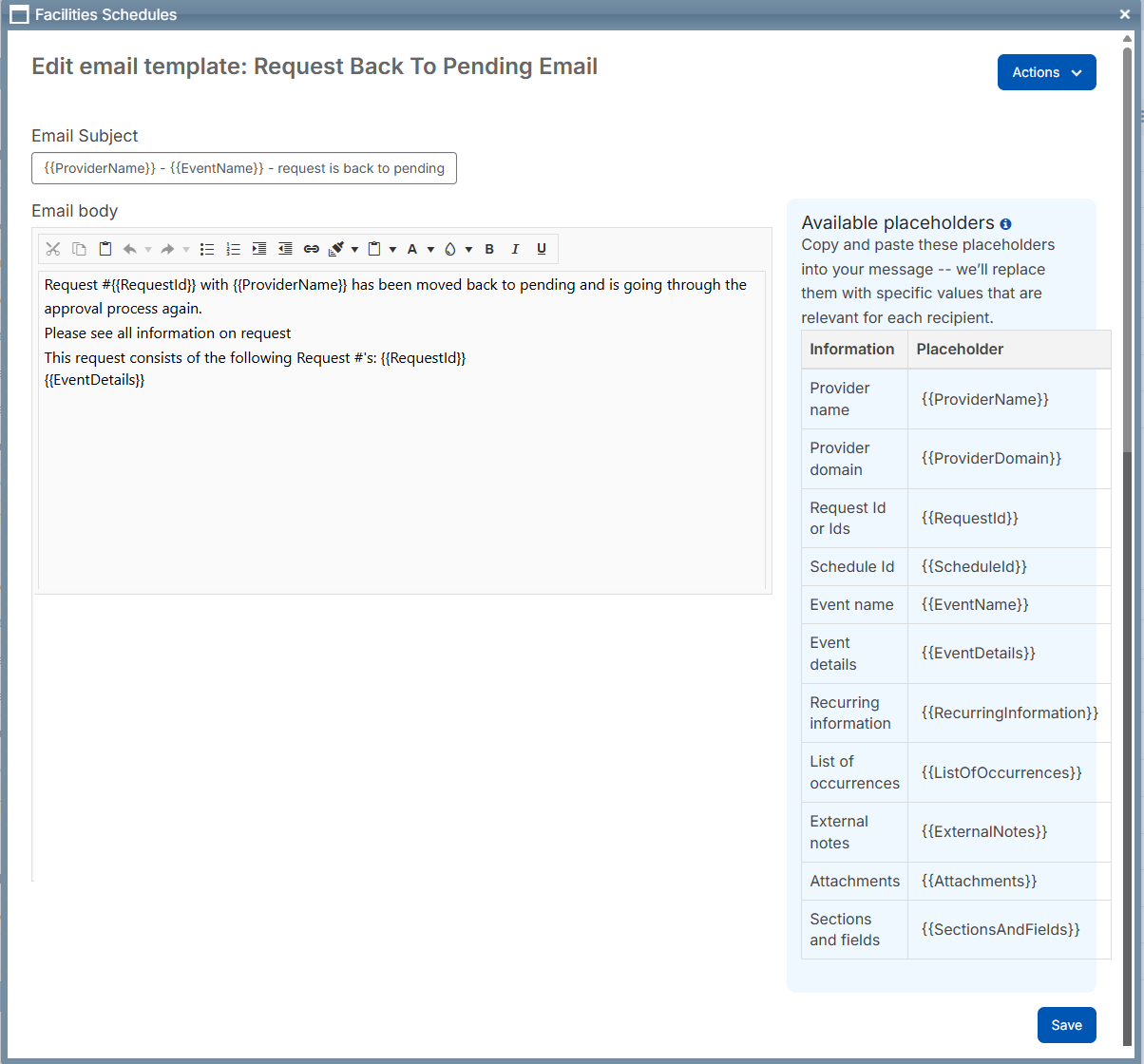
Learn more about email templates.
Mass approval enhancements| Schedules | Date: 6/14/2026 | Release: 26.2 |
Mass approval is now more flexible and efficient:
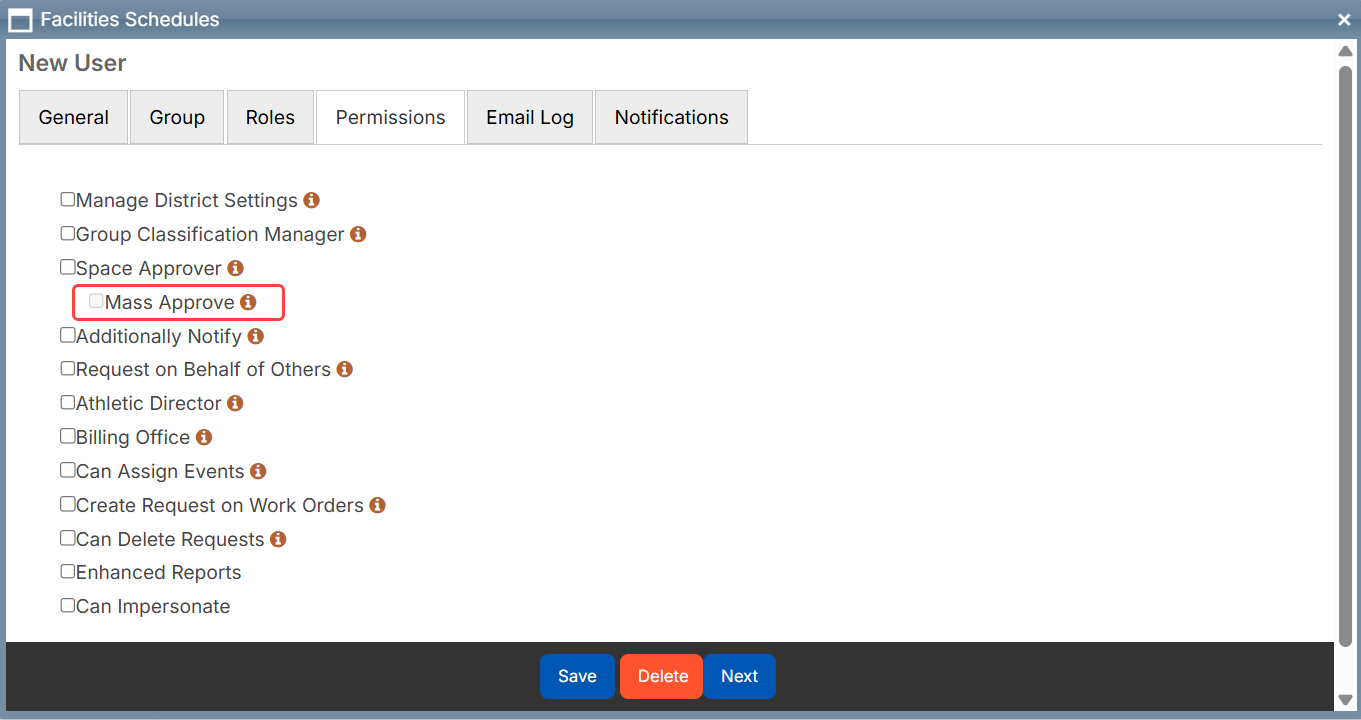
- Administrators can now control who can mass-approve requests by assigning a user permission. If this permission is not enabled, Space Approvers will not see the Mass Approve option.
-
When a Space Approver mass-approves multiple requests, the system now sends one consolidated email for each unique combination of Approval Path, Step, and Schedule ID. Each email lists all requests in that group.
Learn more about mass approval.
Enhancements for groups| Schedules | Date: 6/14/2026 | Release: 26.2 |
Groups now have a better registration experience with the following updates:
- When a group registers with a name that already exists in the system, the group manager receives an email explaining the situation. The group can then choose a new name or request to be added as a group manager for the existing group. The email now includes:
- Name
- Phone number
- Group name
- Group phone number
- Group address, city, state, and zip code
- Reason for registration (if shown and filled out)
- On the Groups page, the Notes and Group File columns have been enlarged for better visibility.
Learn more about managing groups.
Enhanced Work Orders integration| Schedules | Date: 6/14/2026 | Release: 26.2 |
The Work Orders integration includes several enhancements:
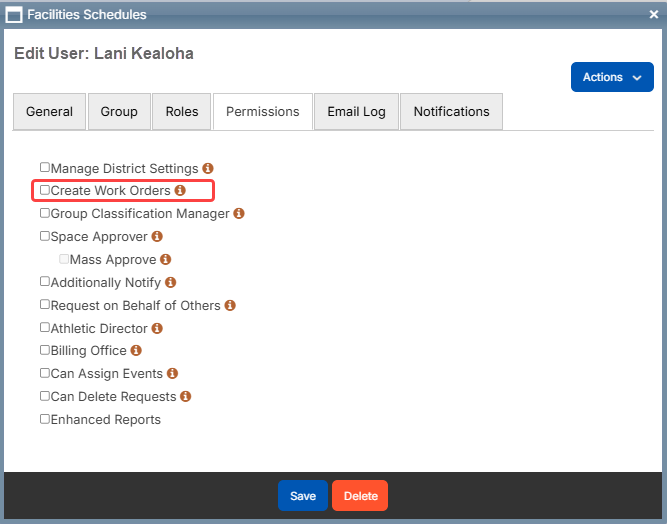
- A new user permission, Create Work Orders, is now required to create work orders manually. This lets users see the Create Work Orders option on the request details page.
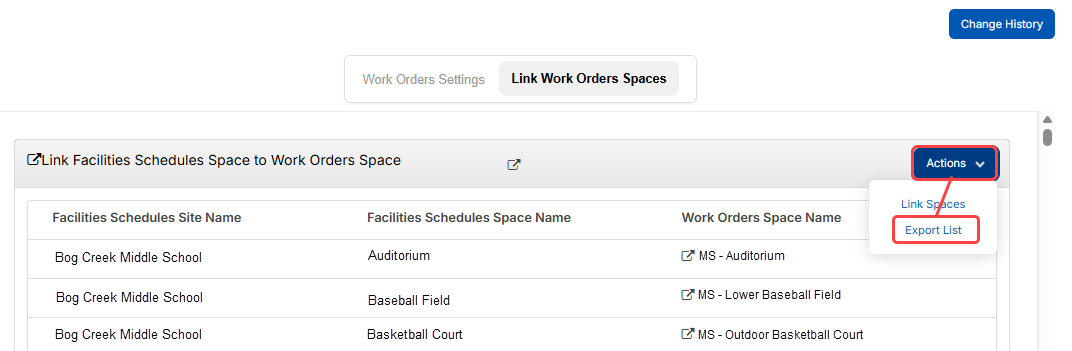
- You can now export the list of mapped spaces between Schedules to Work Orders. The Link Spaces button has moved to the Actions menu, which now also includes Export List.
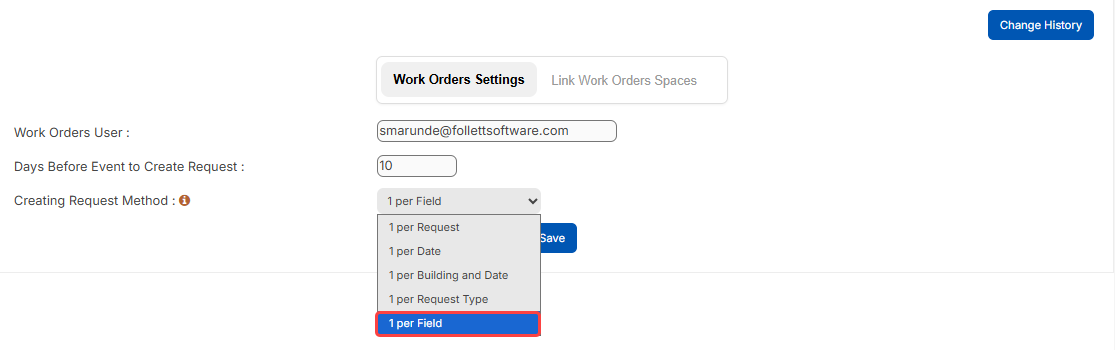
- When generating one work order per field, each work order now has a unique description.
- When multiple work orders are associated with a single request, the request details page now includes a clickable link that opens all related work order requests in a pop-up.
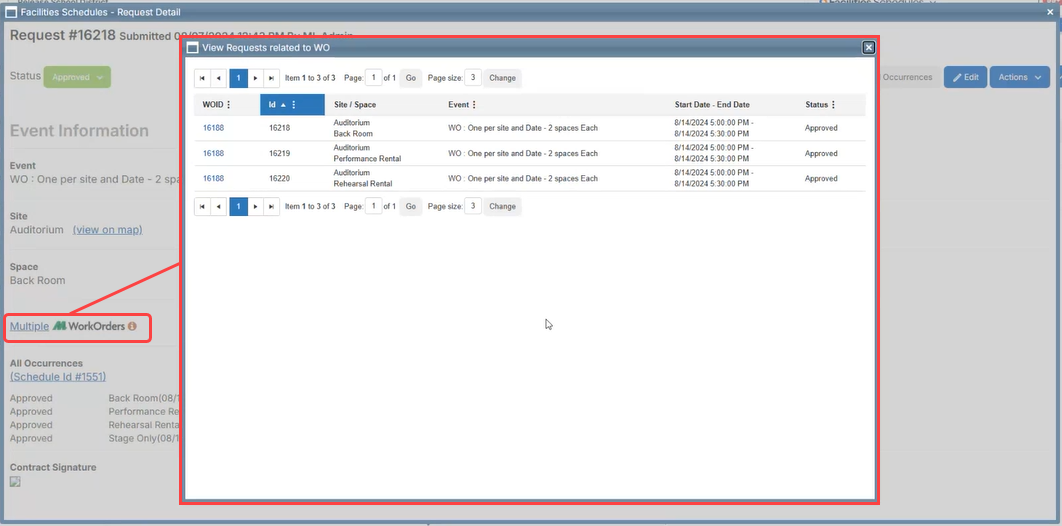
Learn more about integrating with Work Orders.
Deeper integration with Event Registration| Schedules | Date: 6/14/2026 | Release: 26.2 |
If your district uses Event Registration, you can now link spaces so courses appear in Schedules automatically.
The integration adds a default group and email for Event Registration requests, making it easier to organize imported requests and respond when the requested space is unavailable.
Requests created through this integration are managed in Event Registration. In Schedules, users can only view the request and add notes.
Learn more about Event Registration.
Approval path enhancements| Schedules | Date: 6/14/2026 | Release: 26.2 |
Approval paths improvements are as follows:
- A new Approval Path report lets you export the number of requests and spaces using each path from a new Actions button.
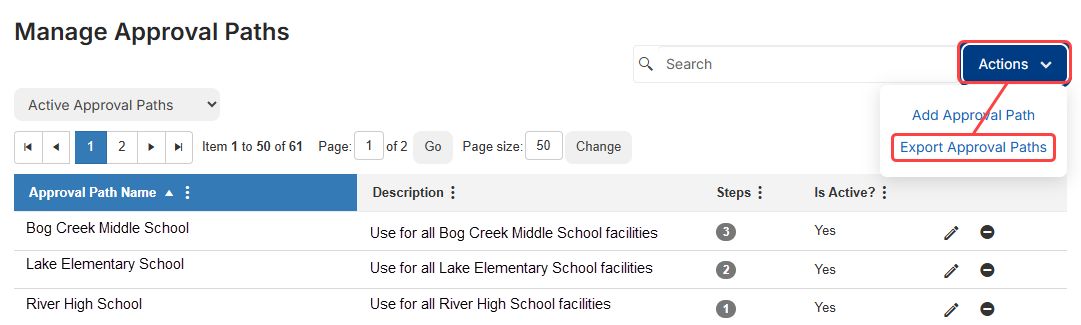
- Unused approval paths are now hidden. You can see hidden approval paths by selecting Inactive Approval Paths from a new filter.
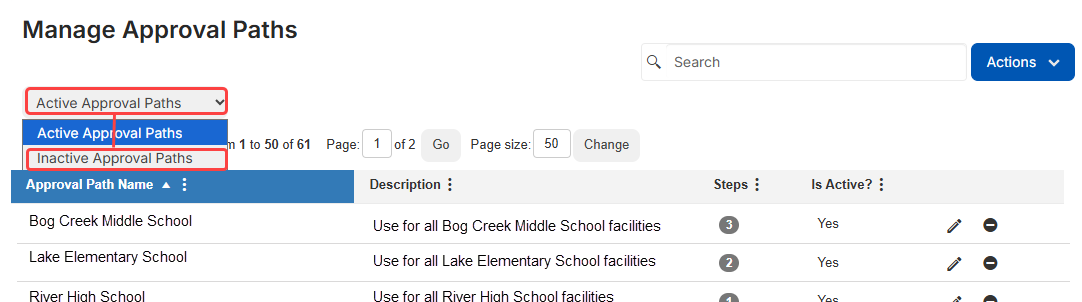
Learn more about approval paths.
General enhancements| Schedules | Date: 6/14/2026 | Release: 26.2 |
There have been a number of general enhancements to Schedules:
- The Notifications tab on the Manage Field page has a modern new look. Sites now appear one per row, with all additionally notified users listed. You can also add or remove users more easily.
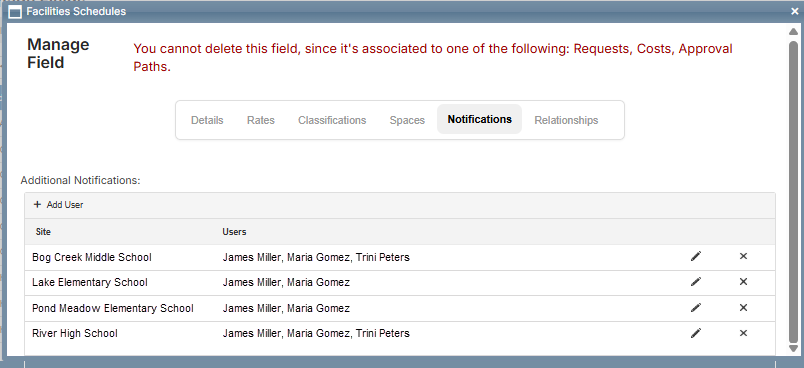
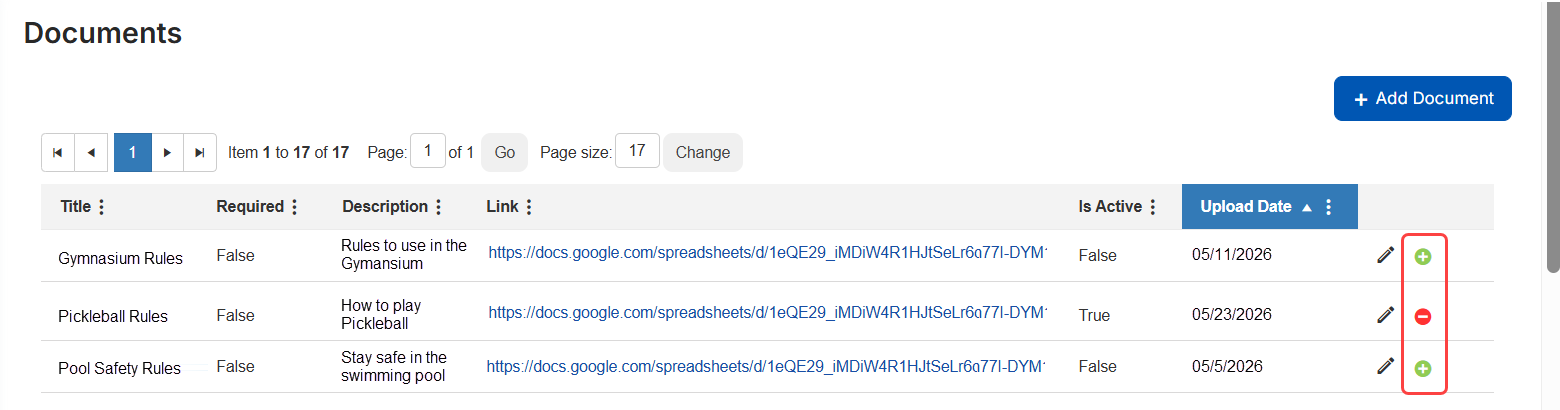
- You can now inactivate and reactivate documents.
- A new internal setting for admin users improves Enterprise load time by reducing the number of columns loaded on the following pages:
- Awaiting My Approval
- View All Requests
- All Pending Requests
- On Hold Requests
- Upcoming Events
- Future Conflicts
- On the View All Occurrences page for recurring , multiple, and multi-recurring events, users with the Can Delete Requests user permission can bulk delete requests that have not been invoiced by selecting Actions > Delete.
AI email ticketing| Work Orders | Date: 6/14/2026 | Release: 26.2 |
With AI email ticketing, when an active Work Orders user submits a request by email, AI populates the following request fields based on the email content:
- Request Category
- Problem Type
- Purpose
- Priority
With those fields populated, any configured approval paths, auto assignments, auto-notifications, and SLAs apply to the applicable request types.
 . You can manually update any field as needed.
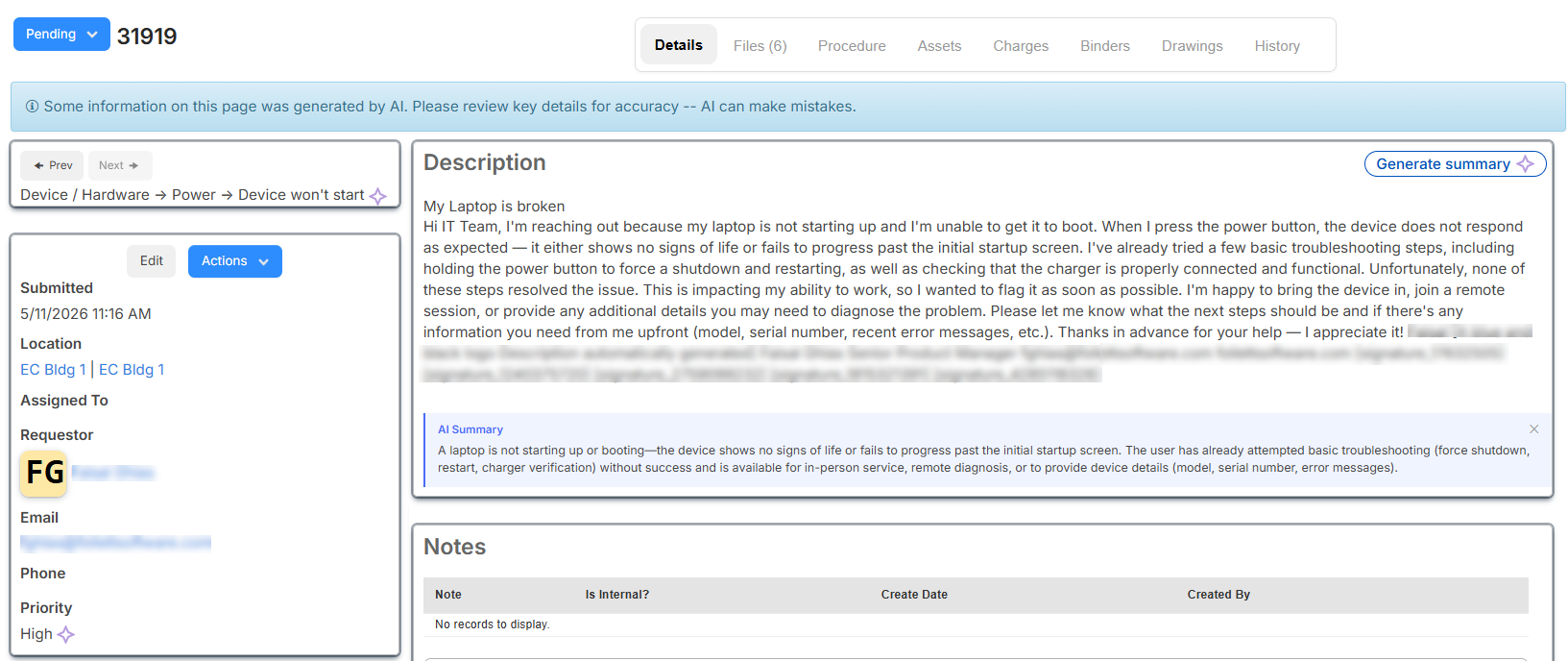
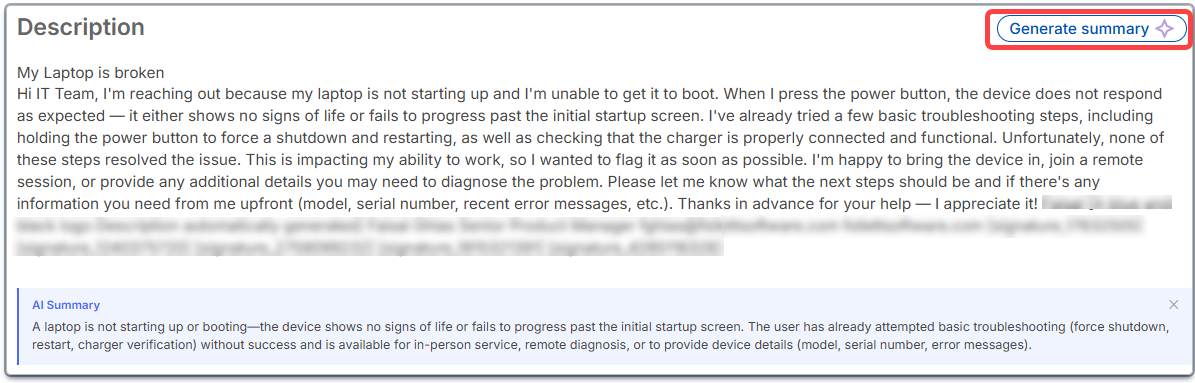
If a description exceeds 500 characters, regardless of whether a request is sent by email or through the app (web or Follett Software Ops), AI can generate a concise summary of the problem.
The request's History tab shows if fields were set by AI.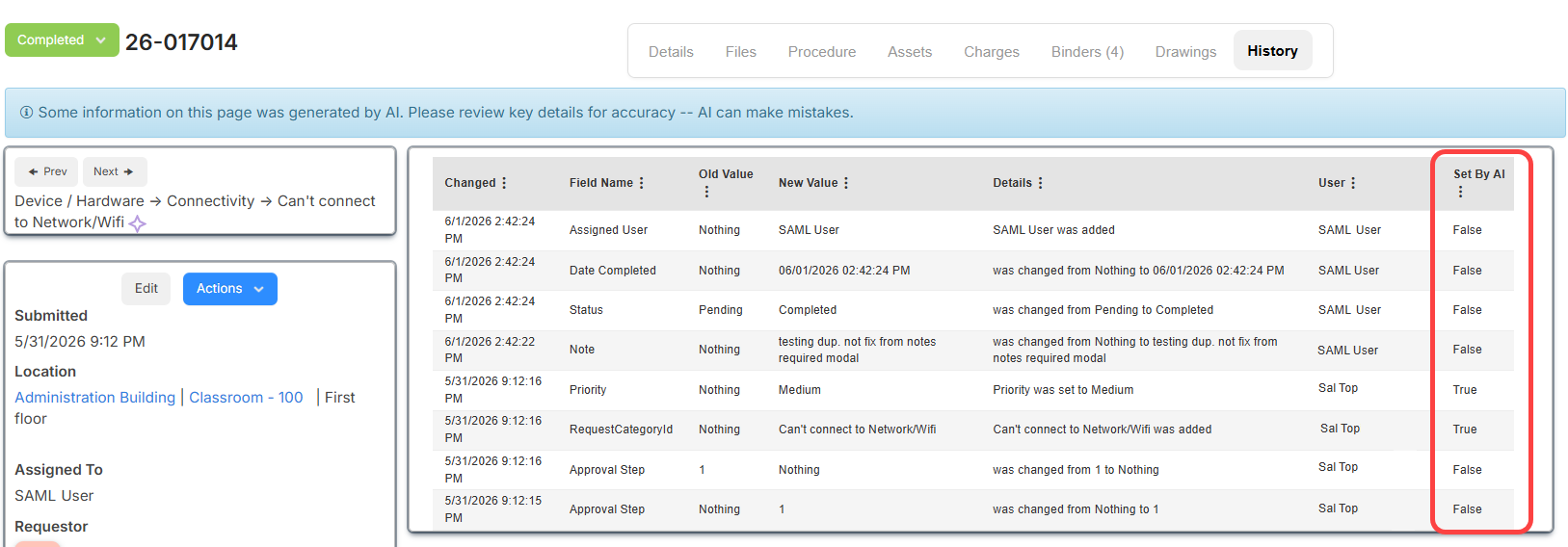
New request type settings that must be enabled to allow AI to complete fields and generate a description summary are:
- Use AI to fill missing fields for requests created via email
- Enable AI Description Summary
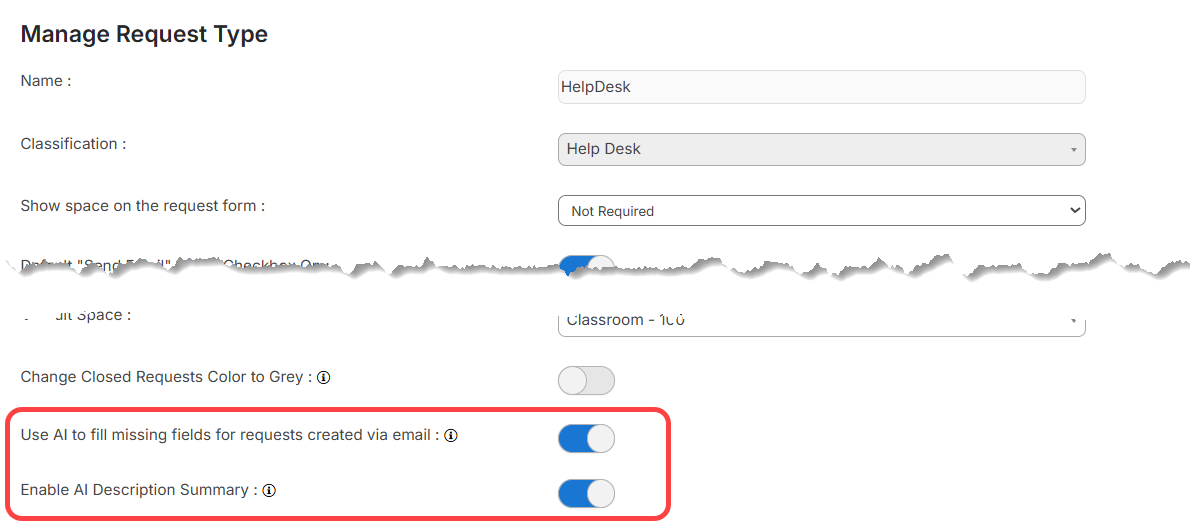
Learn more about AI email ticketing and setting up AI request type options.
Introducing the Knowledge Base| Work Orders | Date: 6/14/2026 | Release: 26.2 |
Work Orders now includes an internal documentation hub where IT teams can document solutions, standard procedures, and troubleshooting guides. Articles support rich-text formatting, images, and various file types. A new Manage Article Types page lets administrators add, edit, and delete the article types used to organize content.
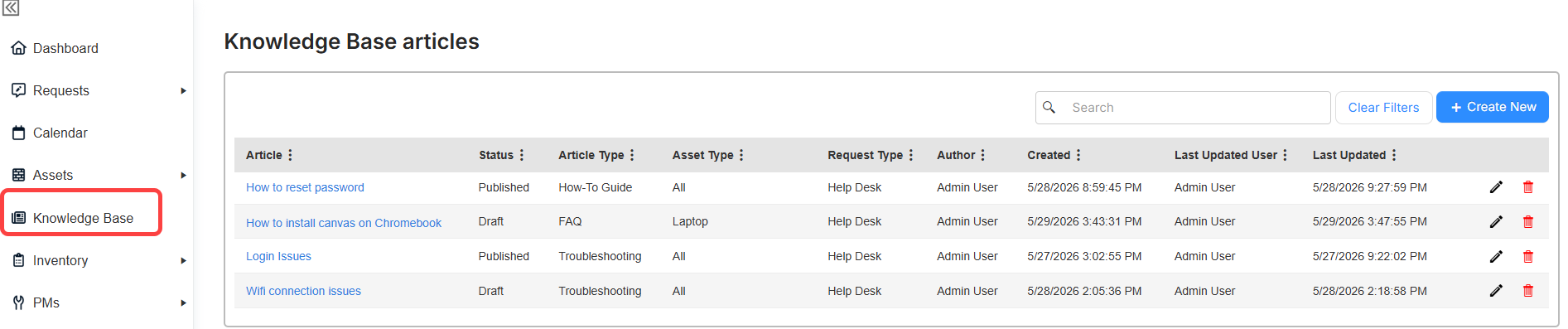
Two new role permissions are included for Knowledge Base access:
- View Knowledge Base Articles: Browse and read published articles based on the assigned asset type and request type restrictions.
- Manage Knowledge Base Articles: Create, edit, delete, and update article status.
Learn more about the Knowledge Base.
Create circulation rules| Work Orders | Date: 6/14/2026 | Release: 26.2 |
You can now create circulation rules to automate your asset checkout policies. Rules define when assets are due and related overdue charges. Set up rules based on asset type, user role, and/or building.
Learn more about creating circulation rules.
Send circulation notifications to more people| Work Orders | Date: 6/14/2026 | Release: 26.2 |
You can now add additional email addresses to the Manage Users page for asset circulation notifications. The addresses will receive asset check-in and check-out receipts, due date reminders, and overdue notices.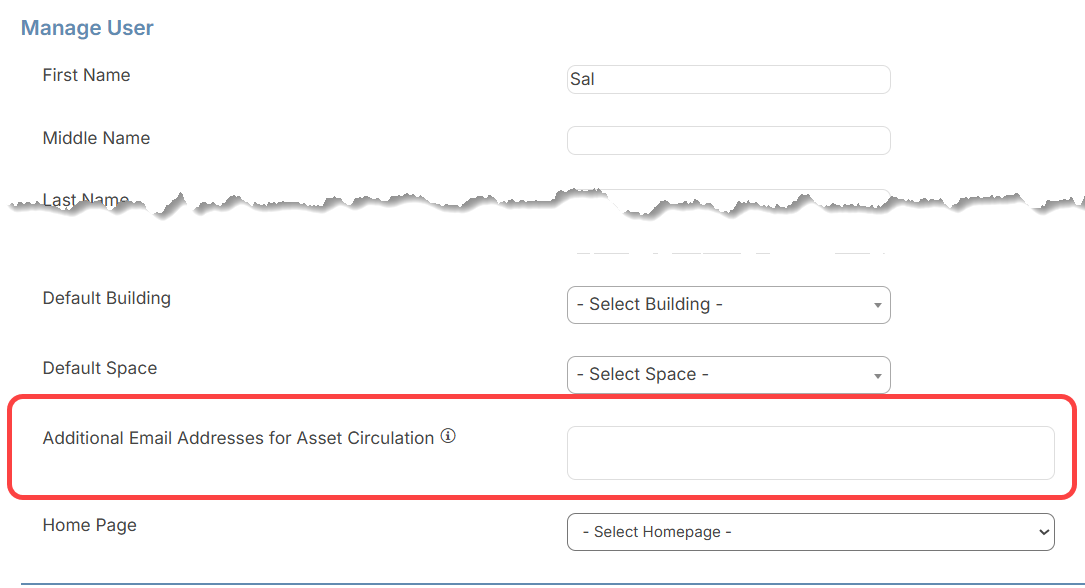
Learn more about managing users.
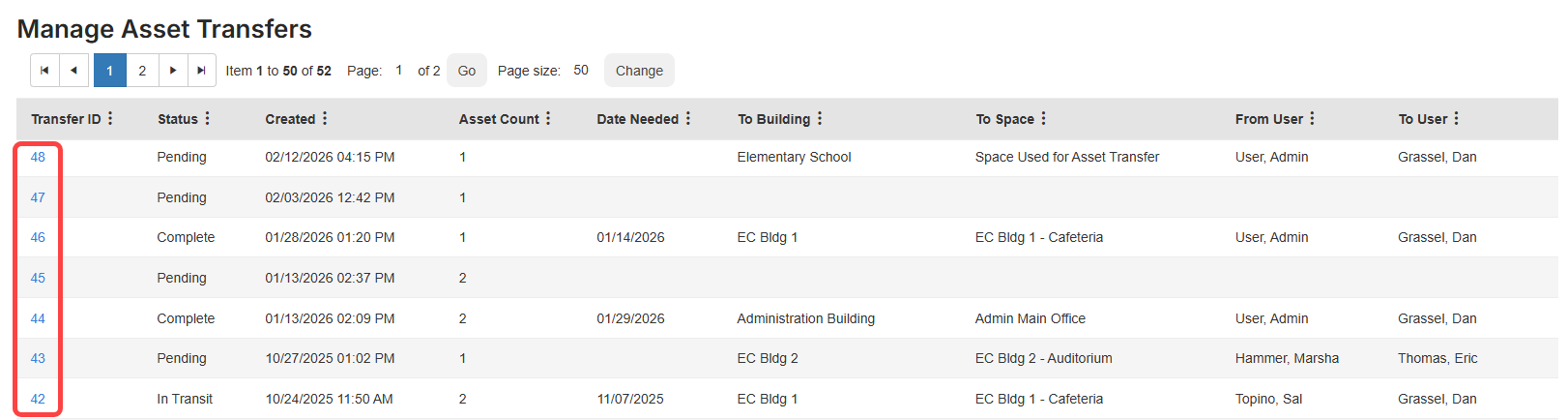
New tab behavior| Work Orders | Date: 6/14/2026 | Release: 26.2 |
To make navigation more predictable and reduce tab clutter, Dashboard actions, asset transfer IDs, and Dashboard reports now open in the same tab from which they were launched.
Dashboard actions: Add asset, Check in, New request, and Check out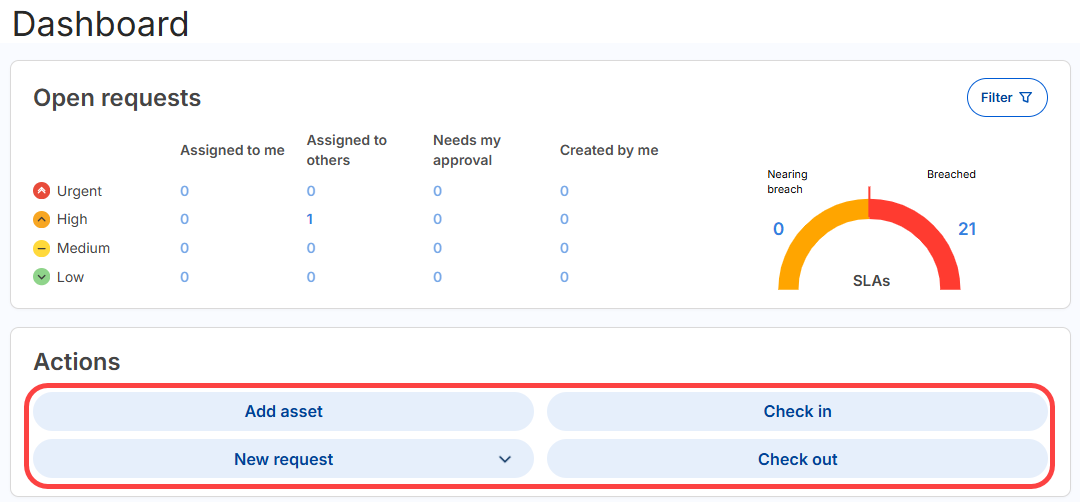
Transfer ID in Assets > Manage Asset Transfers
Reports
- Summary Dashboard
- Labor Dashboard
- Facilities Asset Dashboard
- Technology Asset Dashboard
- Total Cost Dashboard
Update to On Hold status| Work Orders | Date: 6/14/2026 | Release: 26.2 |
When updating a request to On Hold from the Requests page, you are now prompted to select an on-hold reason and an off-hold date, matching the behavior on the request details page.
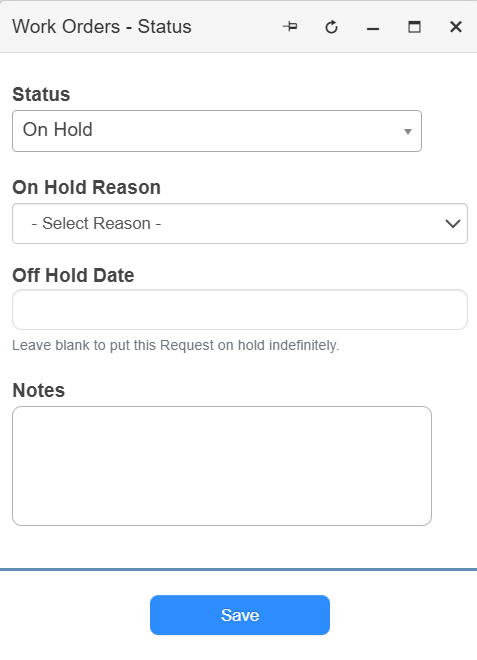
Learn more about putting requests on hold.
'Select all' on Asset and Request pages | Work Orders | Date: 6/14/2026 | Release: 26.2 |
On asset and request list pages, you can now specify whether to select all items on a page or all items across all pages.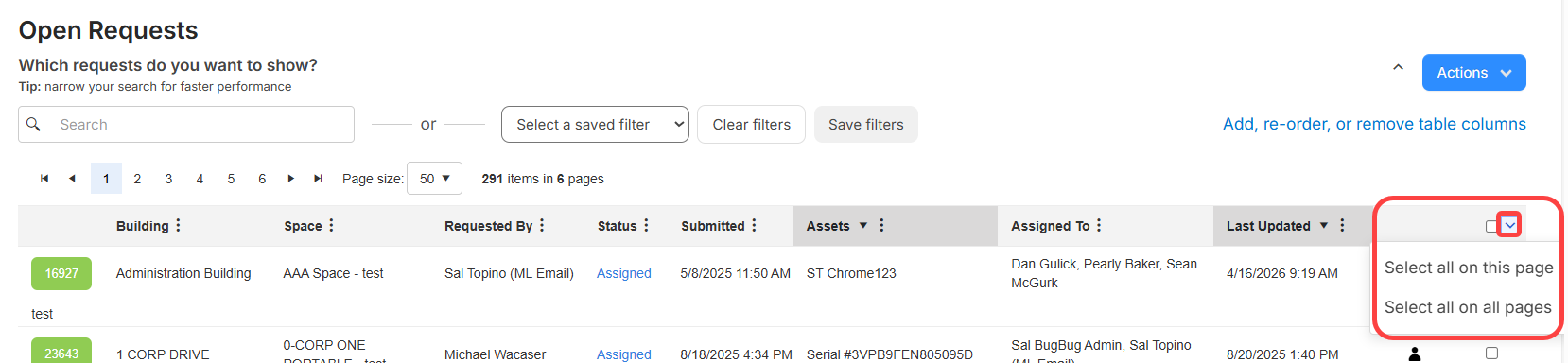
A new icon ( ) appears at the top of the 'Select all' column. After choosing an option, a banner at the top of the page indicates the number of items selected. To remove the selection, click Clear in the banner.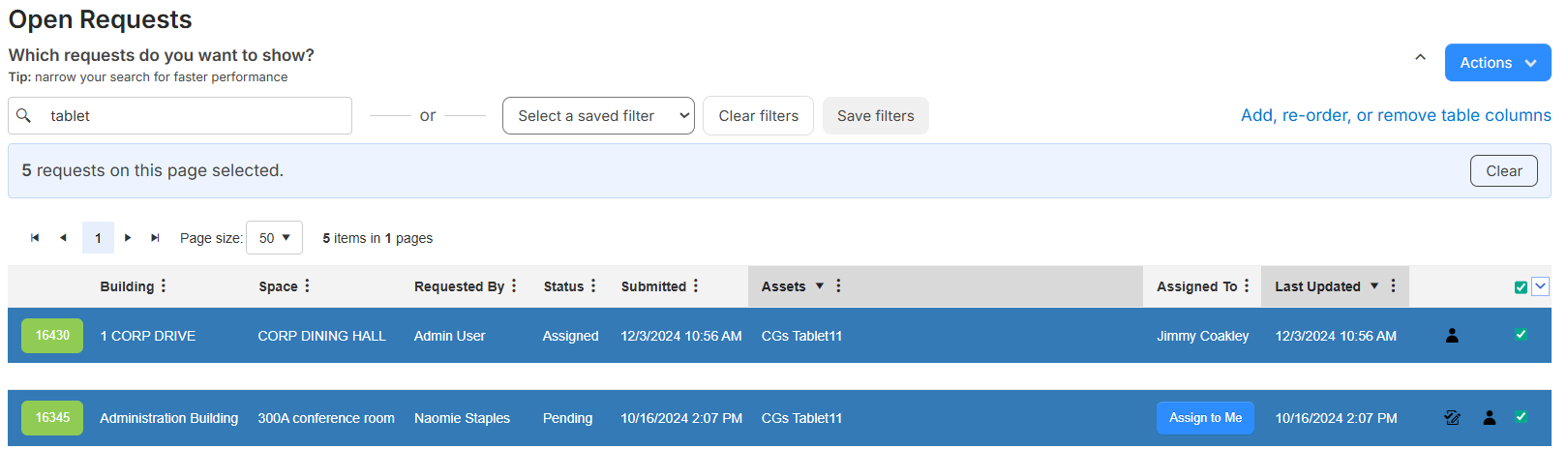
If you perform one of the following actions, the selected items are included:
- Asset pages:
- Mass Update
- Transfer Assets
- Print Details
- QR Report
- Perform Audit
- Request pages:
- Mass Update
- Merge Requests
- Print Details
- Delete
User barcode added to details| Work Orders | Date: 6/14/2026 | Release: 26.2 |
With the View User Details Administrative permission, you can now see a user's barcode on the User View page (Users > Manage Users, select a user).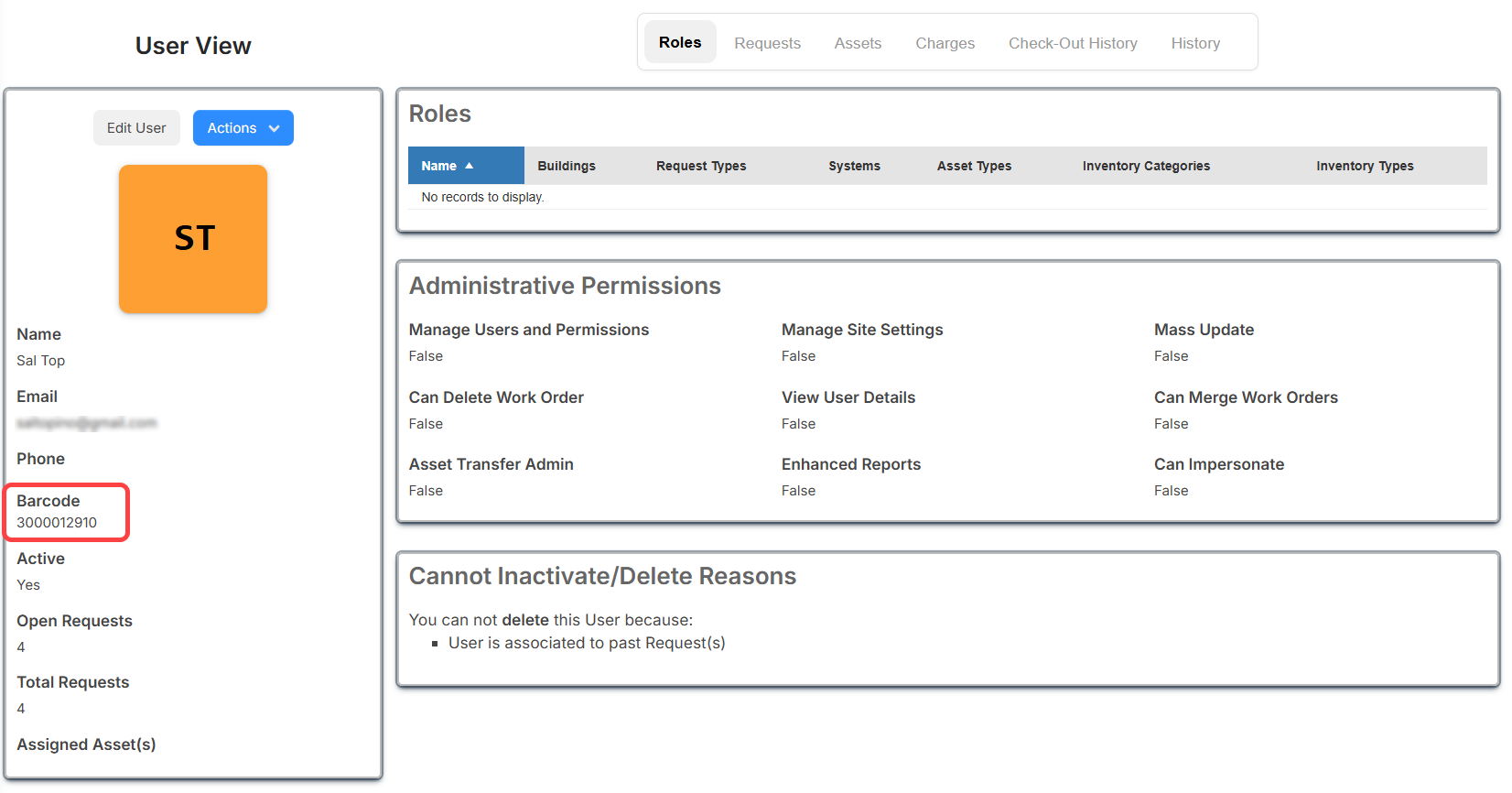
Learn more about managing users.
Dashboard filter enhancement| Work Orders | Date: 6/14/2026 | Release: 26.2 |
When you set filters for the 'Open requests' and Requests widgets, the filters persist when you log out. The next time you log in, the filters remain. They stay set until you clear or update them.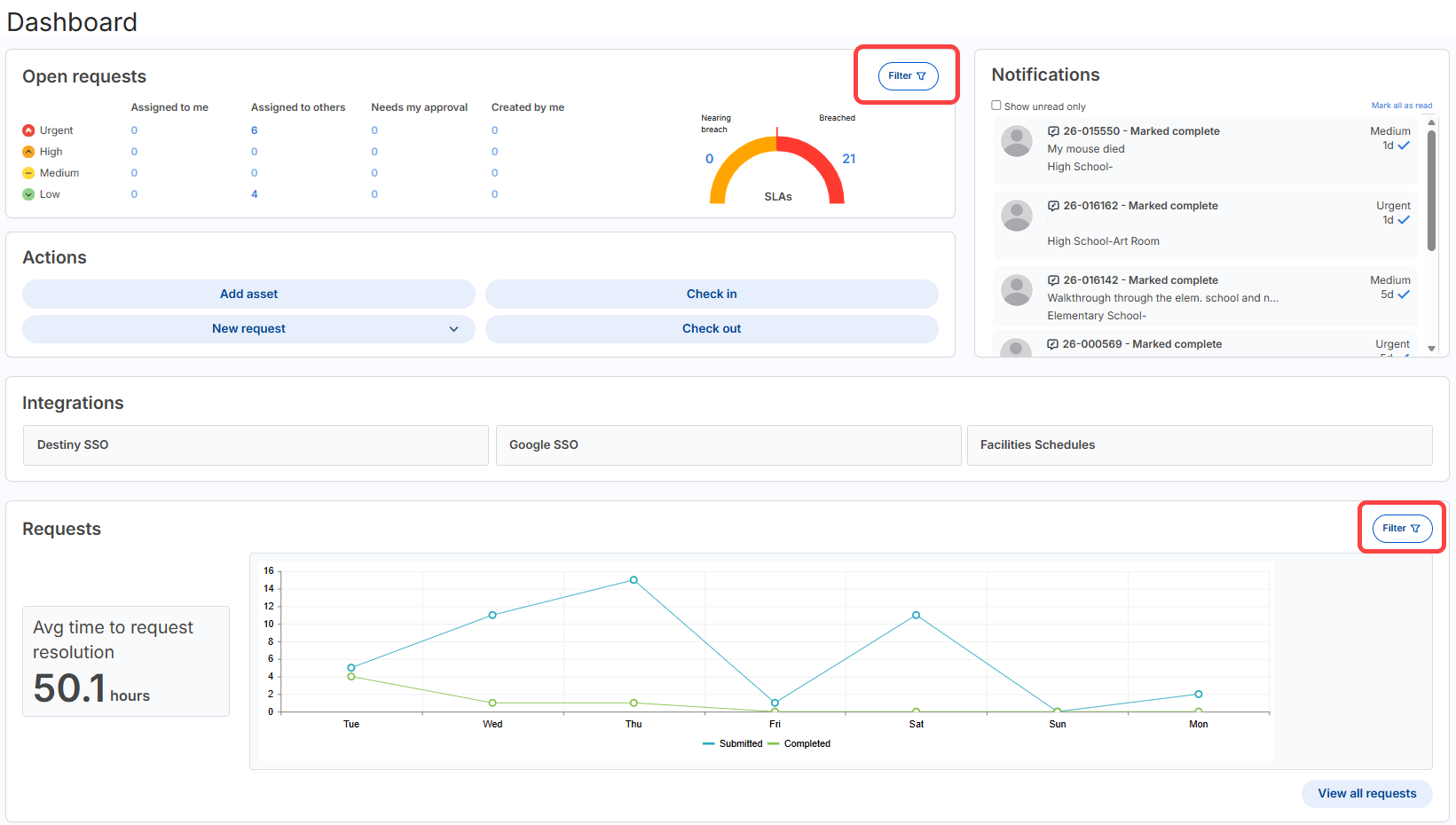
Learn more about the Dashboard.
New asset import fields| Work Orders | Date: 6/14/2026 | Release: 26.2 |
Asset Import now supports additional fields that appear in the import template and the column-mapping step of the import wizard.
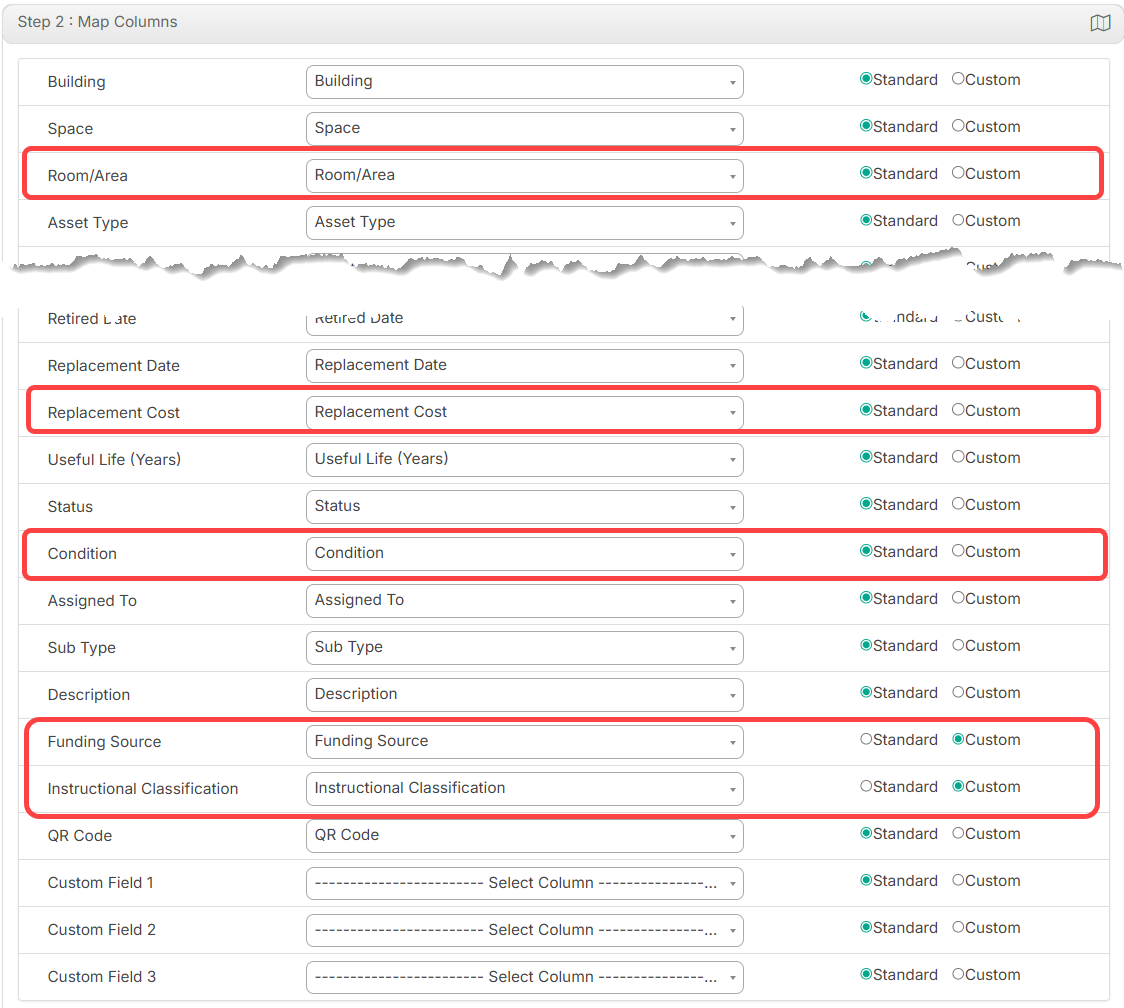
When you download the import template, the Condition, Funding Source, and Instructional Classification fields include drop-down values based on what is set up in Manage Custom Fields. The Excel file also includes a Dropdown Values sheet that lists the available values for those fields, along with an Asset Type column that shows all asset types that exist in Work Orders at the time the template is downloaded.
Learn more about importing assets.
Inactivate students via OneRoster| Work Orders | Date: 6/14/2026 | Release: 26.2 |
Work Orders now supports automatic student inactivation through OneRoster. During the nightly OneRoster sync, students are inactivated if they are marked inactive or 'to be deleted' in the district's student information system (SIS).
Learn more about OneRoster.
Updates to spaces | Work Orders | Date: 6/14/2026 | Release: 26.2 |
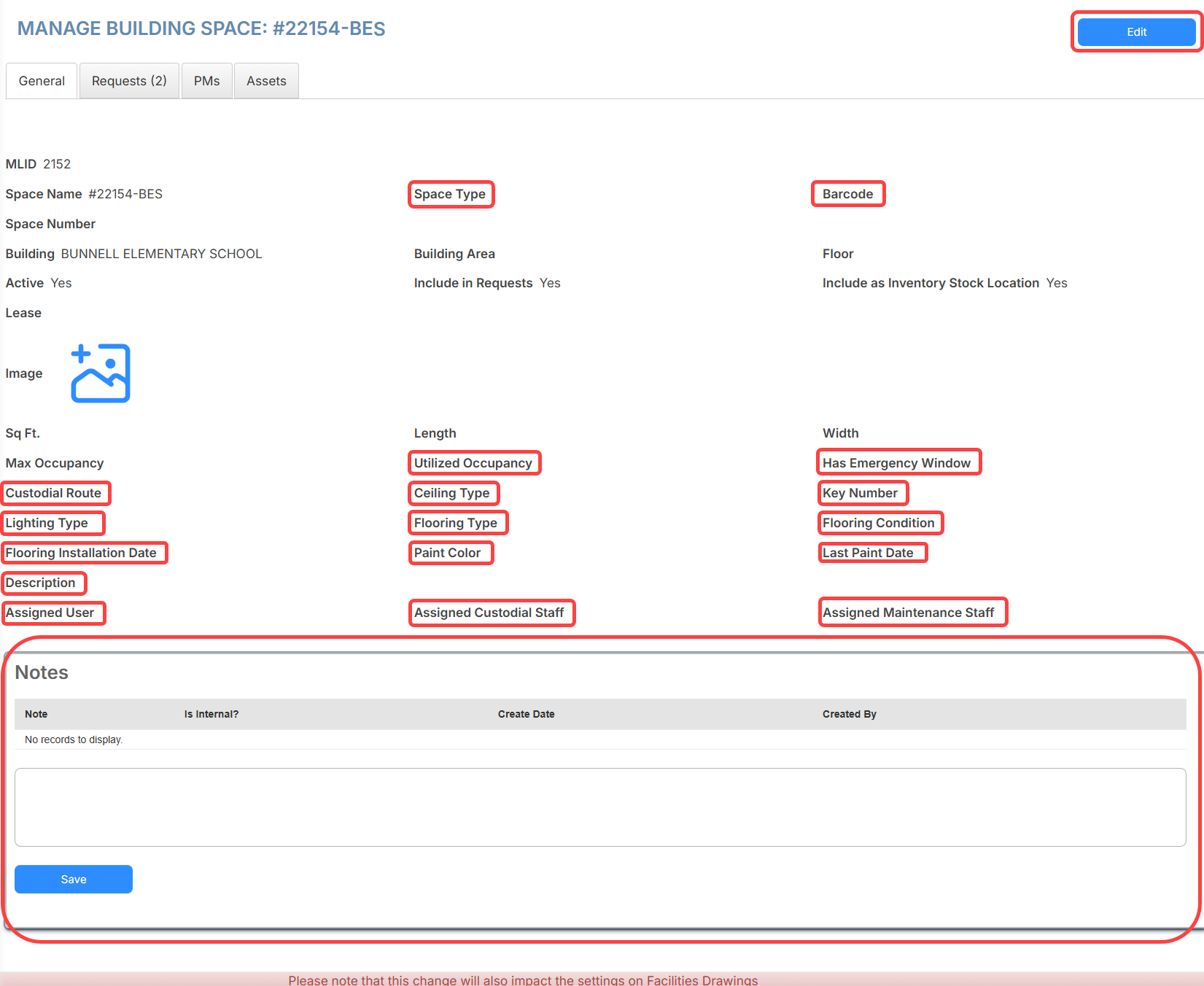
Spaces now includes more fields, making it easier to track room information, maintenance context, and assigned staff in one place. These fields continue to be shared with Facilities Drawings.
On the Spaces list page, the space name now links to the space's detail page. You can also add external notes and edit space details from that page. All new fields are available as optional columns on the Spaces list page.
Learn more about spaces.
May
Asset audit updates| Work Orders | Date: 5/10/2026 |
Asset audits are now easier to manage while they are in progress.
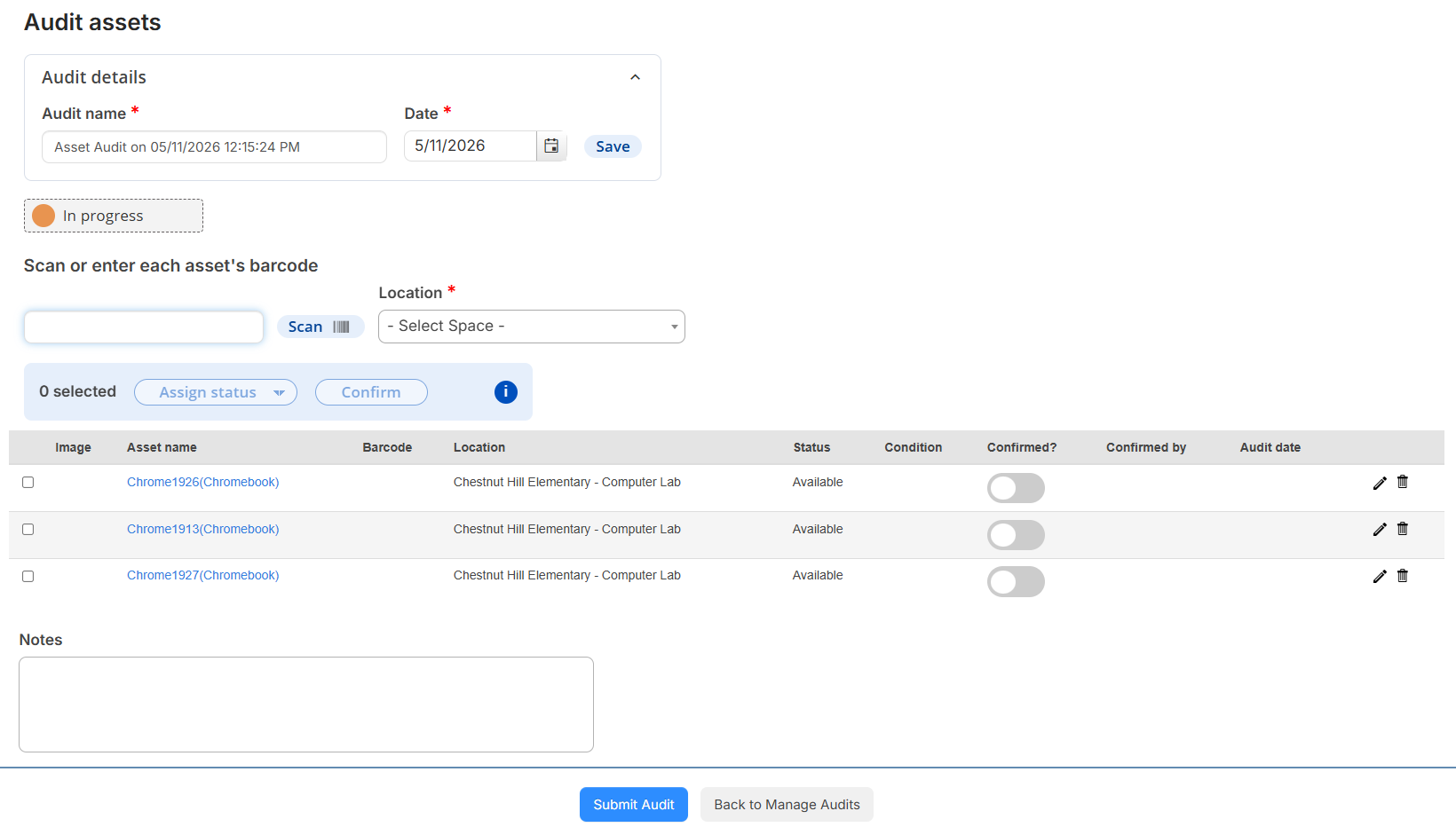
Updates include the following:
- The Perform Audit page has been renamed 'Audit assets'.
- The audit name and date appear in a collapsible 'Audit details' section and can be updated anytime before the audit is completed.
- The status indicator is more prominent and updates in real time.
- A bulk action toolbar lets you assign a status or confirm multiple assets at once.
- Columns in the asset table were rearranged, have new labels, and include a row-select checkbox; and the Confirmed checkbox is now a toggle.
- When an asset is confirmed, that row is updated with the user and audit date. A row cannot be selected for bulk actions unless it is unconfirmed.
- You can edit an asset and update its Location, Status, and/or Condition using a drop-down.
- To save Notes, you now click 'Back to Manage Audits'.
- When you submit an audit with unconfirmed assets, a warning appears that lets you proceed or return to confirm remaining assets.
Learn more about asset audits.
March
Follett Software Ops app updates| Work Orders | Date: 3/31/2026 |
The Follett Software Ops app includes several updates that make it more efficient to use. You can now do the following:
- Log in using single sign-on with SAML for Google, Microsoft, or Okta.
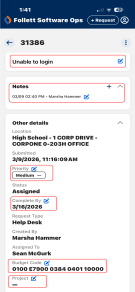
- Edit the Description, Notes, Priority, Complete By, Budget Code, and Project fields on a request's details.
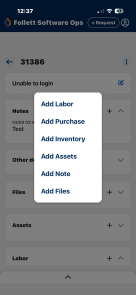
- Add purchases, inventory, assets, and files to a request.
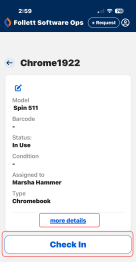
- View an asset's details and edit the asset, check out or check in, and view the history.
Learn more about the Follett Software Ops app.
Introducing Event Registration| Event Registration | Date: 3/23/2026 | New Product Release |
Event Registration is the newest solution in the Follett Facilities Suites. It connects community education catalogs, real-time facility scheduling, online payments, and audit-ready reporting. This helps districts reduce the administrative burden, and recover operational costs.
Learn more about Event Registration.
Ability to lock annotations| Drawings | Date: 3/1/2026 | Release: 26.1 |
Now you can lock annotations to prevent the creation and editing of space polygons. Annotations are unlocked by default.
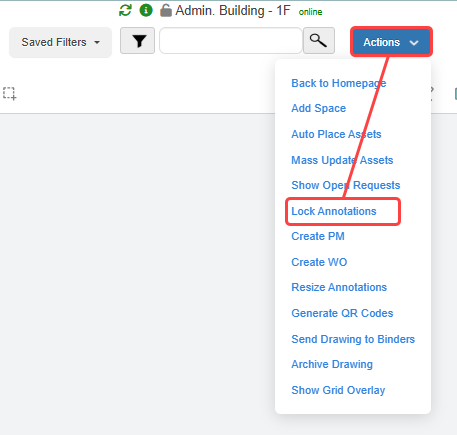
Find out more about annotations.
Set opacity for space polygons on heatmaps| Drawings | Date: 3/1/2026 | Release: 26.1 |
Users with the Manage Site Settings permission can now set the heatmap opacity level for space polygons. This defaults to 50%, but you can choose 25%, 50%, 75%, or 100%.
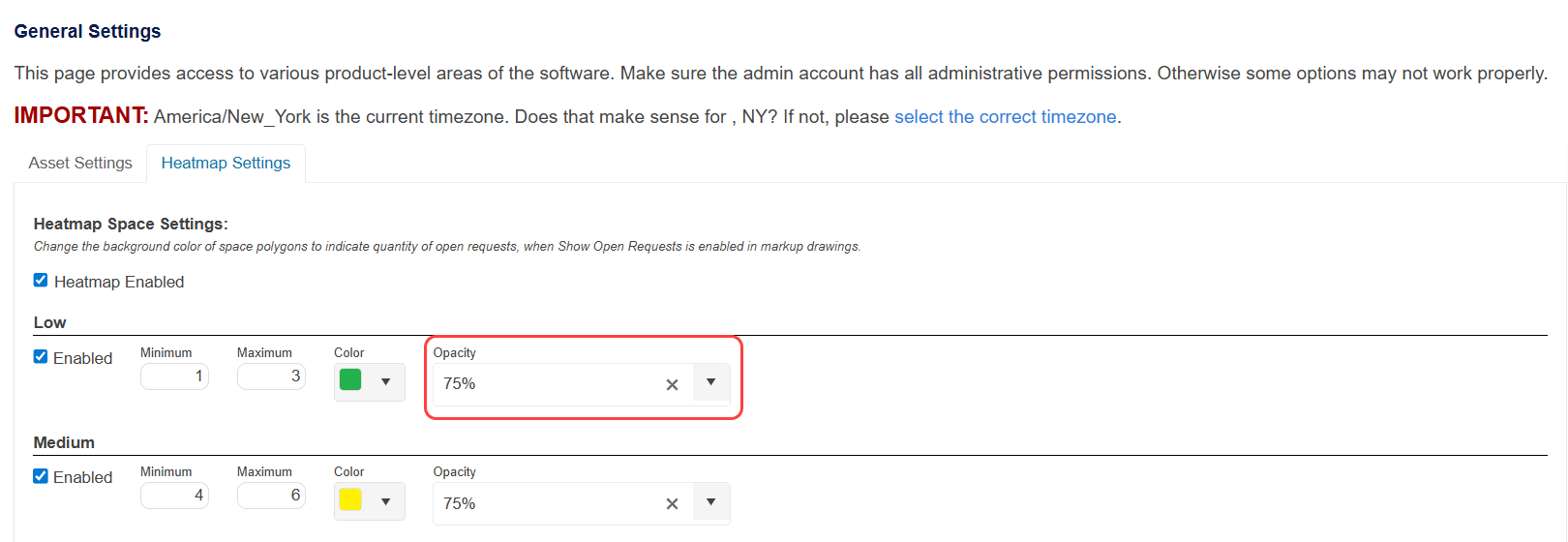
Learn more about General Settings.
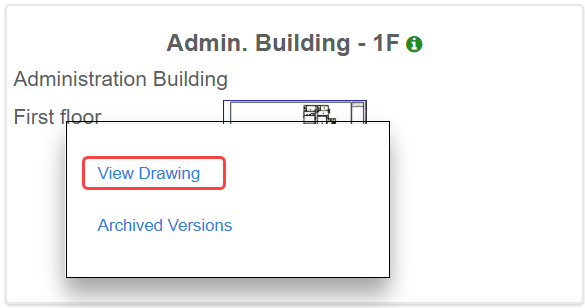
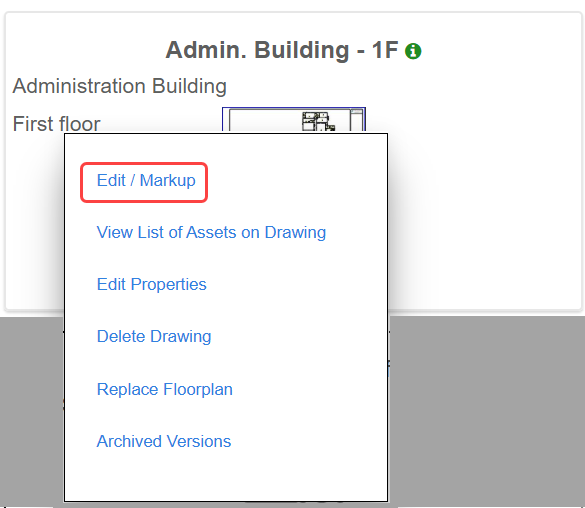
Drawing menu update| Drawings | Date: 3/1/2026 | Release: 26.1 |
The Drawing menu has been updated for users with the View Drawing or View Markup Drawing permission. They will now see View Drawing, indicating view-only permission.
Users with the Add Drawing, Edit Drawing Properties, Delete Drawing, and Edit Markup Drawing permissions will still see Edit/Markup.
Customize email notifications| Schedules | Date: 3/1/2026 | Release: 26.1 |
Users with the Additionally Notified or Manage Site Settings permission can customize email notifications in their profile by selecting which notifications they want to receive.
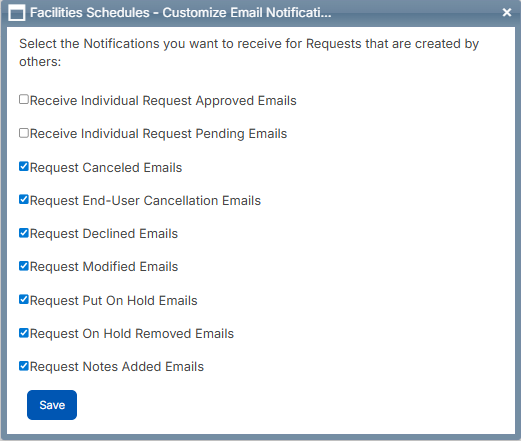
Learn more about customizing email notifications.
Admin Only option on Permissions tab for Classifications| Schedules | Date: 3/1/2026 | Release: 26.1 |
The Manage Classifications page now has a new Admin Only setting.
- Select Yes for the selected classification to be restricted to group classification managers.
- Select No for this classification to appear as an option for all users when they register or add a group.
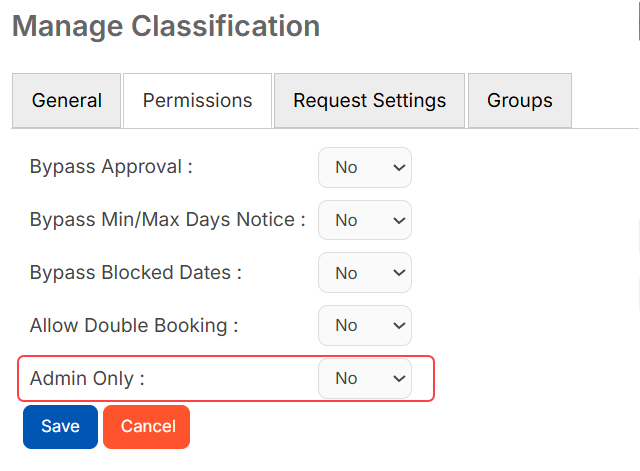
Learn more about managing classifications.
Ability to enter a custom date range in iCalendar| Schedules | Date: 3/1/2026 | Release: 26.1 |
When you generate an iCal link from a site or space, you can now enter a custom date range.
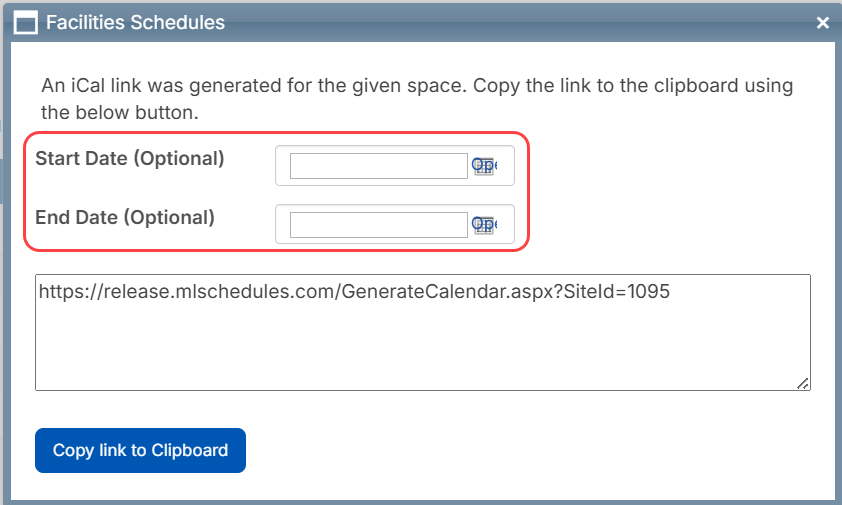
Learn more about managing sites and spaces.
Confirmation email sent for insurance upload| Schedules | Date: 3/1/2026 | Release: 26.1 |
When an insurance file is uploaded to a group profile, Schedules now sends an automatic confirmation email to the user who uploaded that file. The insurance file is included as an attachment.
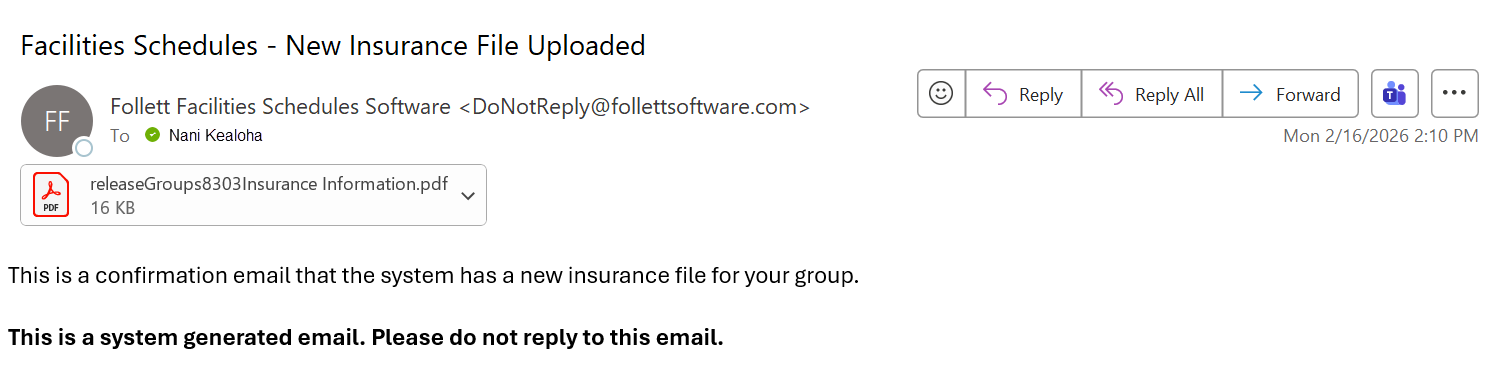
Learn more about the uploading insurance information.
Ability to prevent pending events from syncing to Google Calendar| Schedules | Date: 3/1/2026 | Release: 26.1 |
You can now choose whether to include pending events when syncing to Google Calendar.
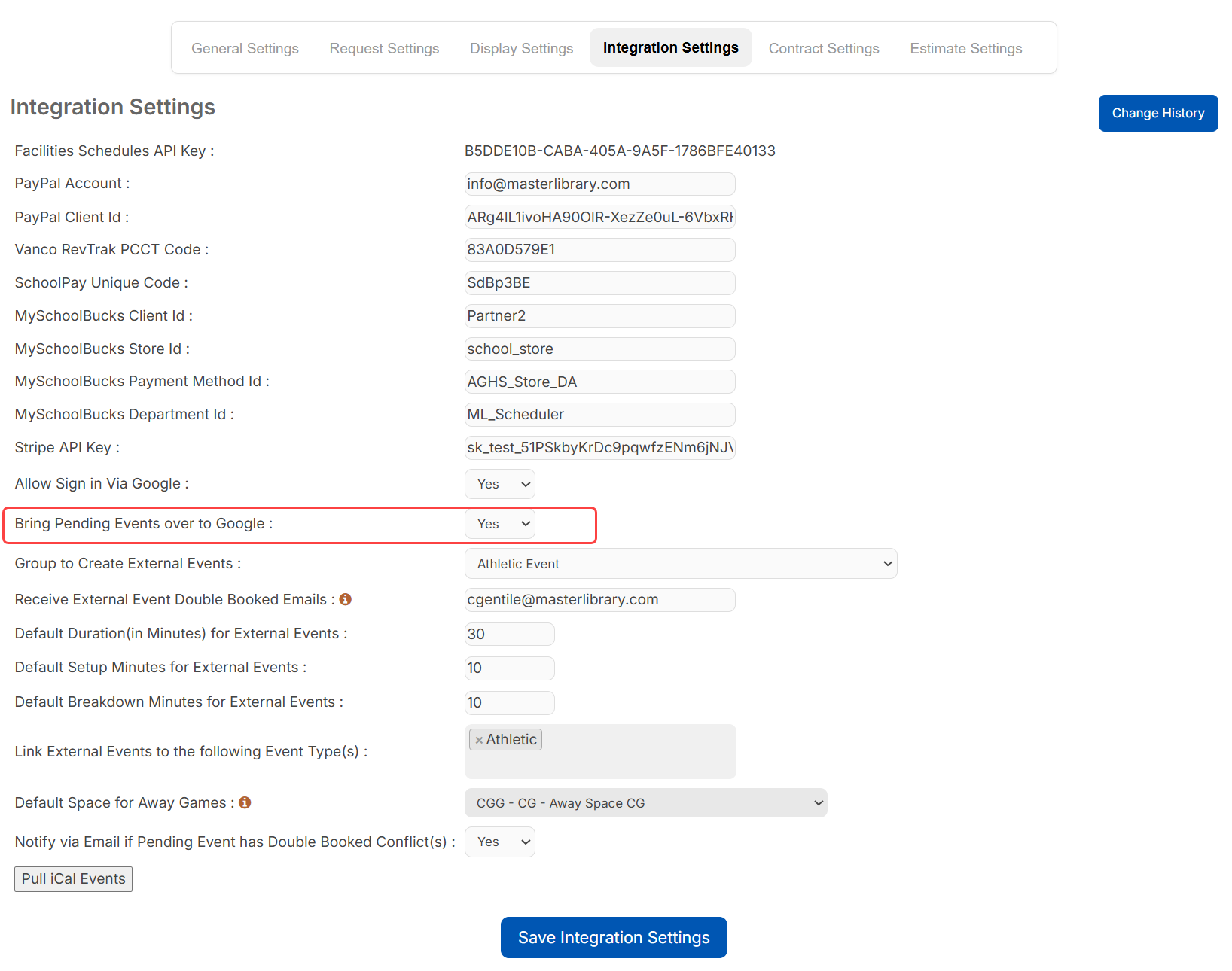
Learn more about integration settings.
Space Rate report as PDF| Schedules | Date: 3/1/2026 | Release: 26.1 |
 Ability to show group contacts on request PDF
| Schedules | Date: 3/1/2026 | Release: 26.1 |
If group contacts were selected to be notified on a request, their names now appear in a new section called Group Contacts under Event Information when the request is printed to PDF. If multiple group contacts are selected, they will all appear.
Learn more about request details.
New API| Schedules | Date: 3/1/2026 | Release: 26.1 |
Users with the Manage Site Settings permission can now leverage the Schedules API.
Contact Follett Software for more information.
Dashboard update| Work Orders | Date: 3/1/2026 | Release: 26.1 |
More changes have been made to the Dashboard page since its redesign in the 25.6 release. It now includes:
- Service level agreements in the 'Open requests' widget.
- A Requests widget showing the average time to request resolution.
- The option to filter in the 'Open requests' and Requests widgets.
- An interactive Assets widget showing asset status via a pie chart.
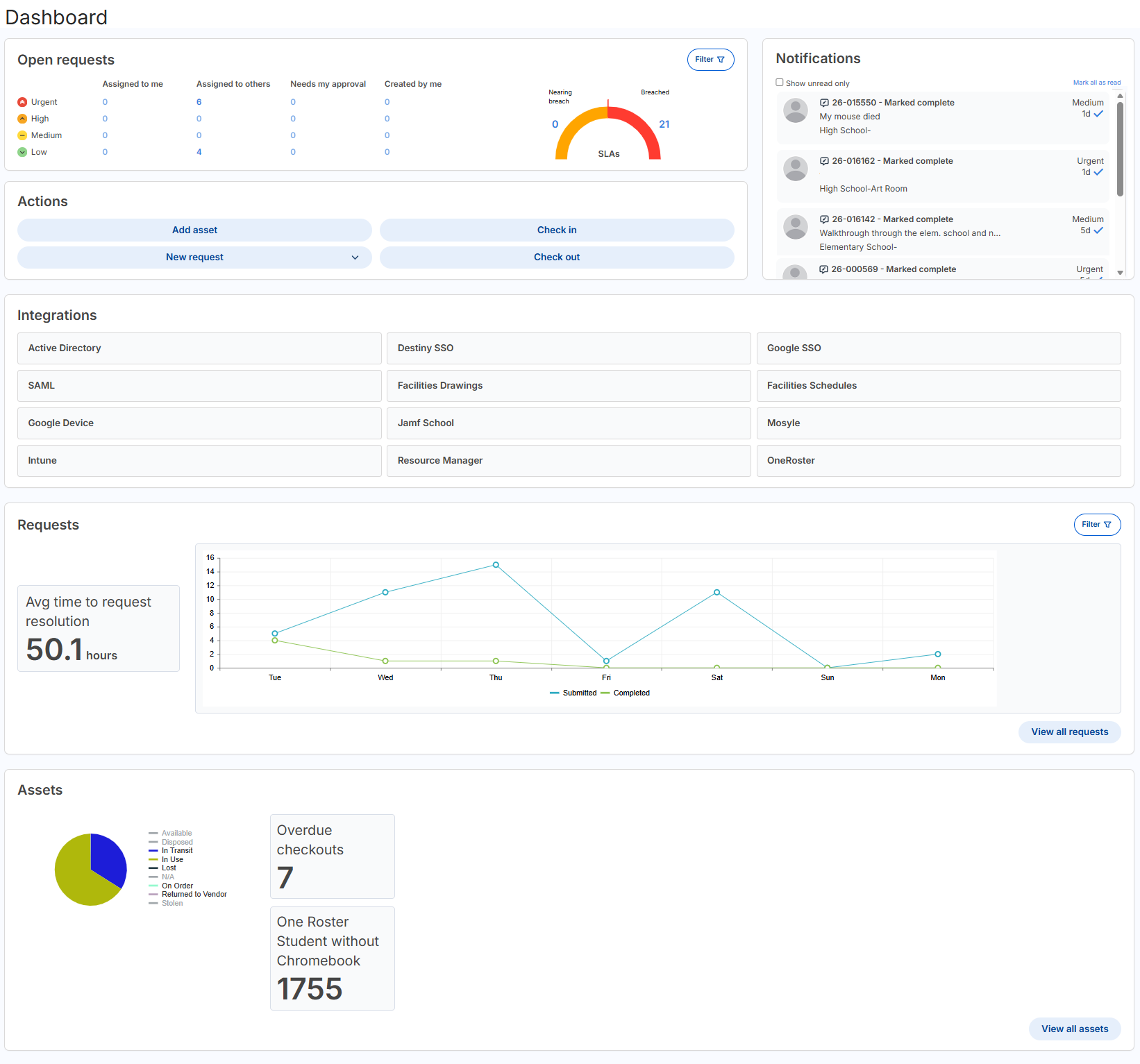
Learn more about the Dashboard.
Updates to the Manage Assets page| Work Orders | Date: 3/1/2026 | Release: 26.1 |
The Manage assets page has several updates, including the following:
- Pagination, number of items, and number of assets now appear at the top and bottom of the table.
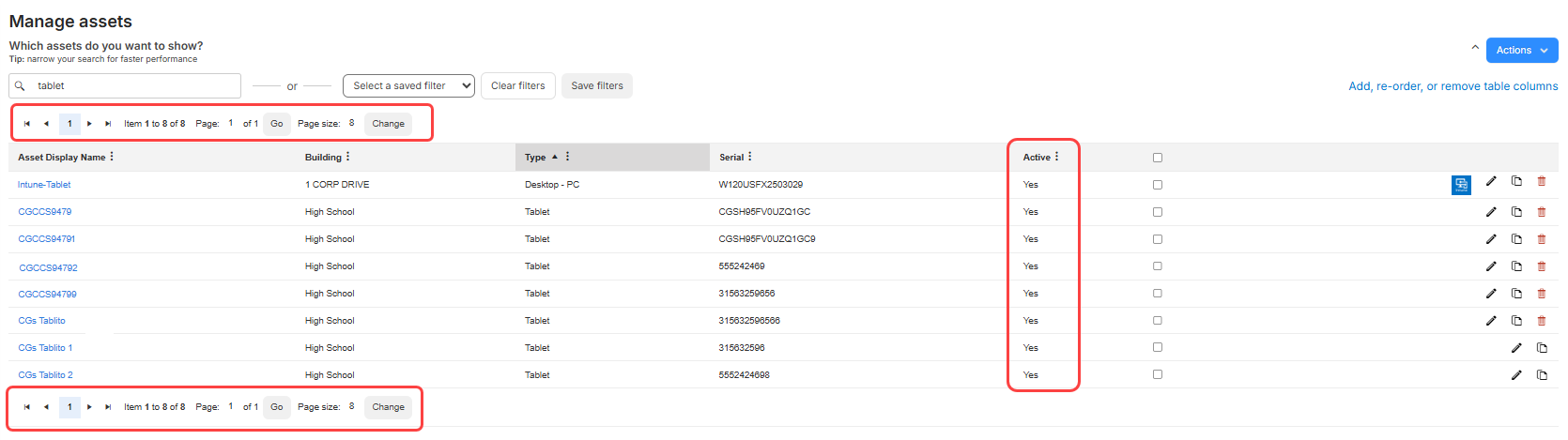
- The Active column shows Yes or No instead of a checkbox.
- To inactivate an asset, access the asset's details page instead of using an icon on the Manage assets page.
- When you do not select any assets and try to perform Actions > Mass Update, Transfer Assets, QR Report, or Perform Audit, a message informs you to select one or more assets and try again.
Learn more about managing assets.
Asset audit barcode scanning| Work Orders | Date: 3/1/2026 | Release: 26.1 |
When you perform an audit, you can now scan asset barcodes. If the assets are part of the audit, they are confirmed. If an asset is not part of the audit, it is added automatically.
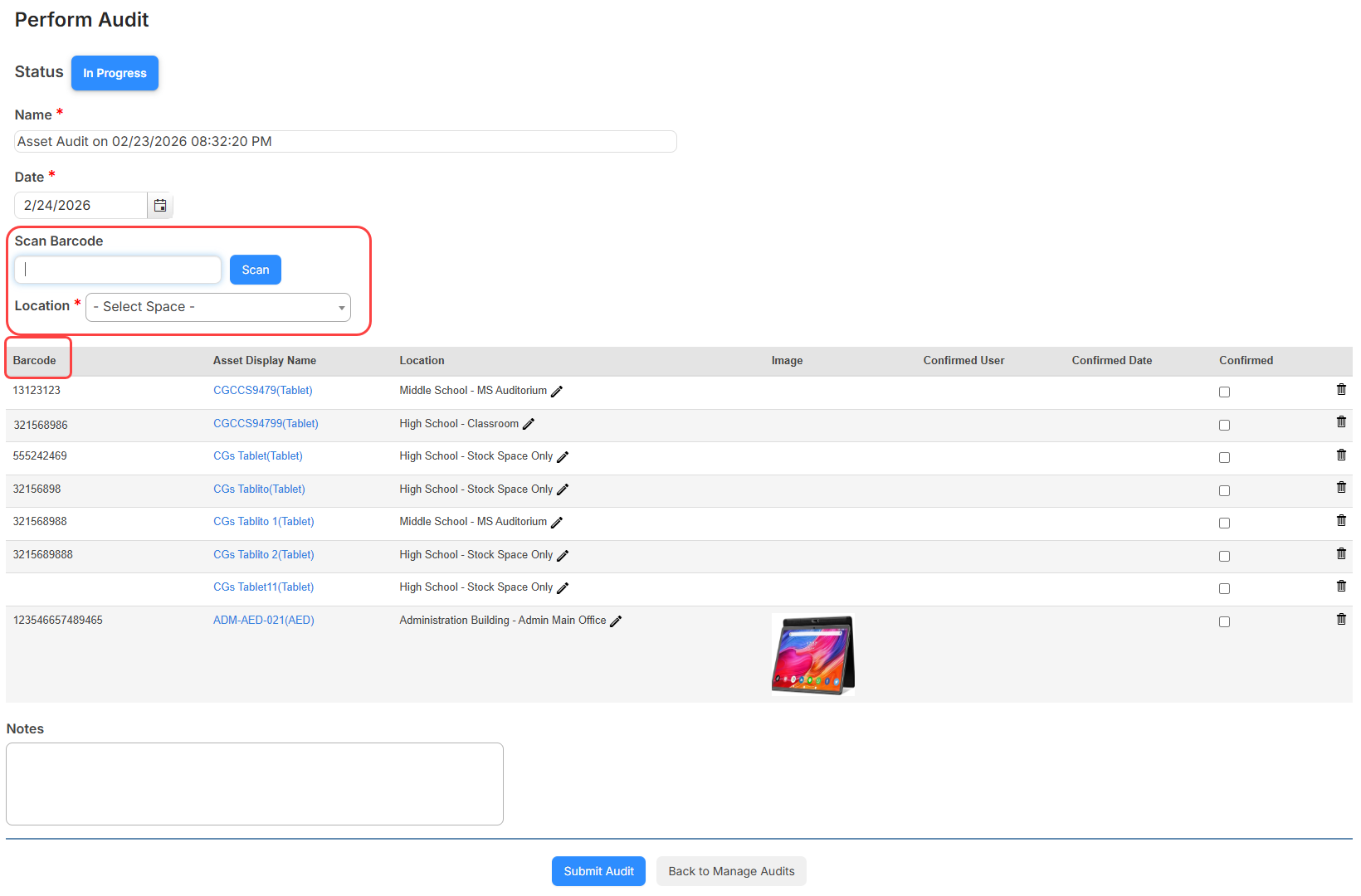
When you perform an audit, you will see the following changes related to the Scan Barcode option:
- A new Location drop-down appears below the Scan Barcode field. A selection is required when you scan or enter a barcode.
- When you scan an asset barcode that is part of the audit, if the location is different than the one you selected, the location is updated. If the asset is not part of the audit, it is added to the audit and the location is updated to what was selected.
- If you have a carriage return setting for your scanner, the scan is done automatically. Otherwise, you can click Scan.
- The table now shows a Barcode column instead of ID.
- If a scanned device has a status of In Use, Lost, or Stolen, a message asks if you want to update the status to Available.
- Assets with a status of In Use can be checked in when adding them to the audit.
Learn more about managing asset audits.
Quick Circulation updates| Work Orders | Date: 3/1/2026 | Release: 26.1 |
The Quick Circulation page has several updates to help you when circulating assets, including the following:
- On both Check Out and Check In, there is text above the Scan Barcode field to remind you to scan a user barcode and then the asset barcode.
- If an asset cannot be checked out, a message appears letting you know the reason, such as the asset is already in use, lost, stolen, or the barcode is not found.
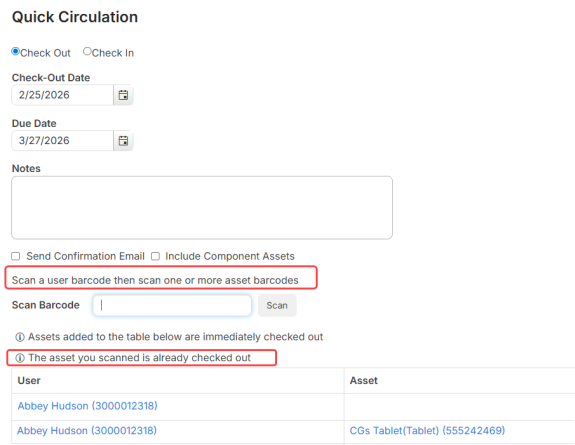
- After checking out or in an asset, the table at the bottom of the page shows both the user name and barcode, along with the asset name and barcode.
- Administrators can now require a due date when checking out assets. If this option is set to yes, a due date is required wherever you check out assets, except Mass Circulate.
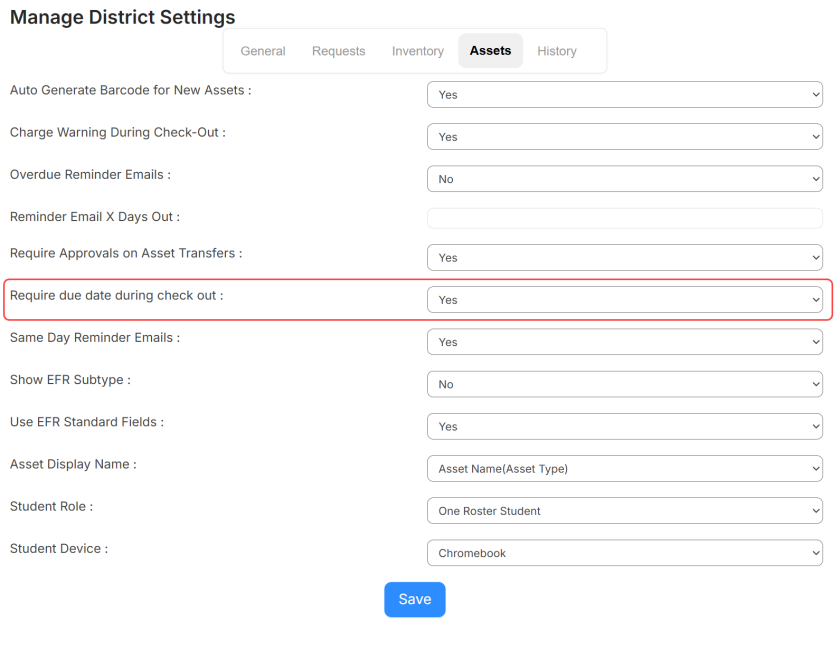
Learn more about Quick Circulation and General Settings.
January
New Work Orders stamp| Drawings | Date: 1/19/2026 | Release: 25.6 |
You can now create a Work Orders request anywhere on a drawing with a Work Orders stamp. The request does not have to be tied to an asset.
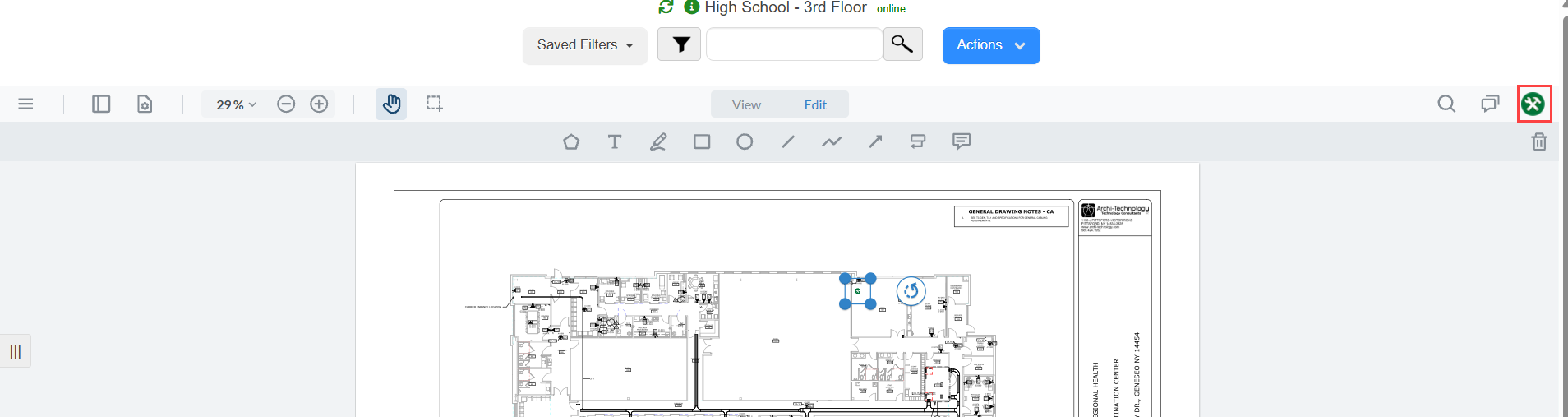
Learn more about adding work orders.
Heatmaps to track Work Orders requests| Drawings | Date: 1/19/2026 | Release: 25.6 |
Users with the Manage Site Settings permission can now create heat maps. This lets you set colors as visual priorities for defined space polygons. Colors appear automatically based the number of open requests in each area.
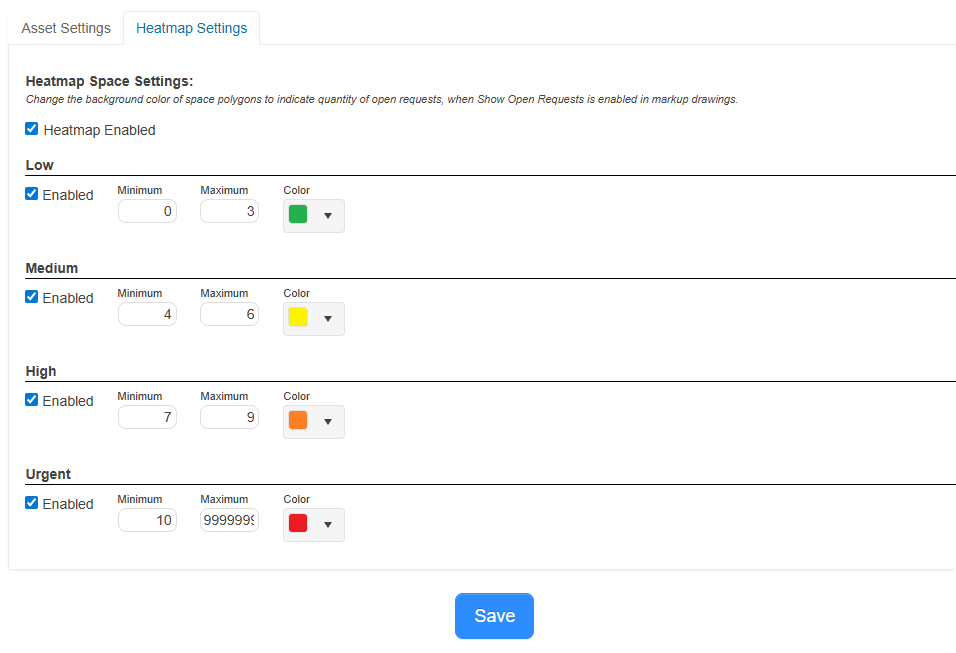
Based on the screenshot above, if you have five open requests within a defined space polygon, that area will appear in yellow, indicating Medium priority.
Learn more about general settings.
Mass approval| Schedules | Date: 1/19/2026 | Release: 25.6 |
Users with the Space Approver user permission can mass approve all requests on the Awaiting My Approval page.
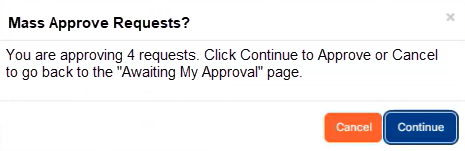
Learn more about mass approving requests.
New option to create one work order per field| Schedules | Date: 1/19/2026 | Release: 25.6 |
Users with the Manage District Settings user permission can now set up the Work Orders integration to create one work order per field. This allows multiple work orders to be created per request. For example, if you have a field asking for the number of tables needed, and another field asking if microphones are needed, two work orders will be created: one for tables, and one for microphones.
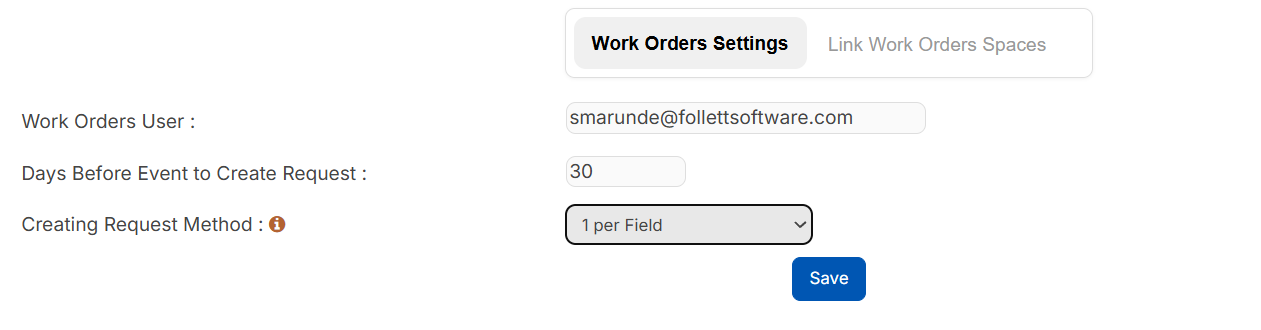
Learn more about integrating with Work Orders.
Add sections to request form| Schedules | Date: 1/19/2026 | Release: 25.6 |
Users with the Manage District Settings user permission can now add sections to the request form. You can also drag and drop sections into a new order.
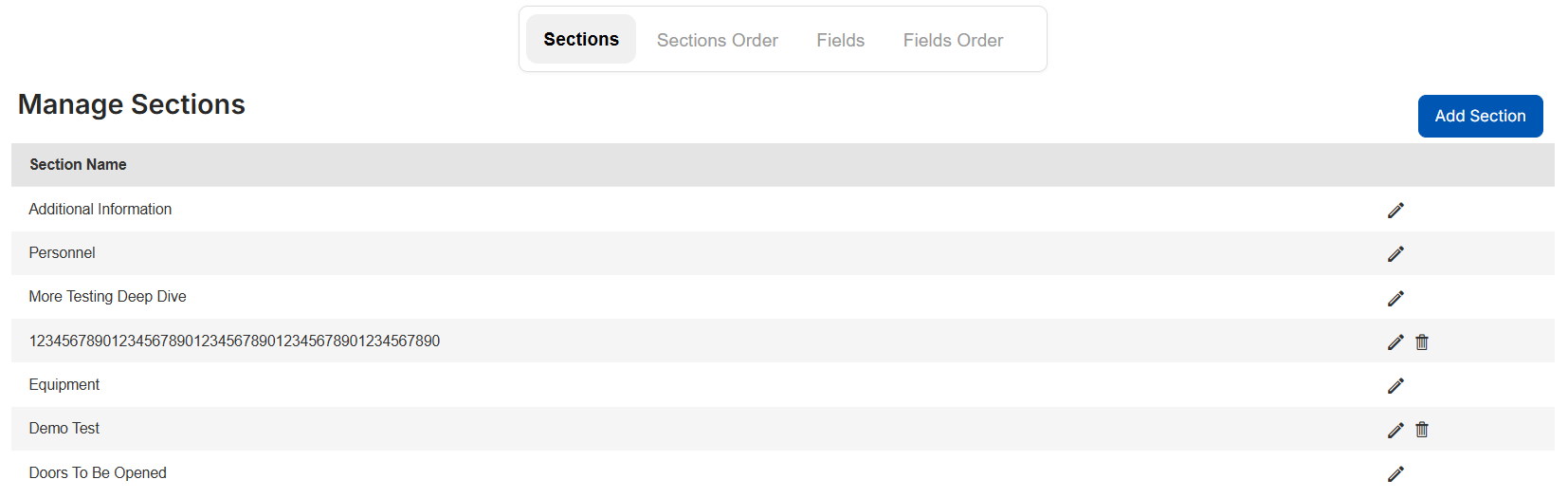
Learn more about managing request forms.
Custom report as PDF| Schedules | Date: 1/19/2026 | Release: 25.6 |
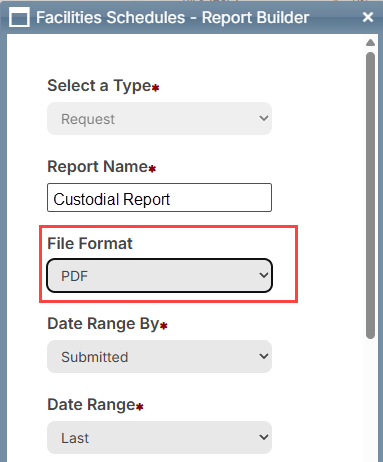 Notify by default
| Schedules | Date: 1/19/2026 | Release: 25.6 |
When you save an edited request, all 'Send Update e-mail to' checkboxes are now selected by default.
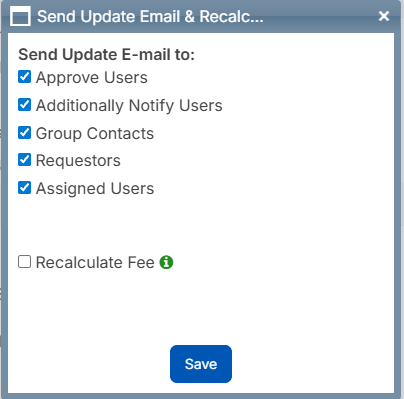
Learn more about notifications after editing a request.
Classification bulk approval path updates| Schedules | Date: 1/19/2026 | Release: 25.6 |
Users with the Manage District Settings user permission can bulk update approval paths by classification for all spaces within a site.
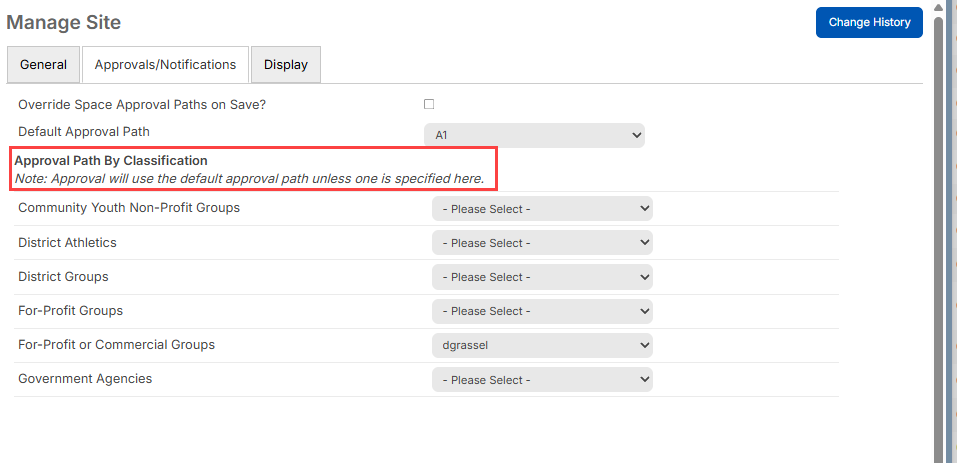
Learn more about managing sites.
External events included on reports| Schedules | Date: 1/19/2026 | Release: 25.6 |
You can now see external events on the Request Summary Report and Request Details Report. External events are events brought into (Undefined variable: MyVariables.ML Schedules) from an integration, such as Google Calendar or EventLink.
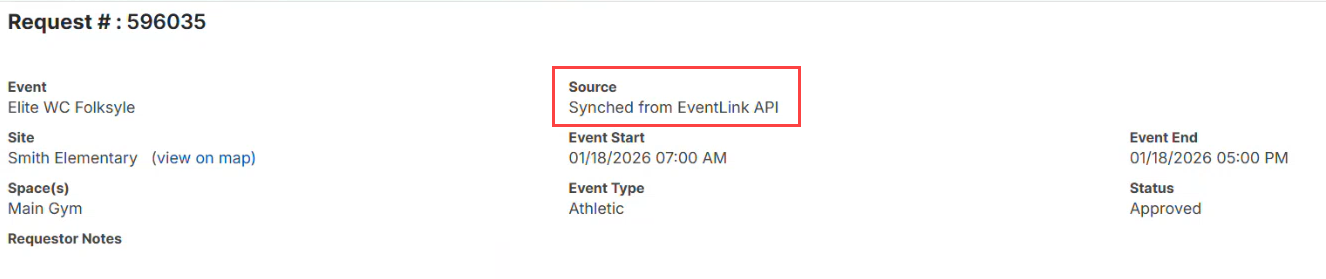
| Note: External event IDs may change due to frequent syncs, deletions, and re-additions. Report links may be invalid if the event ID no longer exists. |
Learn more about the Request Summary Report and Request Details Report.
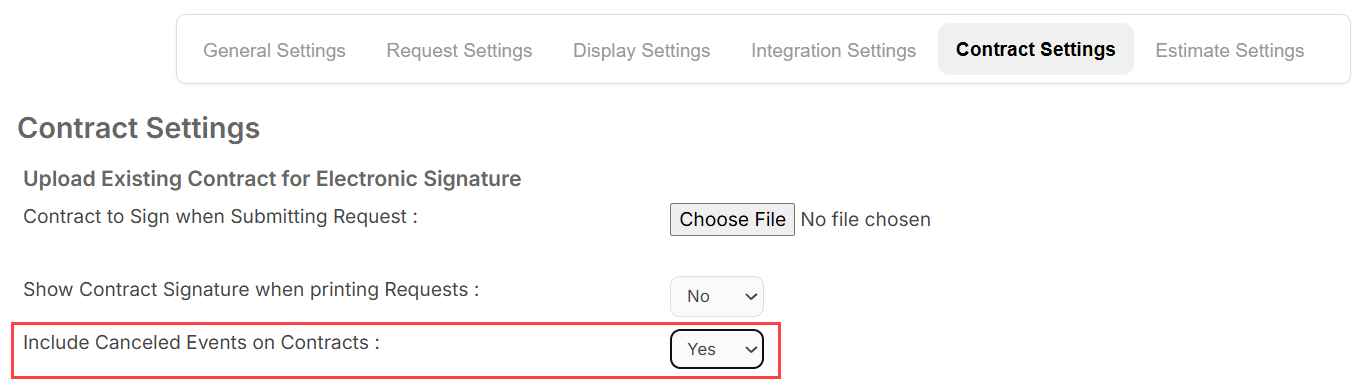
Canceled events included on contracts| Schedules | Date: 1/19/2026 | Release: 25.6 |
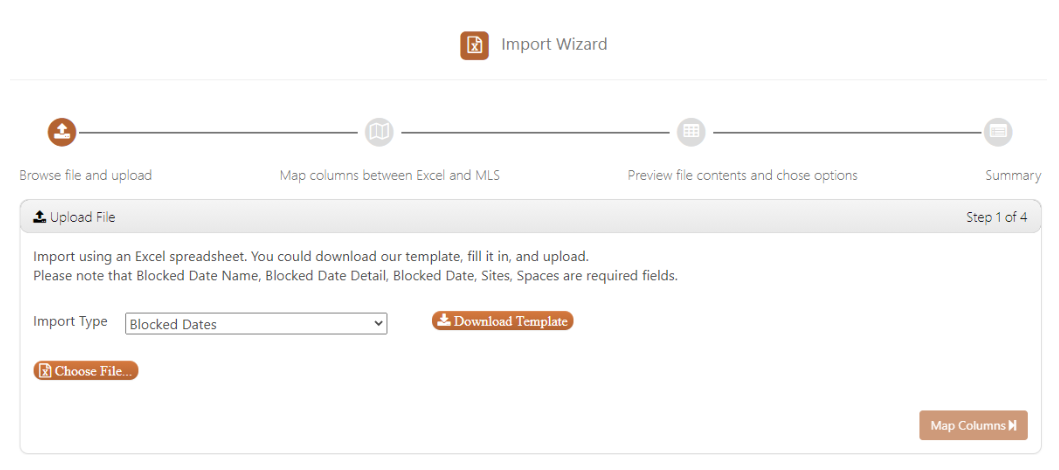
 Import Wizard UI update
| Schedules | Date: 1/19/2026 | Release: 25.6 |
 Blocked Dates change history
| Schedules | Date: 1/19/2026 | Release: 25.6 |
Users with the Manage District Settings user permission can now see the change history of a blocked date.
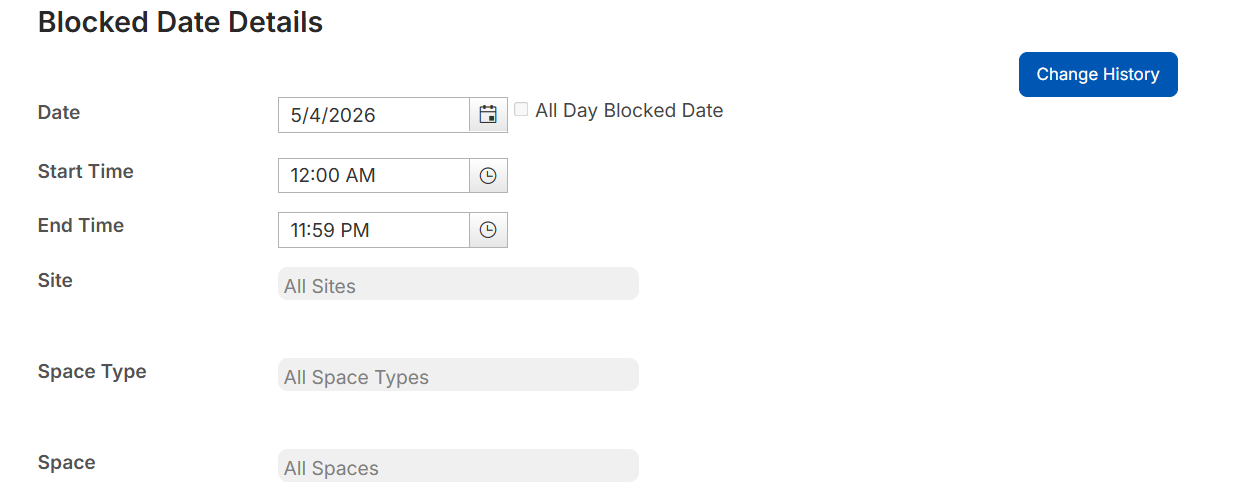
Learn more about managing blocked dates.
Creator's name appears on PDF| Schedules | Date: 1/19/2026 | Release: 25.6 |
When you print a request's details, the creator's name now appears, if it is different from the requestor's name.
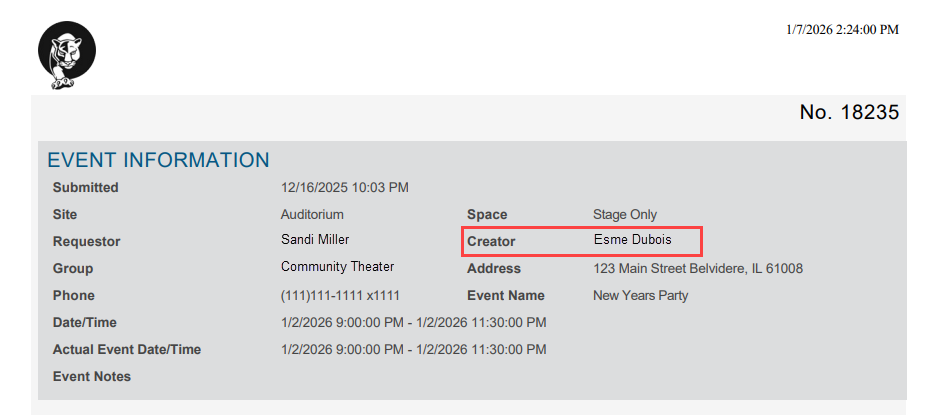
Learn more about the Request Details page.
Payments Dashboard enhancement| Schedules | Date: 1/19/2026 | Release: 25.6 |
The Payments Dashboard now has a widget with the dollar amount of payments received by group, instead of the number of payments received by group.
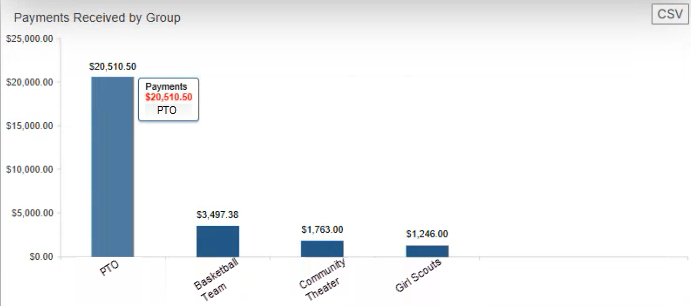
Learn more about the Payments Dashboard.
Introducing IT Asset Manager| IT Asset Manager | Date: 1/19/2026 | Release: 25.6 |
The newest Follett Software product is IT Asset Manager. Use it to manage all your technology devices. Students and staff can create support requests, while IT staff can assign and track them. Administrators can run reports to view the number of requests, labor costs, purchase costs, inventory, request response times, and more.
Learn more about IT Asset Manager.
Introducing the new Ops app| Work Orders | Date: 1/19/2026 | Release: 25.6 |
The new Follett Software Ops app lets you create and view requests on the go. Based on your permissions in the web app, you can also change a request status, view assets, add notes and labor, and scan assets.
Learn more about the Work Orders Ops mobile app.
Dashboard update| Work Orders | Date: 1/19/2026 | Release: 25.6 |
The redesigned Dashboard gives you a comprehensive view of your requests and assets at a glance:
- See open requests organized by priority and assignment.
- View recent notifications with improved formatting.
- Access quick actions for common tasks.
- Track request trends with visual charts.
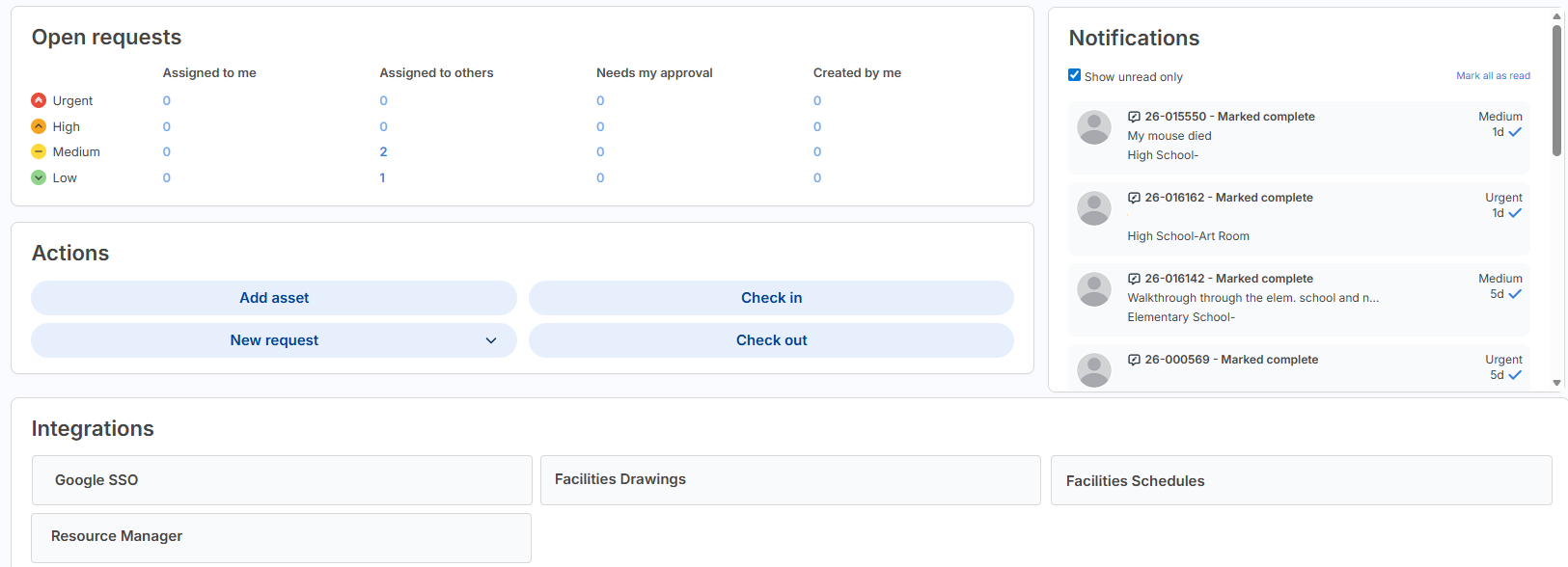
Learn more about the Dashboard.
Manage Users column enhancements| Work Orders | Date: 1/19/2026 | Release: 25.6 |
Two new columns make it easier to manage users.
Create Date column
When a user is created, whether manually or through a sync, a Create Date is stored in (Undefined variable: General.ML Work Orders). Create Date is now an available optional column on the Manage Users page. The date and time appears in the column when selected.
Create Method column
To make troubleshooting easier, when a user is added to (Undefined variable: General.ML Work Orders), how the user was created is logged. You can add Create Method as a column to the Manage Users page.
Note: This column only shows data for new users added after the 25.6 release. Existing users will show N/A in the column.
The column will log when a user is created in any of the following ways:
- Manually on the Manage Users page and the Check-Out Assets page, using the + Add User button
- Via a custom form, email, or import
- Google SSO or Destiny SSO
- Active Directory
- SAML Azure, SAML Classlink, SAML Google, or SAML Okta
- OneRoster
- A user is created in FacilitiesDrawings and synced
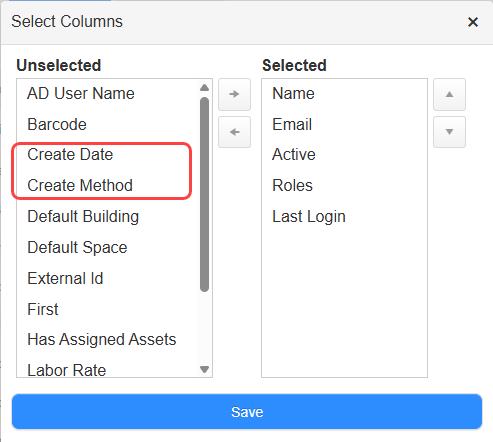
You can sort and filter on both the Create Date and Create Method columns.
Learn more about managing users.
New user fields| Work Orders | Date: 1/19/2026 | Release: 25.6 |
There are many new fields on the Manage Users page. You can't add these fields as columns to the Manage Users page, and they won't appear on a user's details page.
New fields on the Manage Users page include:
- Middle Name
- Mobile Phone Number
- Name Suffix
- Secondary Phone
- Secondary Mobile Phone
- Secondary E-Mail
- Alt ID
- State ID
- District ID
- Grade Level
- Graduation Year
- Birthdate
- Locker
Address is in a separate collapsible section. You can add primary and secondary addresses. Address fields include:
- Address 1
- Address 2
- City
- State
- Zip
Learn more about managing users.
Bulk assign charges | Work Orders | Date: 1/19/2026 | Release: 25.6 |
You can now bulk assign charges to users on the Manage Users page. This will help you quickly assign charges, such as for insurance or tech fees, to many users at once.
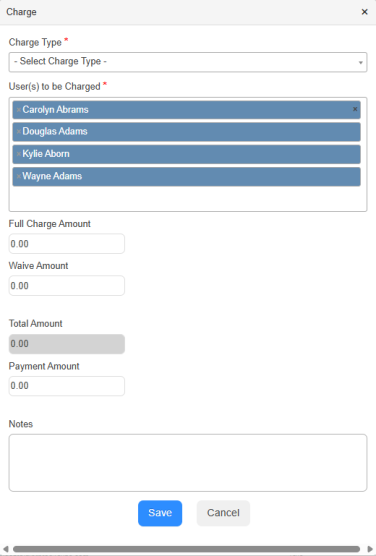
Learn more about managing users.
Unpaid charges warning when checking out assets| Work Orders | Date: 1/19/2026 | Release: 25.6 |
There is a new option in General Settings to show a warning when checking out assets to a student who has unpaid charges. With this option turned on, you will see a pop-up that lets you cancel, override, or complete the checkout. The pop-up will appear in all areas of the system where you can check out assets, except for bulk circulation.
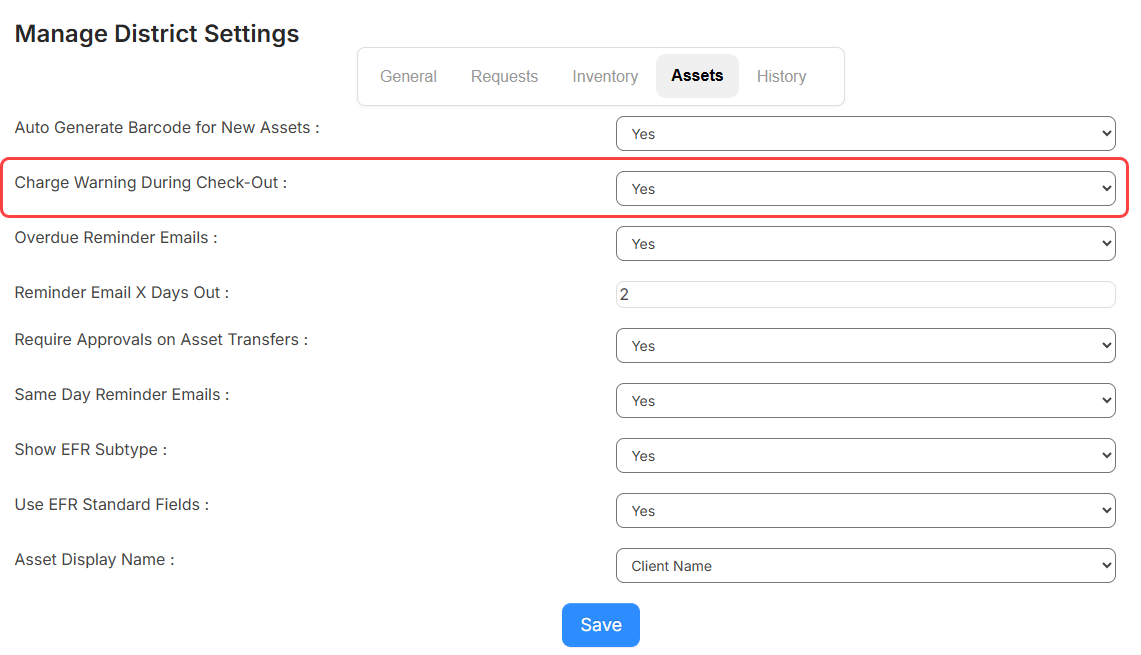 Learn more about General Settings.
Add charges when checking in assets| Work Orders | Date: 1/19/2026 | Release: 25.6 |
You can now use an Add Charge button to assess a fee or fine for an asset upon check-in on the following pages:
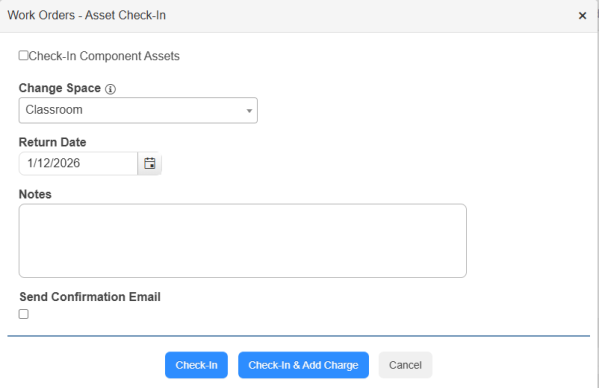
- Assets > Check-In Assets. Search for the asset to check in, and then click Check-In & Add Charge.
- Assets > View All Assets. After the asset's Details page is accessed, click Check-In. On the pop-up, make updates and click Check-In & Add Charge.
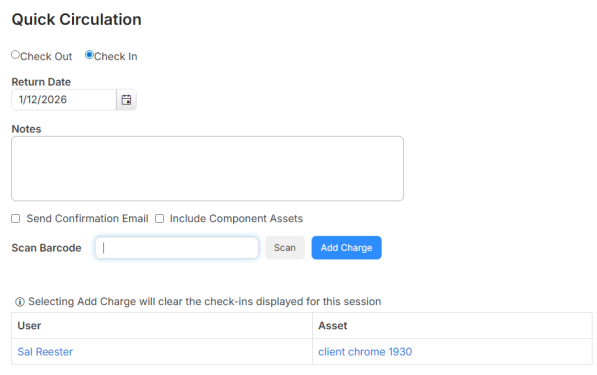
- Assets > Quick Circulation. After scanning an item, click Add Charge.
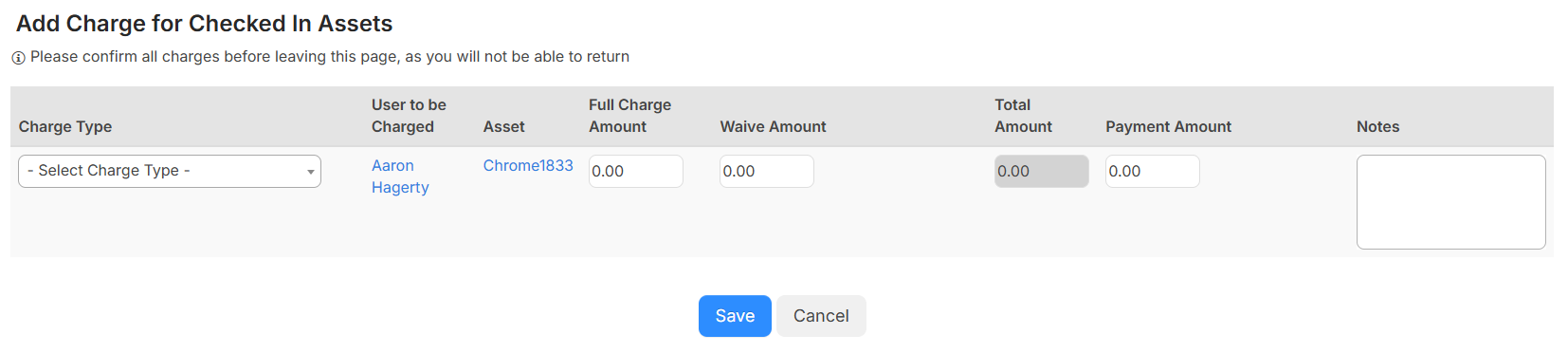
When you click to add charges, an Add Charge page appears with the Asset and User fields pre-populated.
Learn more about checking in assets.
Charge types and Charge Report updates| Work Orders | Date: 1/19/2026 | Release: 25.6 |
There have been a couple of charge-related enhancements
Charge Type categorization
The Manage Charge Type page now includes a Category field to group charges as fees or fines.
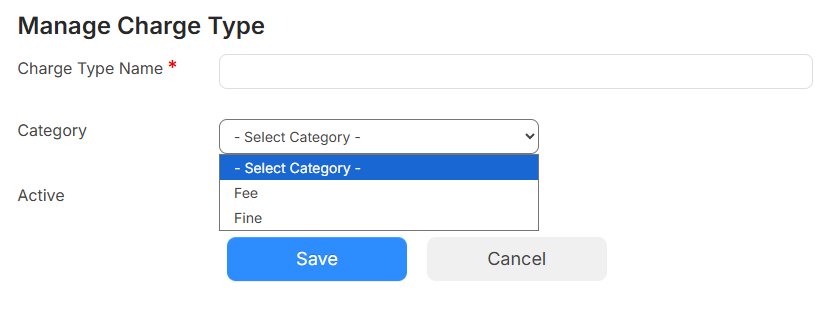
Charges Report
Category is also an available column on the Charges Report.
Another update: When you group this report by any field (except the dollar amount), you will see subtotals for the dollar amount fields.
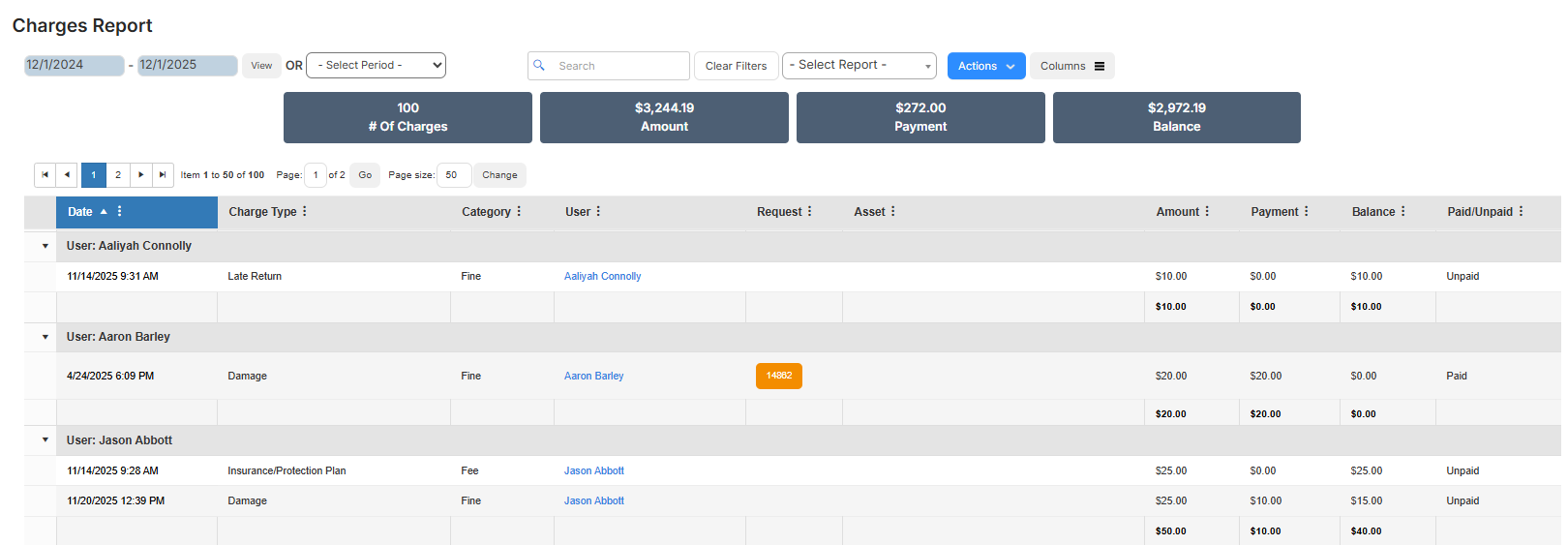
Learn more about managing charge types and the Charges Report.
Updates to View All pages for requests and assets| Work Orders | Date: 1/19/2026 | Release: 25.6 |
Before seeing data on the View All Requests and View All Assets pages, you now need to search or apply a filter. This update will load data quicker.

In addition, the following updates were made to buttons and links on all request and asset pages:
- If you filter on a column, a filter icon appears in the column header. To sort a filtered column, click the filter icon to see the sort icon.
- Clear filters sets the page back to showing no data.
- The Columns button is now a link called Add, re-order, or remove table columns.
- The delete icon is red.
- Inactive requests or assets are now gray instead of red.
When filters are set, the next time you access that page, the filters will continue to be applied.
New asset fields| Work Orders | Date: 1/19/2026 | Release: 25.6 |
Funding Source and Instructional Classification are now single-select drop-down fields that can be added to asset records of a specific type. Users with the Manage Site Settings permission can customize these fields, creating unique category names and linking them to specific asset types. For example, maybe you want the PTO funding source linked to iPads.
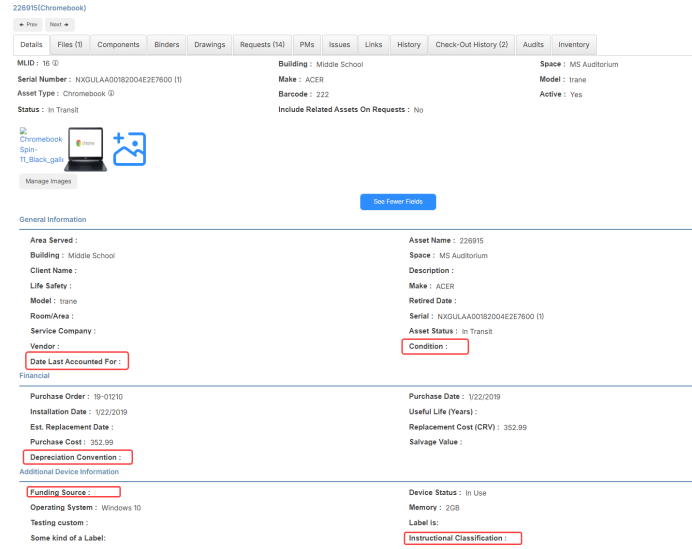
There are also new EFR standard fields in asset records:
- Condition: Track if an asset is new, good, fair, poor, usable, damaged, or unusable.
- Date Last Accounted For: Manually enter the date you accounted for an asset.
- Depreciation Convention: Determine how much an asset depreciates over the course of its life. This is based on IRS depreciation conventions of annual, half-year, mid-month, and mid-quarter.
Learn more about managing custom fields.
Automatic barcodes for new assets| Work Orders | Date: 1/19/2026 | Release: 25.6 |
Administrators can enable a new 'Auto Generate Barcode for New Assets' field in General Settings > Assets tab. When an asset is created – either manually or via an asset import – Work Orders will automatically generate a barcode if that field is blank.
Barcodes will use Code 39 Generic format. They will be 10 characters, start with a 5, and can contain numbers, uppercase letters, and the following characters: minus (-), plus (+), period (.), dollar sign ($), slash (/), and percent (%).
Learn more about general settings and managing assets.
Asset barcode scanning enhancement| Work Orders | Date: 1/19/2026 | Release: 25.6 |
There has been an enhancement to barcode scanning when you scan an asset that doesn't exist or can't be circulated. If the 'No results found' message appears and you backspace on the barcode to delete it, a drop-down of assets you can circulate appears – with the top one selected. Previously, when you scanned another asset, it would select the top asset in the drop-down, along with the scanned asset. Now, when you scan another barcode, only the scanned asset is selected.
Duplicate barcode handling| Work Orders | Date: 1/19/2026 | Release: 25.6 |
Duplicate barcodes are now supported in (Undefined variable: General.ML Work Orders). When duplicate barcodes are found, you are required to select the correct asset from a pop-up. This pop-up will appear on pages where you can search for assets, such as Check In, Check Out, Quick Circulation, when adding an asset to a request, and when creating a request.
During mass circulation, the checkout is not completed and a note is added to the error log.
Learn more about assets.
Checking out and syncing assets with Google| Work Orders | Date: 1/19/2026 | Release: 25.6 |
Previously, if an asset had a status of In Use and was checked out in (Undefined variable: General.ML Work Orders) and then synced with Google, the status changed to Available. Now, when an asset is checked out, the status is not updated to Available until the asset is checked in.
Learn more about status of synced assets.
Facilities Drawings work orders stamp| Work Orders | Date: 1/19/2026 | Release: 25.6 |
You can now create a work orders stamp in Facilities Drawings. This lets you create a request from anywhere on a drawing. You must set up this integration in Work Orders.
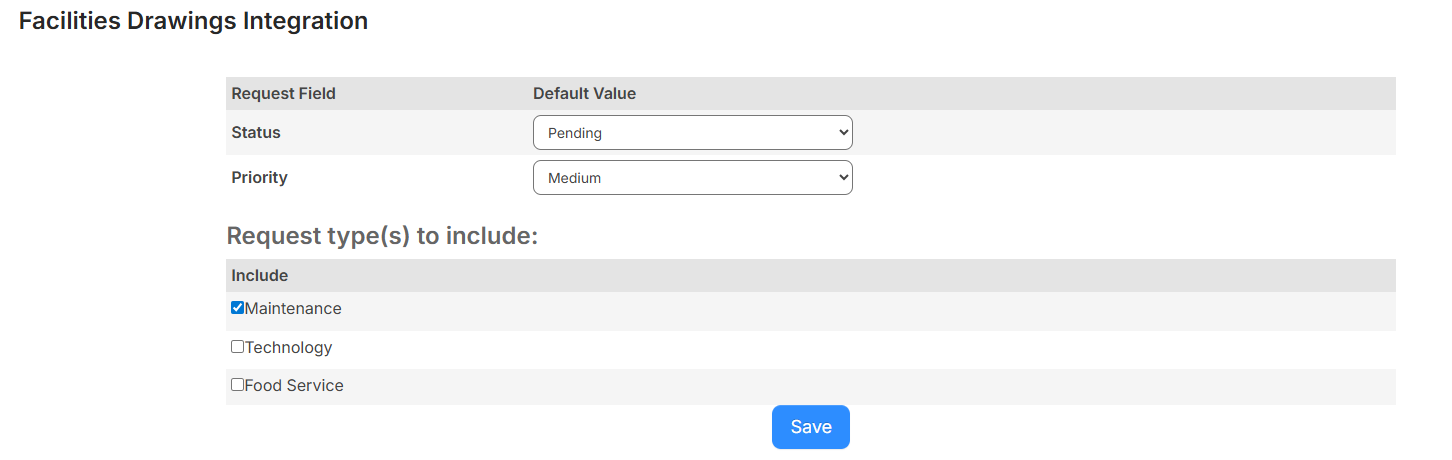
Learn more about integrating with Facilities Drawings.
LDAP Authentication option removed| Utilities | Date: 1/19/2026 | Release: 25.6 |
The LDAP Authentication option when adding a new user has been removed.
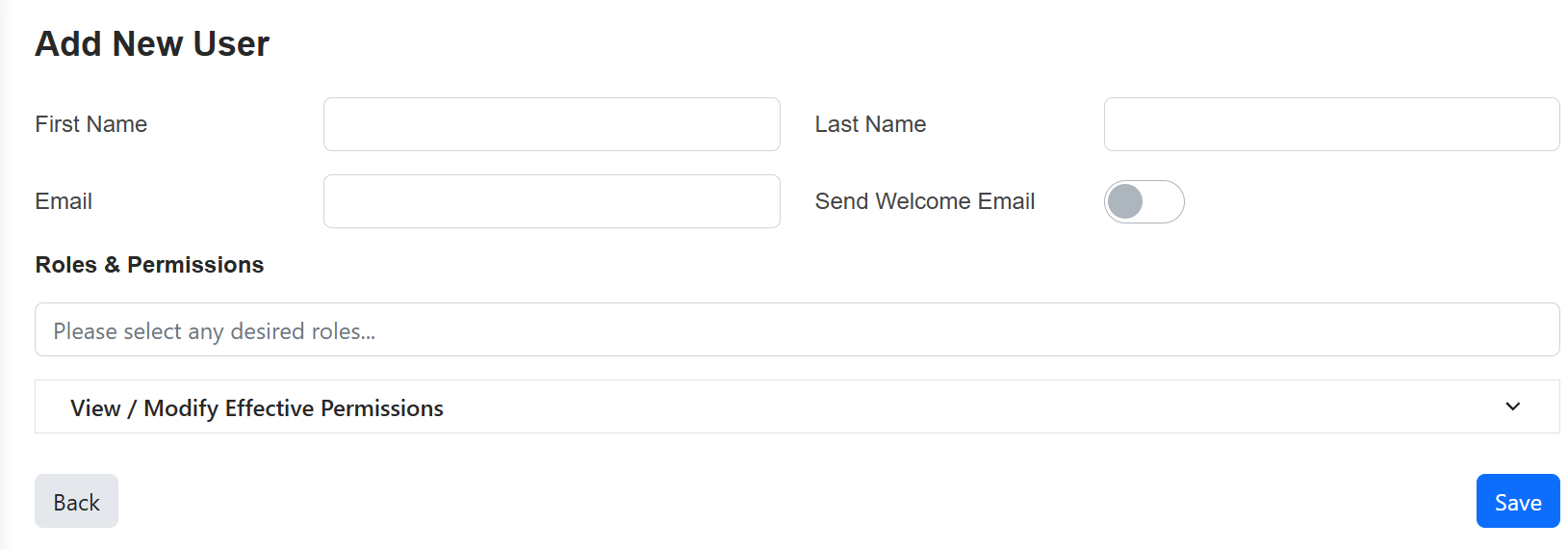
Learn more about adding a new user.